Exposing a Svelte App from Localhost Using Pinggy
Deploying your Svelte application online doesn’t have to involve setting up complex cloud infrastructure. With Pinggy, you can securely…
Exposing a Svelte App from Localhost Using Pinggy
Deploying your Svelte application online doesn’t have to involve setting up complex cloud infrastructure. With Pinggy, you can securely expose your local development environment through an SSH tunnel, enabling real-time access and collaboration — without the need for a production server.
What is Svelte?
[embed]
Svelte is a cutting-edge front-end framework that compiles components into efficient vanilla JavaScript at build time. Unlike traditional frameworks such as React or Vue that rely on a virtual DOM, Svelte eliminates runtime overhead and improves performance out of the box. Key features include:
- No Virtual DOM — Results in faster rendering and updates.
- Reactivity Built-In — State management is intuitive and seamless.
- Minimal Boilerplate — Cleaner syntax and reduced complexity.
- Optimized Bundle Sizes — Faster load times and better performance.
- Integrated Animations & Stores — No need for additional libraries.
Its performance and simplicity make Svelte a strong choice for lightweight projects and complex applications.
Why Share Your Local Svelte App?
While developing locally, your app typically runs on localhost:5173, which isn't accessible to others. However, situations like the following may require external access:
- Collecting feedback from stakeholders
- Demonstrating features to clients or teammates
- Performing collaborative debugging and testing
Challenges with traditional sharing methods:
- Firewall & NAT restrictions block outside access
- Cloud deployments require time and configuration
- Short-term access needs don’t justify full-scale hosting
**Pinggy addresses these challenges by creating a secure, public URL** via SSH tunneling — making it quick and easy to share your app, even during active development.
Prerequisites
Before you begin, ensure you have the following:
- Node.js and npm installed
- An SSH client (macOS/Linux users have this by default; Windows users can install Git Bash or OpenSSH)
- A Pinggy account (recommended for advanced features like custom domains)
- Basic command line familiarity
Step 1: Create and Run Your Svelte App
If you haven’t already initialized your Svelte project:
npx sv create my-app
cd my-app
npm install
npm run dev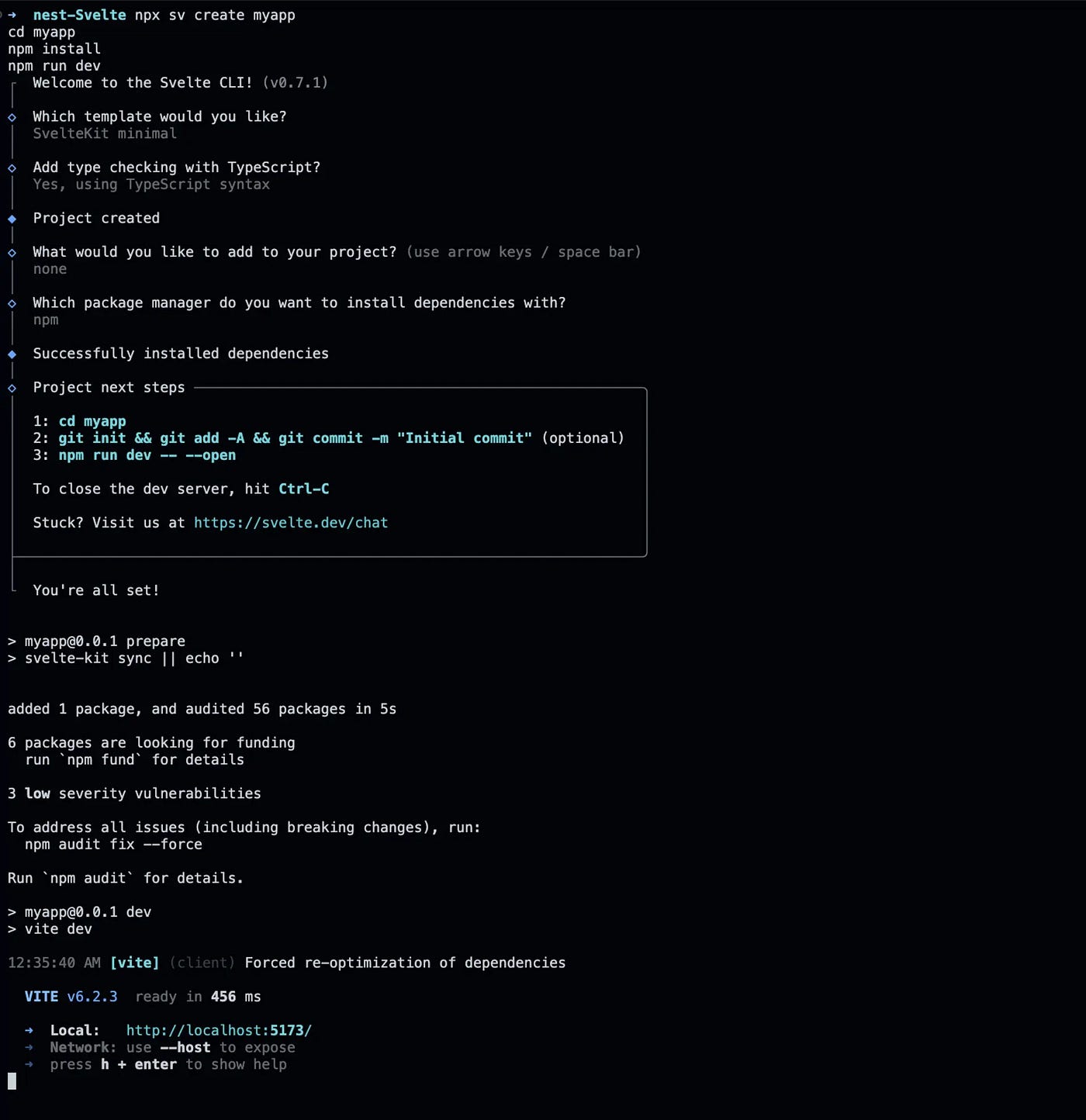
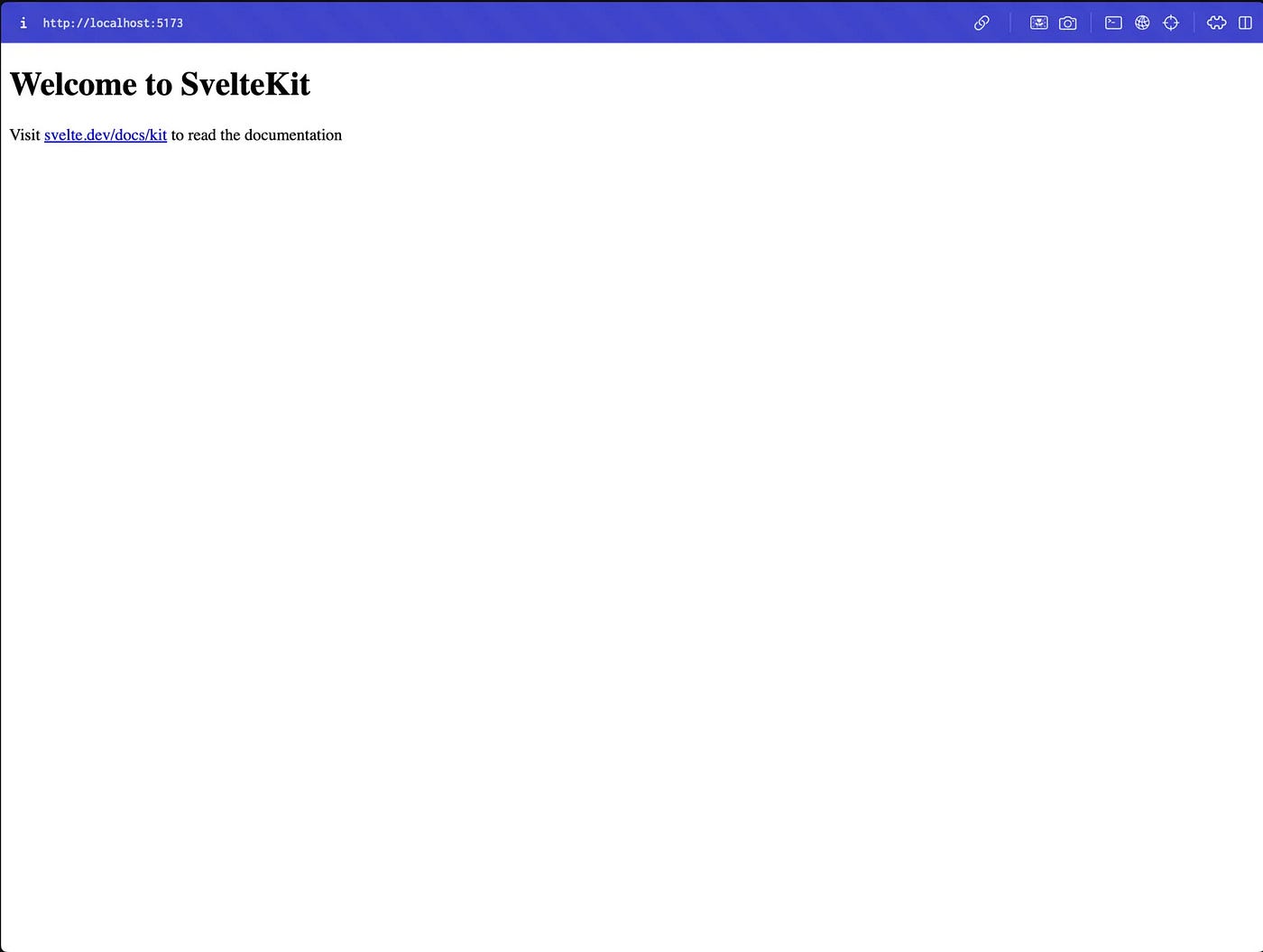
Your app will now be available at [http://localhost:5173.](http://localhost:5173.)
Step 2: Expose the App Using Pinggy
To make your local app accessible online, run the following SSH command:
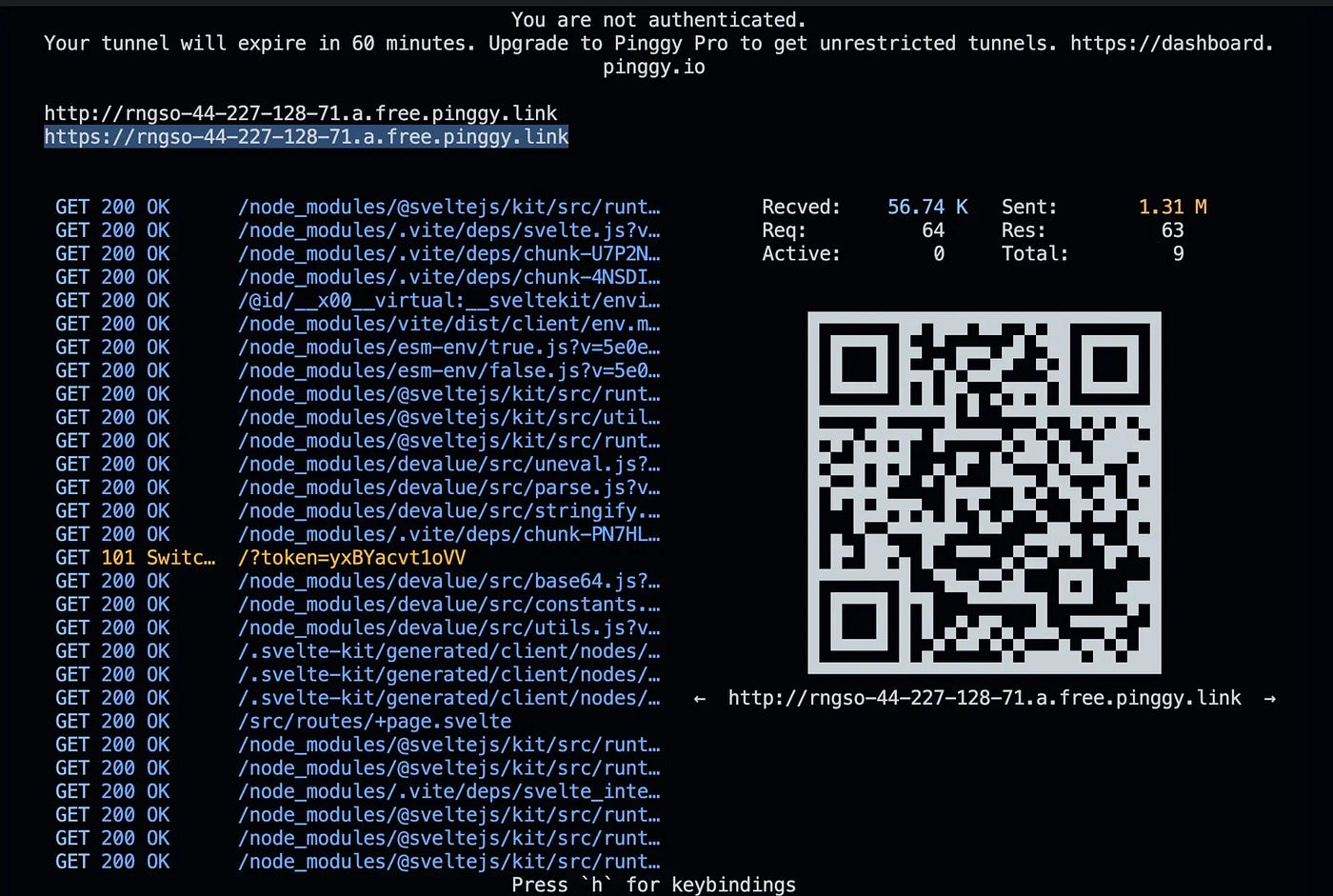
ssh -p 443 -R0:localhost:5173 -t qr@a.pinggy.io "u:Host:localhost:5173"Command Breakdown:
ssh -p 443– Establishes a secure connection to Pinggy’s server-R0:localhost:5173– Tunnels your local app to a public URLa.pinggy.io– Pinggy's remote server handling the tunnel
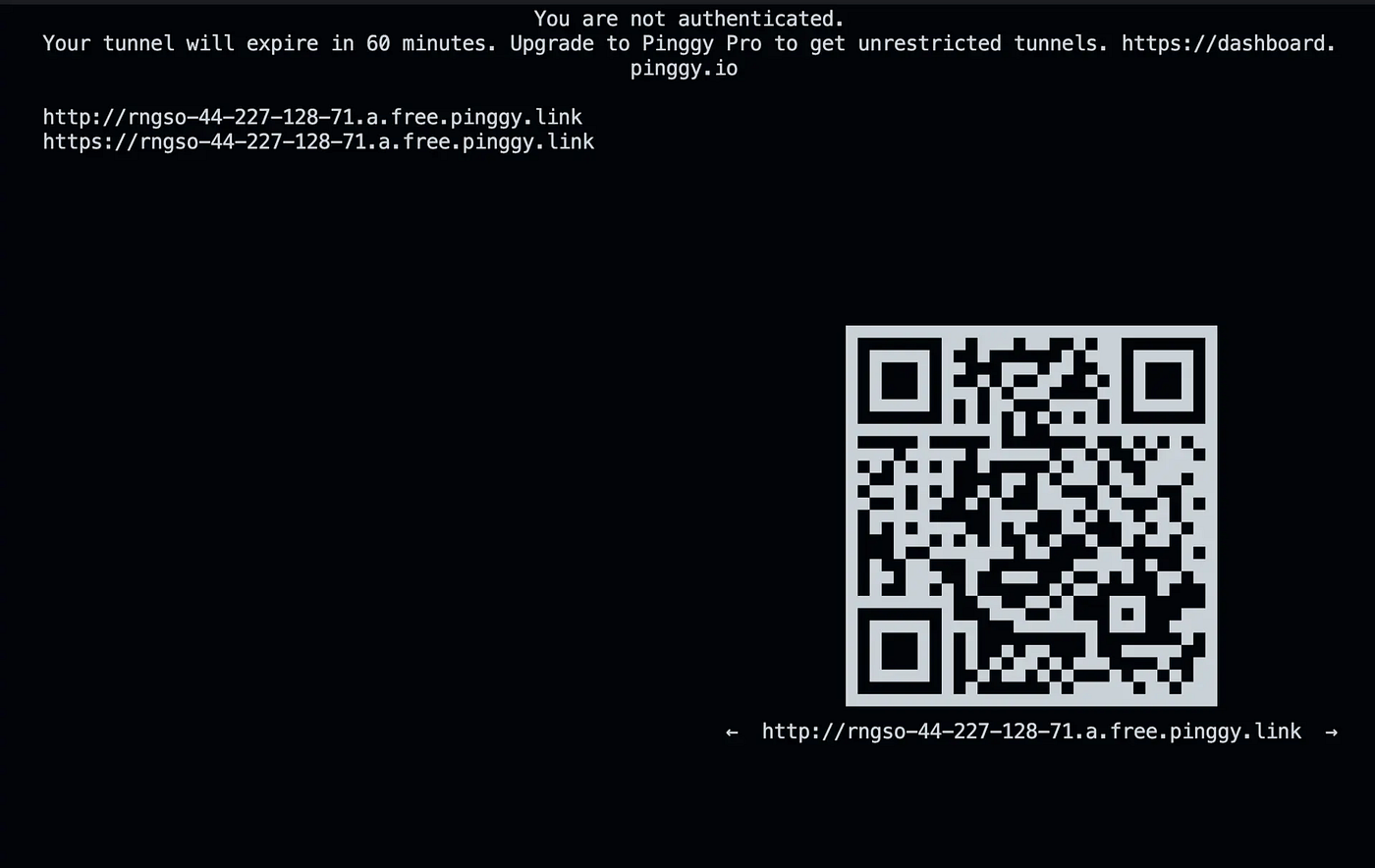
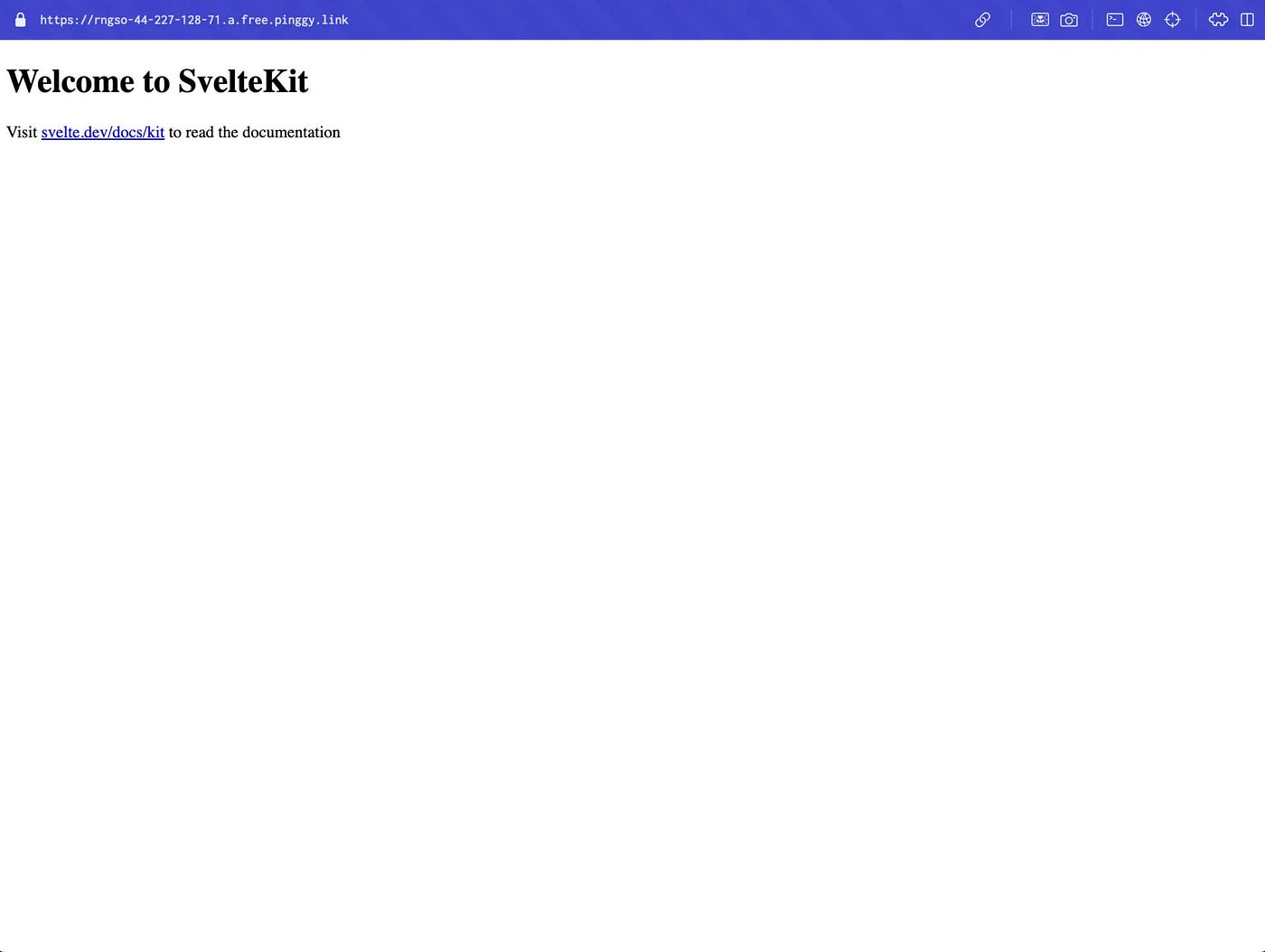
Once executed, you’ll receive a unique public link (e.g., https://your-app.pinggy.link) which can be shared instantly for access across any device.
Step 3: Customize Your Tunnel
Pinggy offers several configuration options to tailor your tunnel experience:
- Custom Domains — Set up your own branded URL for professional sharing
- Password Protection — Restrict access to authorized users only
For further customization and security features, refer to the Pinggy documentation.
Key Advantages of Using Pinggy with Svelte
- Effortless Setup — No server configuration or cloud provider needed
- Encrypted Tunnels — Secure communication via SSH
- Instant Collaboration — Share apps quickly for testing or feedback
- Time-Saving — No deployment required for temporary access
Troubleshooting
1. Port Conflicts
- Issue: Tunnel fails to initialize.
- Fix: Ensure your Svelte app is running on the correct port (
5173), or update the tunnel command accordingly.
2. SSH Connectivity Errors
- Issue: Tunnel fails to connect.
- Fix: Confirm outbound port
443is open on your network, or switch networks if needed.
3. SSH Not Installed
- Issue: Terminal shows
ssh: command not found. - Fix: Install OpenSSH (on Windows) or verify installation on Unix-based systems.
Conclusion
Pinggy provides a powerful yet simple way to make your Svelte application publicly accessible from your development environment. Whether you’re looking to gather user feedback, run live demos, or collaborate in real-time, Pinggy helps you do it all — without the overhead of traditional deployment.
When you’re ready for production, Svelte’s optimized output integrates seamlessly with hosting platforms like Vercel or Netlify for a more permanent deployment.
References
메타데이터
- post_id
- fde22fd1c274
- slug
- exposing-a-svelte-app-from-localhost-using-pinggy-fde22fd1c274
- url
- https://medium.com/@bishakhghosh0/exposing-a-svelte-app-from-localhost-using-pinggy-fde22fd1c274
- canonical_url
- https://medium.com/@bishakhghosh0/exposing-a-svelte-app-from-localhost-using-pinggy-fde22fd1c274
- author_url
- https://medium.com/@bishakhghosh0
- status
- ok
- fetched_at
- 2026-07-24 13:04:11