Basic Permissions, Set Ownership & Modify Permissions in Linux.(centOS)
Linux is a multi-user operating system, to prevent users accessing each other’s confidential files, we have ownership. Linux uses ownership…
Basic Permissions, Set Ownership & Modify Permissions in Linux.(centOS)
Linux is a multi-user operating system, to prevent users accessing each other’s confidential files, we have ownership. Linux uses ownership to determine what permissions does a user has. Every file has a user-owner, group-owner and the others.(UGO)
UGO
1. User-owner: The one who created the file.
2. Group-owner: A user-group is a collection of users. Users that belonging to a group will have the same Linux group permissions to access a file/directory.
3. Others: Any users that are not part of the user or group classes belong to this class.
To check the current ownership and permissions associated with files, we can use ll (long list) command.
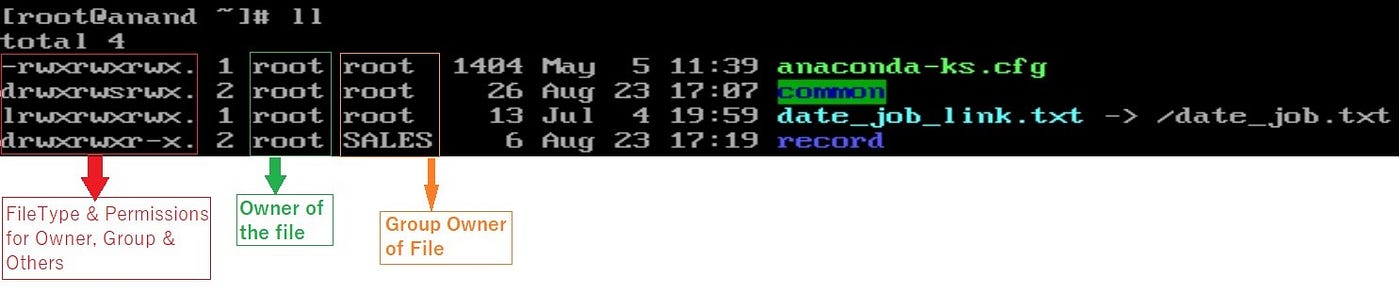
file type & permissions for UGO
Let’s try to understand the info from the above output, consider the last line.

decode the drwx-
In the above image, the first column provides us the information regarding file type and permissions set on users, groups & others. The first character will almost always be either a “-”, which means it’s a file, or a ‘d’, which means it’s a directory(other types are mentioned in the image given below). The rest of those nine characters should be seen as three sets of three characters, which are permission given to User, Group & others. Each of the three “rwx” characters refers to a different operation visitor can perform on the file. If there is a hyphen sign (“-”) in place of “r”, “w”, or “x” it means that permission has been revoked.
In the above example, record is a ‘directory’, user-owner is ‘root’ with ‘read(r), write(w) & execute(x)’ permission, group-owner is ‘SALES’ with ‘rwx’ permission and others have permission to ‘read(r) & execute(x)’ only.
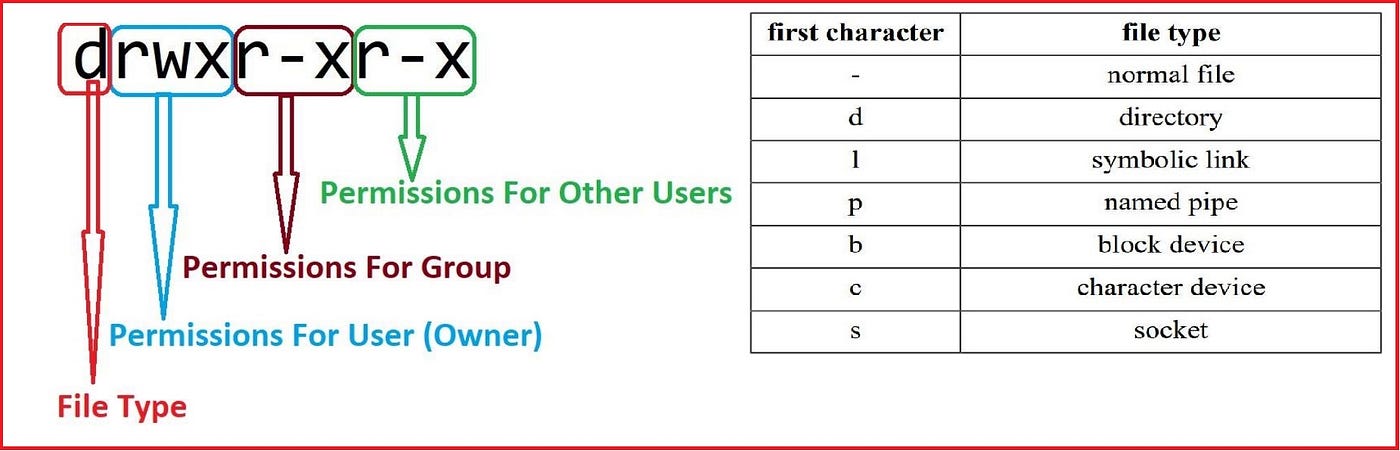
Understanding the security permissions
Read, write, execute and –
Below is a table explaining how read, write and execute permissions means in context of a file or a directory.
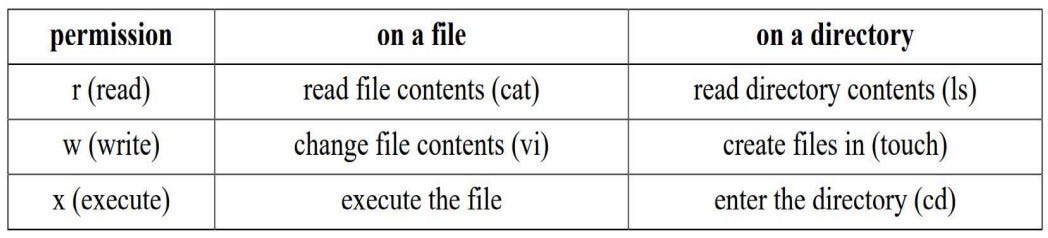
“r”, “w” , & “x” on file and directory
Permissions Bit Weightage:
Permissions can be represented by 8 numbers starting from number 0 to number 7, Which means by Octal number system having a base of 8. We need three binary bits to represent Octal numbers. These three bits can be used to represent permission, here first bit represent read (r), second bit represent write (w) and third bit represents execute (x) permissions.
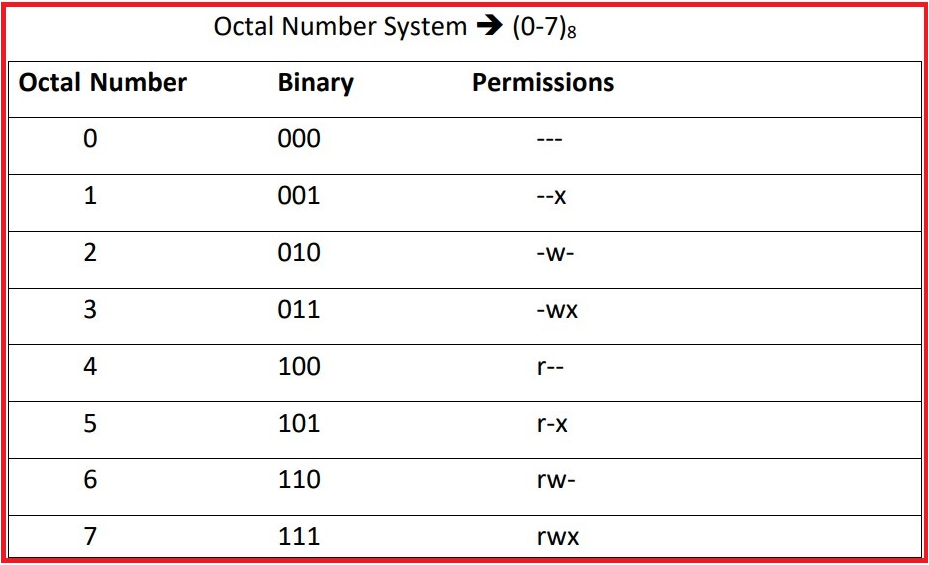
octal number permissions
Read Permission ➔ r = 4
Write Permission ➔ w = 2
Execute Permission ➔ x = 1
Maximum Permissions (Full Permission) ➔ rwx = 4+2+1 = 7
Minimum Permissions (No Permission) ➔ — — = 0+0+0 = 0Setting File Ownership
To set ownership on file, you can use “chown” user and optionally a colon group file to set the user ownership.
Syntax:
[ ~]# chown  [user:group] [file_name]
Consider a file cal.txt & we wish to set User-ownership of this file from “root” to “vikram”. Check in the image below how it’s done, in a single command.
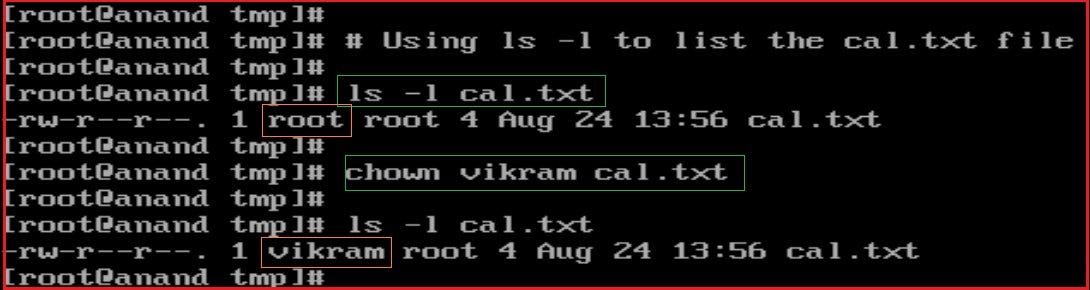
chown to change user-owner
Similarly, we can change the group-owner, also with the “chown”.

chown to change group-owner
Now, all the users in the group sales have access to this file(‘r’ only).
chgrp command:
Apart from “chown” command we can use “chgrp” command to set the group-ownership of a file. Let’s change the group-owner of the file used in above example back to “root”.
syntax:
[ ~]# chgrp [group_name] [file_name]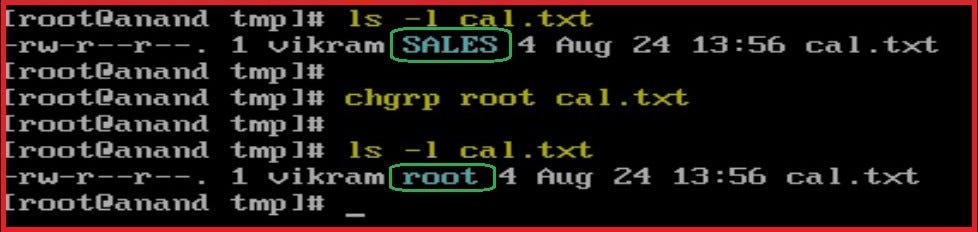
set group-ownership using chgrp
chmod command
The “chmod ”command sets the permissions of files or directories.
Syntax:
[ ~]# chmod [permissions] [file_name]
Using Octal Number: Below we have to set full permission(rwx) to User in the octal number, it will r(4) + w(2) + x(1) = 7. For group and others we want no permission, octal number will be 0.
After executing the command, permission for the file will be -rwx------.
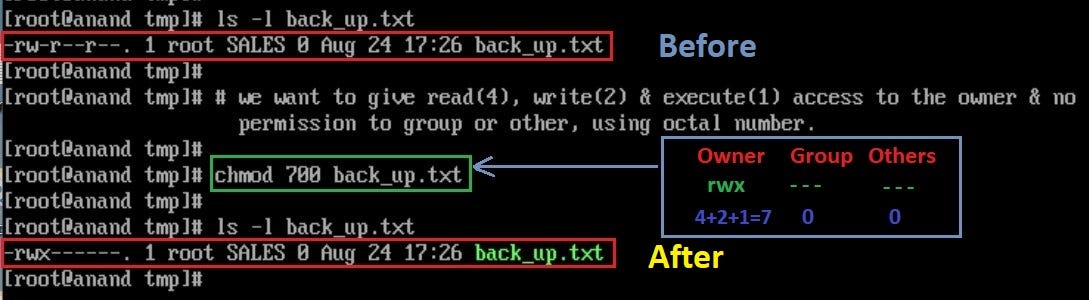
chmod octal number
Using Alphabetical: Method to remove/add permissions to a file. We use ‘+’ operator to add permission & ‘-’ operator to remove permission. Let’s see how it works with a example below. The group has only permission to read(r), we want to give the group SALES permission to write(w) & execute(x).

chmod alphabetical method to add permission
Now, if we want to remove permission to execute(x) from the group we will use u-x.
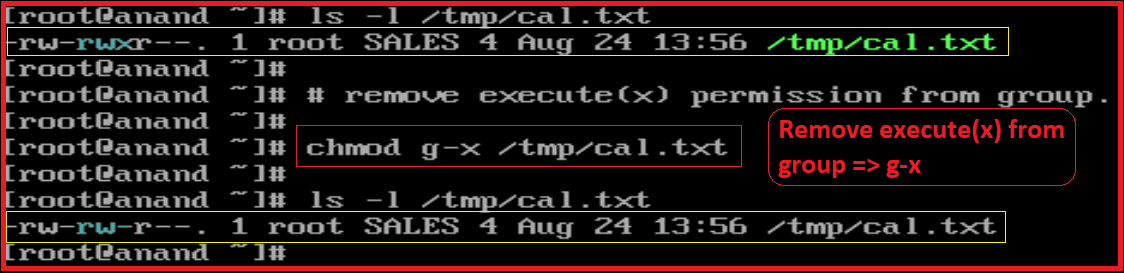
chmod to remove a permission
Set the permission of “cal.txt” to “read,write & execute (rwx) by everyone.”.
syntax:
[ ~]# chmod a=rwx cal.txt
chmod rwx for all(a)
Examples:
To remove execution permission from others: [ ~]# chmod o-x cal.txt
To remove all permission from group: [ ~]# chmod g-rwx cal.txt[ ~]# Chmod u+rw,g+r, o+x same as [ ~]# Chmod 641 linuxLearn about **Sticky Bit: Special Permission in Linux(centOS)**
Learn about **SUID & SGID : Special Permission in Linux(centOS)**
메타데이터
- post_id
- fe37c8ef8bbc
- slug
- basic-permissions-set-ownership-modify-permissions-in-linux-centos-fe37c8ef8bbc
- url
- https://medium.com/@taranjitanand/basic-permissions-set-ownership-modify-permissions-in-linux-centos-fe37c8ef8bbc
- canonical_url
- https://medium.com/@taranjitanand/basic-permissions-set-ownership-modify-permissions-in-linux-centos-fe37c8ef8bbc
- author_url
- https://medium.com/@taranjitanand
- status
- ok
- fetched_at
- 2026-07-26 18:12:23


