Securing Zowe’s z/OS server with an externally signed certificate for enterprise deployment
{Core} How to configure Zowe to use a certificate signed by an issuing certificate authority, avoiding browser trust challenges
Securing Zowe server with an externally signed certificate for enterprise deployment
{Core} If you have an Open Mainframe Project Zowe z/OS instance up and running with a self signed CA, your users are likely getting browser challenges ‘Untrusted certificate — warning — are you sure you trust this web site and want to proceed — danger ahead …”. Great for a proof of concept or test LPAR, but not such a good look if you’re wanting to roll out to production. The fix is to use a certifiacte signed by a trusted certificate authority (CA). This blog shows how to do this with screen shots and instructions for RACF as well as Top Secret and ACF2.

If you want more background on certificate authorities then I’ve written a section titled “Certificate Authorities Background Blurb”. No need to read it if you’re already savvy with what CAs and trust chains are and you just want to get on and learn the commands to use, in which case fast forward to the section “Now the fun starts”.
Shout out Super thank you to Pablo Carle and Jan Prihoda from Broadcom Mainframe Software, both members of the Zowe API Mediation Layer squad, for their help guiding me through the steps required to get this working end to end and providing the Top Secret and ACF2 commands.
Certificate Authorities Background Blurb
To show the problem statement, I’ve created a Zowe server with a perfectly workable certificate, but one my browser isn’t happy with. The screen shot below is the result of trying to access the API Mediation Layer gateway on tvt5003.pok.xxxxxx.ibm.com:7554. My browser whines loudly with lots of red telling me the reason is because of net:ERR_CERT_AUTHORITY_INVALID. I can proceed and ignore the warning (as TLS encryption is still going to ensure data in flight is safely secured between my PC and my Zowe server), however what’s upsetting the browser is that the certificate I’m using isn’t one it trusts because it hasn’t been issued by a trusted authority. It’s a bit like if I showed up at passport control to enter a country with a document “Issued by the Kingdom of Zowe, located in the pretty village of Hursley”.

The browser’s certificate viewer is your friend when trying to deep dive hairy scary “Certificate looks iffy, thou shalt not pass” messages. For my Zowe server challenge in the picture above the viewer shows the domain certificate of Zowe Service Certificate has been signed with a certificate authority (aka CA or CERTAUTH) of Zowe Service CA . I created the CA myself using some helper commands that come with Zowe so it is nice and convenient for proof of concept testing, but because my browser has no way of knowing who the heck Zowe Service CA is, it has flagged the cert as untrustworthy. This leads me as the end user to proceed and face any downward possible bad consequences. I happen to know that it’s one of my own certificates so happy to click through the warning and do cool stuff with Zowe APIML, but for other users accessing the site it’s not a good look. The certificate could be a trojan horse website pretending to be your bank and scrape your login or personal details.
By the end of this blog we want to visit our Zowe server and not see any red warnings, and have our browser trust the certificate our Zowe server is using.
A couple of ways to fix this.
- I could add the
Zowe Service CAcertificate to my laptop’s keystore. Works for me, but I’ll need to do this on everyone else’s PC in my company. I’ll need to contact the CISO office or mainframe security department, who after laughing at me, will tell me to do the right thing which is the one below. - Give them a certificate signing request (or CSR) and let them use that to sign my Zowe certificate with my company’s internal certificate authority
IBM Internal Root CA. I’ll be given back a pucka shiny new certificate that I can then use with Zowe and no more scary red browser stop signs.
The end result of which is below, where you can see that my Zowe certificate is trusted by the browser that isn’t spraying red warnings everywhere.

Before we get into steps to do the whole CSR stuff, a few things to cover This is for the eagle eyed who have noticed that my Zowe Certificate above has two entries in its hierarchy; a Root CA and an Intermediate CA , yet for my Zowe Certificate I only had one signing authority.
How did one CA become two ?
The way my laptop decides whether to trust a certificate is to see who signed it and check whether this is a known CA. You can do this yourself by opening KeyChainAccess on a MacBook, or Certificate Manager on a Windows PC, and start looking into the certificates that are there. You’ll see ones for internet facing domains from DigiCert , ISGR Root X1 , and likely MYCOMPANY Internal Root CA . It would be fine for my trusted domain certificate to have been signed by MYCOMPANY Internal Root CA , but this exposes a greater attack surface than having the trust proxied through an intermediate such as MYCOMPANY Intermedate Internal CA . Spend some time looking at your internal web sites and their certificate signing chains as well as your laptops’ known certificates, and you’ll likely find this in action in your organization with a root CA and an intermediate CA signing domain site certificates. In my lapop because I work for Internal Business Machines (aka IBM) I have the trusted root IBM Internal Root CA and IBM Intermediate Internal CA , so I’m gonna make this my signing chain. This is effectively me avoiding the option 1 above where I was thinking about adding my Zowe Service CA to every laptop — I don’t have to because the kind people at IBM have added IBM Intermediate Internal CA and IBM Root CA already !
Now the fun begins.
We’re going to do a number of steps.
- Create a certificate signing request (CSR) and give this to whomever has the private key for the
IBM Root CAandIBM Intermediate CA. Every company does this differently but for me at IBM there’s a nice friendly site to upload the CSR to and enter a few other details to help auditing. - Get a certificate back from said kind person, or kind CSR web site, that’s signed correctly. The site can do this as they have the private key for the
Root CAandIntermediate CA. - Transfer the shiny new certificate to z/OS and connect it with a keyring.
- Configure Zowe to use our fresh certificate with a CA that the browser trusts, and show that our browsers have no scary red warnings and our CISO office is happy for us to continue deploying
Generate the Certificate Signing Request
To create a certificate signing request, start with a template certificate that is unsigned, so don’t specify the SIGNWITH(…) parameter. Things we do need are a label (I’m going to call mine Zowe_CSR ), the domain name of the address you’re going to serve it from (the network address an end user is going to type into their browser), the numeric IP address in the altname(domain(...)) attribute. There are other bits and bobs to let folks know who you are (country c, location l, state s, organization oand organizational unit ou). You can largely make these values up, but the country does need to be a recognized ISO 2 character country code otherwise the CA signing will likely fail. The started task for Zowe’s ZWESLSTC server runs under the functional ID of ZWESVUSR so specify this as the id argument.

racdcert gencert id(ZWESVUSR) withlabel('Zowe_CSR') subjectsdn(cn('tvt5011.pok.xxxxxx.ibm.com') ou('IBM') o('Zowe') l('Hursley') s('Hampshire') c('GB')) altname(domain('9.xx.90.xxx')) keyusage(HANDSHAKE) size(2048)
I tend to find it tricky to get the right number of closing quotes and brackets, so don’t give up if you get messages telling you the command isn’t well formed on the first few attempts. Once it’s worked you should see a message telling you there is an additional step needed to make it go live.

This racdcert gencert created the entry in the database used for certificate information, and the the command setropts raclist(digtcert) refresh is needed to update the actual in-memory record of the actual certificates.

*Note* I’ve shown the RACF commands to create the certificate, but for folks using ACF2 or Top Secret from Broadcom, the equivalent commands are included later the section What if I’m using TopSecret or ACF2 and not RACF ?**
Create the signing request
Now we have the Zowe CSR certificate, we need to use this as a template for a certificate signing request. This is done with the racdcert genreq command, the output of which is a sequential data set. The name of the sequential data set is passed on the dsn argument and doesn’t need to exist before running the command. If it does then no harm, but the contents will be splatted with the new CSR.
racdcert genreq(label('Zowe_CSR')) dsn('WINCHJ.CSRZOWE') id(ZWESVUSR)

Open the data set and you should see a bunch of gorpy hex. Yours will look different but it will start and end similarly.

Great !
The next step is going to vary between different sites. At most mainframe companies there is an internally hosted portal that you can log into for procuring certificates. Most likely the experience will be that you paste the CSR gorpy hex into a text field, answer a few other questions, and then click a shiny button to submit your request to the issuing authority. I won’t post the screen shot of the IBM site for getting certs issued by certificate authorities as your site’s one will be totally different, but hopefully you can find you way around. If not find your local sysprog wizard and bribe them with a coffee and pastry to be your guide.
Transfer the certificates to z/OS
Once your signing authority has processed your CSR you’ll get back the certs. Sweet !
Your next task, is to get the new shiny certs to z/OS, tell RACF about their presence, configure Zowe to use them, and get back on the road.
There are a number of ways to transfer the files to z/OS, but the one I find the most reliable is to create a sequential data set for each certificate and copy and paste the .cer file across. Likely you won’t need to transfer the root and intermediate CA (as these are your corporate issued ones so probably already defined to RACF), so let’s focus on the leaf domain certificate itself.
To create the sequential data set with the right attributes, best way is to choose the one we used for the CSR earlier WINCHJ.CSR and select Allocate Like (New Data Set with Same Attributes) against it. Pick a nice name like WINCHJ.ZWETRUST.LEAF . I’ve also used WINCHJ.ZWETRUST.ROOT and WINCHJ.ZWETRUST.INTERMED for the root and intermediate .cer files respectively.

I’m an old fashioned kind of guy, and I find the best way to get text data from your laptop to a z/OS data set is with copy and paste in VS Code and the Zowe Explorer. There are other ways, but whatever one you use be sure to check that the data set contents have the words -----BEGIN CERTIFICATE----- at the top, and that each line has 64 columns of text before it wraps. If the rows are longer, or if you need to start adding in carriage returns then things are broken.

Note. If you can’t get individual .cer files across and you can get a p7b bundle (or other format) from your signing site, I find this is the most reliable way to transfer the .cer data. Use openssl to create a text file on your laptop where you’ve got your .p7b located, with the command openssl pkcs7 -inform PEM -outform PEM -in mycerts.p7b -print_certs > certificates.cer . You can open the contents of certificates.cer in VS Code, pop the certificate contents into the clipboard with Copy , open the sequential DS in Zowe Explorer, paste the contents, and Bob’s your uncle.
Create the certificate in RACF
Now we have the sequential data set with the .cer transferred across, we need to tell RACF to create a certificate. The command is racdcert add('<PDS_PATH>') id(ZWESVUSR) withlabel('zowe_trusted_certificate') trust. You can choose a different label, but the user ID should be the functional one for Zowe’s started task, which by default is ZWESVUSR .


Because we’ve added a certificate to the RACF store, we need to do what it asks and run a setropts raclist(digtcert) to have the list of in-memory in-flight certificates updated.

Great !!!!!!
Now we have the certificate zowe_trusted_certificate we need to get Zowe’s ZWESLSTC started task to use it. A few steps to do here.
- Create a keyring called
ZoweKeyringTrustedthat we’ll connect to the new certificate - Find the names of the root and intermediate CAs (or create them it needed) and connect them to the keyring
- Configure Zowe’s started task to use the new keyring, certificate and CAs by updating
zowe.yaml - Start
ZWESLSTC, open APIML on7554port and show that it has our new shiny certificate and that our browser is happy to let us in without a nasty red warnings. - Reward ourself with a cup of coffee and a chocolate as there are quite a few fiddly steps to get completed.
A Keyring to rule Zowe
Let’s go ahead and create a keyring to put it in called ZoweKeyringTrusted with the command racdcert addring(ZoweKeyringTrusted) id(ZWESVUSR) .

The zowe_trusted_certificate already exists (we created it a few steps above) so the verb to put it into the keyring is connect . Think of it as a symbolic link, rather than an add. RACF is responsible for taking care of the certificate, the keyring is more of a proxy to this using the label as a symbolic link, than a keyring being an actual certificate store.

racdcert connect(id(ZWESVUSR) label('zowe_trusted_certificate') ring(ZoweKeyringTrusted) usage(personal) default) id(ZWESVUSR) .
The syntax is a bit odd because we’re specifying the id ZWESVUSR twice. Once is because it is the current owner of the zowe_trusted_certificate we created earlier when we created it in RACF, and the second id(ZWESVUSR) is because that’s the owner of the ZoweKeyringTrusted we’re linking/connecting to it.
All good I hear you say. The keyring is connected to the certificate so the next step must be to tell Zowe to use these by a change to zowe.yaml and we’re ready to rock and roll.
Yes and no. Mostly no actually. The ENTIRE certificate chain needs to be in the keyring for things to work. This means that the root and the intermediate CAs also need to be present. For that we need to find the labels of the intermediate and the root CA and add these to the ZoweKeyringTrustedkeyring.
What are the CA labels ?
There are a number of ways to do this. If you were paying attention earlier you’ll notice that when we copied the three certificates across from our PC to z/OS we created three sequential data sets WINCHJ.ZWETRUST.LEAF , WINCHJ.ZWETRUST.ROOT and WINCHJ.ZWETRUST.INTERMED . We did a racdcert create on the WINCHJ.ZWETRUST.LEAF to create the zowe_trusted certificate, but we didn’t do the same on the INTERMED and ROOT certificates. This is because they’re the corporate signing chain so 99% likely that they were already defined as RACF certificates. You can verify this by doing a racdcert add('WINCHJ.ZWETRUST.ROOT') trust id(ZWESVUSR) withlabel('ACME Root CA') to try and add it, but you’ll likely get an IRRD109I error that it already exists along with the common name (CN), which in our case is IBM Internal Root CA.


Do the same again with the WINCHJ.ZWETRUST.INTERMED certificate, and it’ll echo that the certificate already exists with a common name CN=IBM INTERNAL INTERMEDIATE CA . You’ll get different results (unless you’re an IBM employee following along in which case be sure to stop by for a coffee and chat sometime soon).

On each of the errors we can see the CN=, which reveals the name the two existing CAs are known to RACF. We’re going to use these to connect them to the keyring.


racdcert connect(certauth label('IBM Internal Root CA') ring(ZoweKeyringTrusted)) id(zwesvusr) for the root and racdcert connect(certauth label('IBM Internal Intermediate CA') ring(ZoweKeyringTrusted)) id(ZWESVUSR) for the internediate CA.
Run a quick racdcert listring(ZoweKeyringTrusted) id(zwesvusr) to check that the keyring is complete.

Note I’ve added zOSMFCA CERTAUTH to my keyring as well. More about this in the Common Pitfalls section at the end as it might not be necessary for you, based on the certificate your z/OSMF server is using.
Configuring Zowe
The final step is to tell Zowe to use our shiny new certificate !
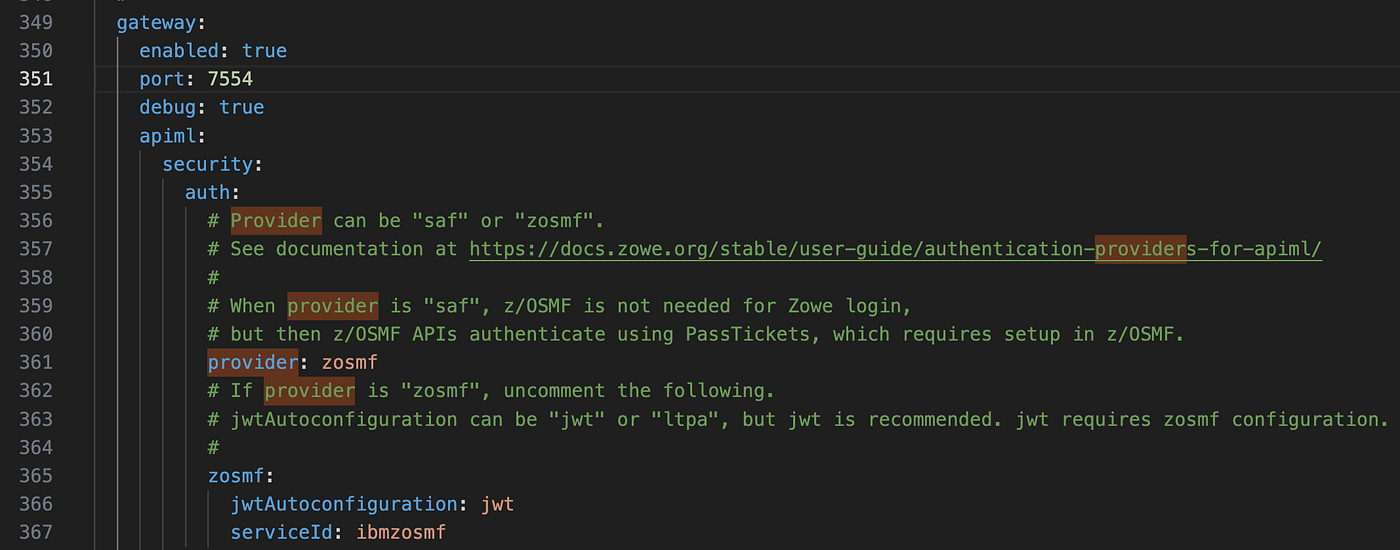
The zowe.yaml file used to launch our ZWESLSTC proclib, should be edited to point to the keyring ZoweKeyringTrusted as shown below, with the alias matching the certificate label in the keyring of zowe_trusted.
Note that because we have two CAs, the certificateAuthorities: entry is split across two lines with - at the start of each to denote a yaml array entry. Each line declares each of the CERTAUTH entries.

Bounce the Zowe ZWESLSTC with our new zowe.yaml updates, log into the API Mediation Layer’s gateway port, and we should see that it is using our shiny new certificate with the intermediate and root signing chain. Our browser likes this as these CAs are in our laptop’s keystore, and we are let in without any ‘do you really want to proceed ?’ messages. Job done !

Common pitfalls !
Configuring Zowe with a good TLS certificate isn’t always plain sailing. It took me a few attempts to get it right for this blog.
I also knowfrom looking at customer support issues that certificate configuration problems are one of the most common reasons that Zowe fails to launch completely, so here’s a bonus reel of a few of the common pitfalls and things to watch out for.
Extended Key Usage
Zowe’s certificate needs to either have no Extended Key Usage EKU, or if the property is present it must be both TLS Web server authentication and TLS Web client authentication . If your site used to procure your certificate tell you the EKU then be sure to check out what kind of certificate you get given.

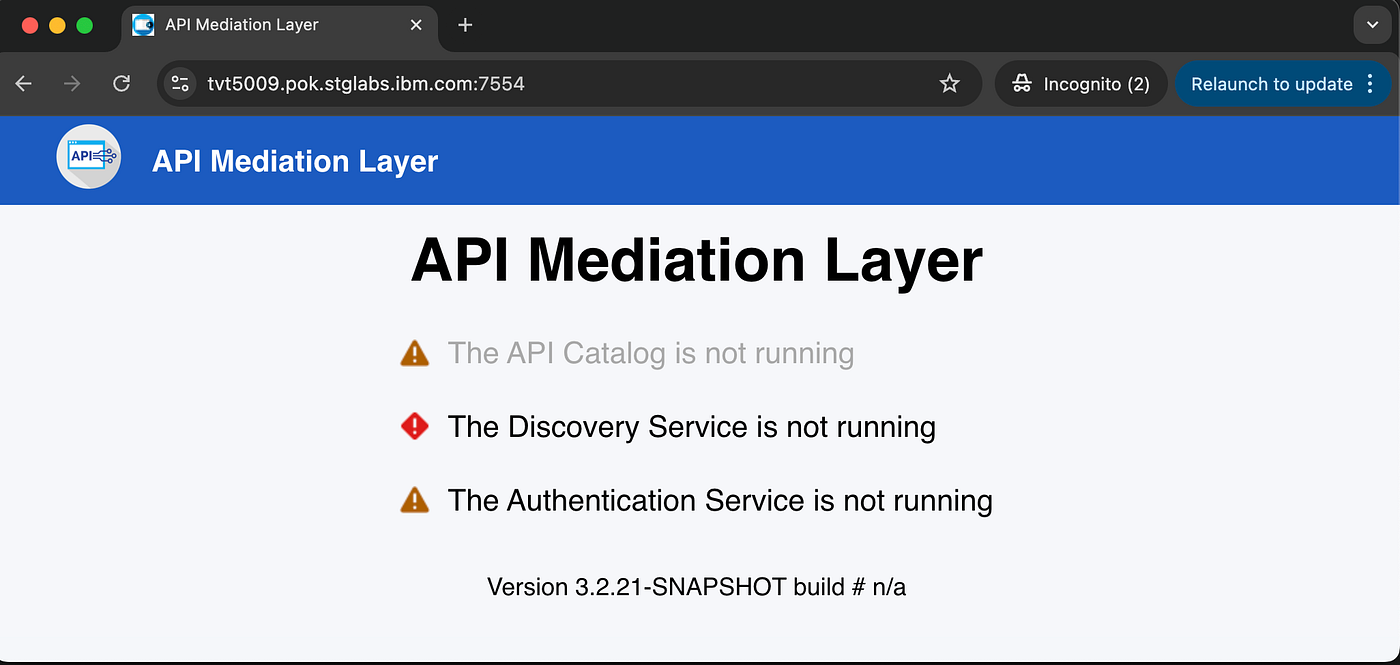
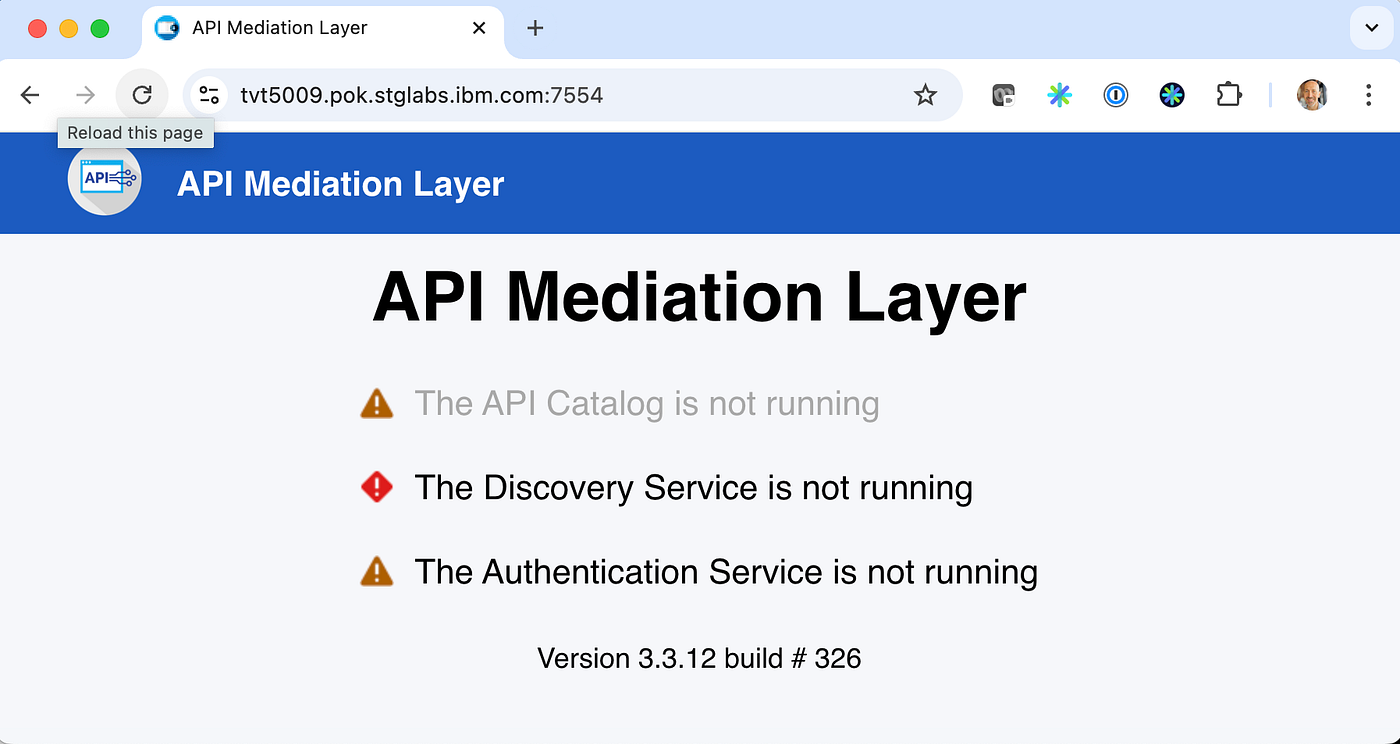
I have seen a lot of customer issues where the EKU is Server Authentication only. In which case Zowe’s different component servers are unable to talk to each other. The gateway will likely start but you’ll get warnings that other services didn’t start (which is because they can’t handshake). The API Gateway screen will be showing red and yellow graphics in place of the green tick marks against the catalog/. Good way to check if you’ve got this malady is to view the certificate from any of the component’s ports and look at the EKU. It must be either absent, or if it’s there it needs both OIDs present.

Trusting z/OSMF
Zowe’s keyring isn’t just used to connect to the certificate that contain the private keys is uses for northbound encryption of the data it serves to its clients. The keyring is also used as a trust store in which to validate the public keys of certificates that are presented to Zowe as southbound servers. z/OSMF is one such server.
It is possible to bypass the step that Zowe does to validate the CA trust of certificates presented to it, by setting verifyCertificates: DISABLED in the zowe.yaml configuration file. However for enterprise deployment this isn’t recommended, so my recommendation is to set the value to STRICT for anything other than a proof of concept or test LPAR.
To see the kind of certificate z/OSMF is using, the TSO command racdcert listring(*) id(IZUSVR1) is your friend. On my LPAR the certificate is DefaultzOSMFCert.IZUDFLT with a CERTAUTH of zOSMFCA .

Look at the signing authority onzOSMFCA with the command racdcert certauth list(label('zOSMFCA')) . Shown below you can see that the Issuer’s common name is the same as the subject name, which is a slam dunk that it’s self signed and Zowe won’t like it.

This means that Zowe won’t trust it, nor would a browser opened up on the /zosmf:443 URL either. To fix this we need to add the CA to the Zowe keyring. The command raracdcert connect(certauth label('zOSMFCA') ring(ZoweKeyringTrusted)) id(zwesvusr) will do this for us.
Now we can run with verifyCertificates: STRICT .

Private key woes
When the initial certificate is created with racdcert gencert withlabel(‘Zowe_CSR’)this will have a public and private key in the RACF database. The command racdcert list id(zwesvusr) can be used to verify this and we should see Private Key: YES .
Then we used racdcert genreq to create the CSR, give this to our signing authority, copy the .cer for the domain leaf back, and did a racdcert gencert('zowe_trusted_certificate') ... to create a different label of zowe_trusted_certificate . I found on the first few attempts I made some mistakes and ZWESLSTC failed to started with a message: The private key of zowe__certificate_trusted_is not available or no authority to access the private key . If this happens be sure to run racdcert list id(zwesvusr) to inspect the attributes of the zowe_trusted_certificate that it has a private key. If not then clean everything up and start again. The private key created for Zowe_CSR certificate is kept by RACF in its SAF database and doesn’t leave the platform, and when the .cer comes back and a new zowe_trusted_certificate is created you should no longer be able to see Zowe_CSR as it’s private key is now being used by zowe_trusted_certificate . This is one reason why if you decide to delete a certificate that has been used for a CSR you get lots of warnings from RACF panels, as this will delete the private key and mean that you’re about to enter a world of hurt with a key that can’t’ be used for TLS encryption.

What if I’m using TopSecret or ACF2 and not RACF ?
In the article I’ve used RACF commands, however if you’re using another enterprise security manager like ACF2 or TopSecret from Broadcom fret not, for the equivalent commands below:
Create the Certificate Signing Request (CSR)
If you’re using Top Secret
TSS GENCERT(ZWESVUSR) DIGICERT('Zowe_CSR') SUBJECTN('cn="tvt5011.pok.xxxxxx.ibm.com" ou="IBM" o="Zowe" l="Hursley" st="Hampshire" c="GB"') ALTNAME('domain='9.xx.90.xxx,tvt5011.pok.xxxxxx.ibm.com') keysize(2048) keyusage(handshake) labelcert('Zowe_CSR')
or if you’re using ACF2
set profile(ZWESVUSR) div(CERTDATA) gencert ZWESVUSR.CERT SUBJ(CN='tvt5011.pok.xxxxxx.ibm.com' ou='ibm' o='zowe' l='Hursley' S='Hampshire' c='GB') altname(DOMAIN=tvt5011.pok.xxxxxx.ibm.com IP=9.xx.90.xxx) label(Zowe_CSR) size(2048) keyusage(HANDSHAKE)
Create the signing request
For Top Secret
TSS GENREQ(ZWESVUSR) DIGICERT('Zowe CSR') DCDSN('WINCHJ.CSRZOWE')
and for ACF2
SET PROFILE(USER) DIV(CERTDATA) GENREQ ZWESVUSR LABEL('Zowe_CSR') DSN('WINCHJ.CSRZOWE')
Add the externally signed certificated back into SAF
For Top Secret
TSS ADD(ZWESVUSR) DIGICERT('zowe_trusted_certificate') LABLCERT('zowe_trusted_certificate') DCDSN('WINCHJ.ZWETRUST.LEAF') TRUST
and for ACF2
SET PROFILE(USER) DIV(CERTDATA) INSERT WINCHJ.CERT DSNNAME('WINCHJ.ZWETRUST.LEAF') LABEL('zowe_trusted_certificate') TRUST CHANGE WINCHJ.CERT TRUST
Connect the Certificate to the keyring
For Top Secret
TSS ADD(ZWESVUSR) KEYRING(ZoweKeyringTrusted) RINGDATA(CERTAUTH,ROOTCERT) USAGE(PERSONAL)
and for ACF2
SET PROFILE(USER) DIV(KEYRING) CONNECT LABEL('zowe_trusted_certificate') KEYRING(ZWESVUSR,ZoweKeyringTrusted) USAGE(PERSONAL)
Learn more
If you enjoyed this blog checkout more Zowe blogs here. Or, ask a question and join the conversation on the Open Mainframe Project Slack Channel #Zowe-help, #Zowe-announcements or #Zowe-onboarding. If this is your first time using the Open Mainframe slack channel register here.
메타데이터
- post_id
- fe7dabb83659
- slug
- securing-zowes-z-os-server-with-an-externally-signed-certificate-for-enterprise-deployment-fe7dabb83659
- url
- https://medium.com/zowe/securing-zowes-z-os-server-with-an-externally-signed-certificate-for-enterprise-deployment-fe7dabb83659
- canonical_url
- https://medium.com/zowe/securing-zowes-z-os-server-with-an-externally-signed-certificate-for-enterprise-deployment-fe7dabb83659
- author_url
- https://medium.com/@joewinchester_71019
- status
- ok
- fetched_at
- 2026-07-13 06:23:13