Set Up SSH Key Authentication for GitHub Actions and Remote Servers
Automating Deployments with GitHub Secrets and SSH Keys for Passwordless SSH Authentication
Set Up SSH Key Authentication for GitHub Actions and Remote Servers
1. Generate SSH Key
Open GitBash on your local machine and run this command, when prompted for a passphrase, just press Enter to leave it empty.
ssh-keygen -t ed25519 -C "github_action_dev_deployment" -f ~/.ssh/github_action_ssh_key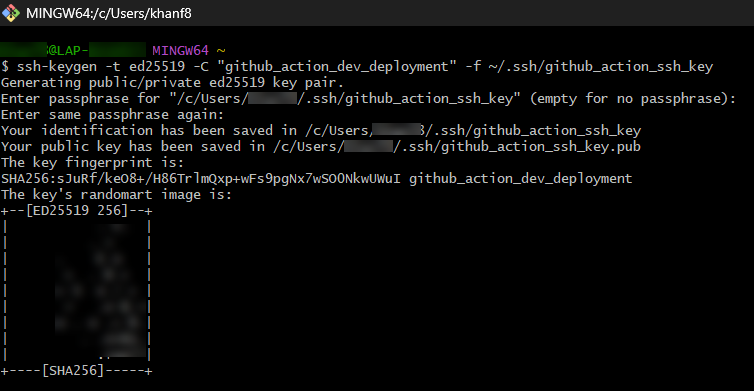
SSH Key Generation in GitBash
This creates two files:
~/.ssh/github_action_dev_key (private)
~/.ssh/github_action_dev_key.pub (public)
To view these files in Powershell
Get-ChildItem $HOME\.ssh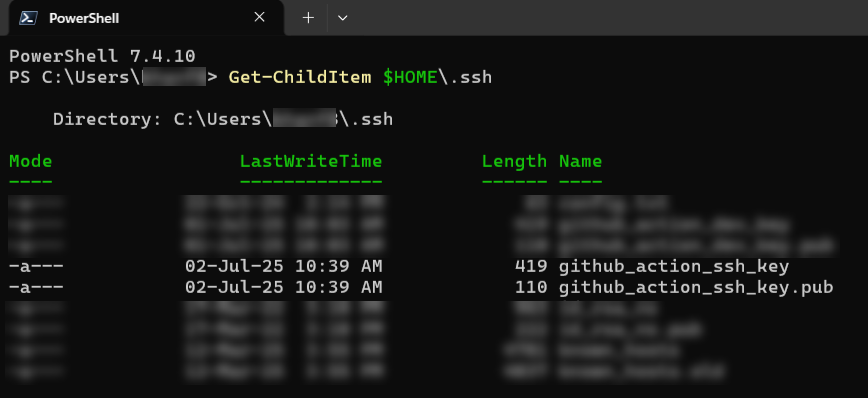
2. Add the Public Key to the Server
On your local machine, powershell, run:
cat ~/.ssh/github_action_ssh_key.pub
Copy the entire output.
Then, SSH into your server as <REMOTE_USERNAME> user:
mkdir -p ~/.ssh
chmod 700 ~/.ssh
nano ~/.ssh/authorized_keys
Paste the public key, then save (Ctrl+O, Enter) and exit (Ctrl+X). Then:
chmod 600 ~/.ssh/authorized_keys
chown -R <REMOTE_USERNAME>:<REMOTE_USERNAME> ~/.ssh
This ensures correct permissions and ownership.
3. Check that SSH is allowing key-based auth
sudo grep -Ei 'PubkeyAuthentication|AuthorizedKeysFile' /etc/ssh/sshd_configMake sure these lines are present and not commented:
PubkeyAuthentication yes AuthorizedKeysFile .ssh/authorized_keys
If not, fix the config:
sudo nano /etc/ssh/sshd_configThen restart SSH:
sudo systemctl restart sshFile permissions and ownership (must be exact)
ls -ld ~/.sshExpected drwx — — — 2 <REMOTE_USERNAME> <REMOTE_USERNAME> … .ssh
ls -l ~/.ssh/authorized_keysExpected
-rw — — — — 1 <REMOTE_USERNAME> <REMOTE_USERNAME> … authorized_keys
If not, fix with:
chmod 700 ~/.ssh
chmod 600 ~/.ssh/authorized_keys
chown -R <REMOTE_USERNAME>:<REMOTE_USERNAME> ~/.ssh
chmod 755 /home/<REMOTE_USERNAME>
chown <REMOTE_USERNAME>:<REMOTE_USERNAME> /home/<REMOTE_USERNAME>
Then to check the correct permission
ls -ld /home/<REMOTE_USERNAME>Expected Output
drwxr-xr-x <REMOTE_USERNAME> <REMOTE_USERNAME> …
4. Add the private key to GitHub Secrets
Open the private key
cat ~/.ssh/github_action_dev_keyNever expose or share the private key — only use the public key when adding to GitHub or servers. The private key stays only on your local machine and is added as a GitHub secret, not uploaded to the server.
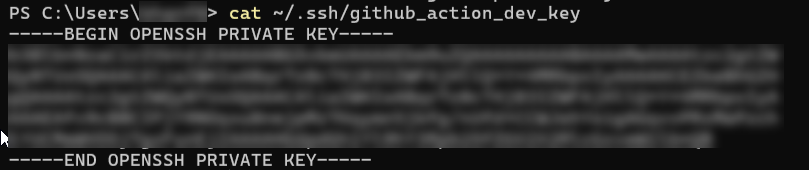
Copy the full contents (including — — -BEGIN OPENSSH PRIVATE KEY — — — to — — -END OPENSSH PRIVATE KEY — — -)
In GitHub, go to:
Repository > Settings > Security > Secrets and Variables > Actions
Click “New Repository Secret”
Name: SSH_PRIVATE_KEY
Paste the key as the value
5. Test SSH from local machine using SSH
Run this in PowerShell:
$sshKey = "$env:USERPROFILE\.ssh\github_action_ssh_key"
icacls $sshKey /inheritance:r
icacls $sshKey /grant:r "${env:USERNAME}:(F)"
You can now test SSH from your local machine using the private key:
ssh -i ~/.ssh/github_action_dev_key -p <PORT> <REMOTE_USERNAME>@<REMOTE_HOST>If that works without asking for a password, you’ve fully set it up!
메타데이터
- post_id
- fec9e5d2aa86
- slug
- set-up-ssh-key-authentication-for-github-actions-and-remote-servers-fec9e5d2aa86
- url
- https://medium.com/@faizanhaidar48/set-up-ssh-key-authentication-for-github-actions-and-remote-servers-fec9e5d2aa86
- canonical_url
- https://medium.com/@faizanhaidar48/set-up-ssh-key-authentication-for-github-actions-and-remote-servers-fec9e5d2aa86
- author_url
- https://medium.com/@faizanhaidar48
- status
- ok
- fetched_at
- 2026-06-21 23:24:37