Implementing Speech Recognition and Speech Synthesis with Web Speech API
In the previous article, I explained the basic principles of speech synthesis and speech recognition. If you have been following this…
Implementing Speech Recognition and Speech Synthesis with Web Speech API
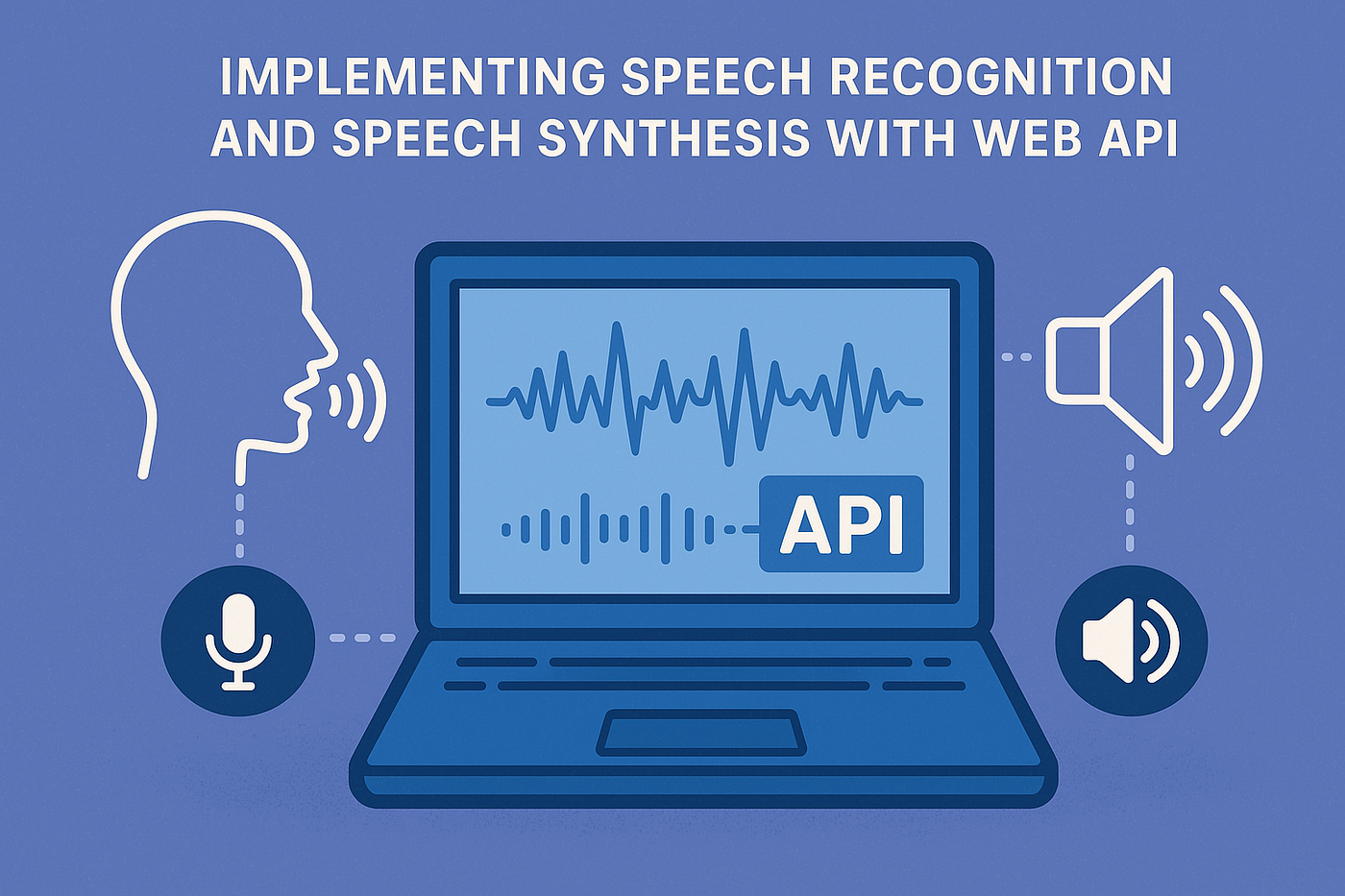
In the previous article, I explained the basic principles of speech synthesis and speech recognition. If you have been following this series, speech recognition was added to the chat application without any explanation. In this article, I will explain that code and extend the code to support speech synthesis using the Web Speech API.
The following is an excerpt from https://developer.mozilla.org/en-US/docs/Web/API/Web_Speech_API describing the Web Speech API:
“Web Speech API
The Web Speech API enables you to incorporate voice data into web apps. The Web Speech API has two parts: SpeechSynthesis (Text-to-Speech), and SpeechRecognition (Asynchronous Speech Recognition.)
Web Speech Concepts and Usage
The Web Speech API makes web apps able to handle voice data. There are two components to this API:
- Speech recognition is accessed via the SpeechRecognition interface, which provides the ability to recognize voice context from an audio input (normally via the device’s default speech recognition service) and respond appropriately. Generally you’ll use the interface’s constructor to create a new SpeechRecognition object, which has a number of event handlers available for detecting when speech is input through the device’s microphone. The SpeechGrammar interface represents a container for a particular set of grammar that your app should recognize. Grammar is defined using JSpeech Grammar Format (JSGF.)
- Speech synthesis is accessed via the SpeechSynthesis interface, a text-to-speech component that allows programs to read out their text content (normally via the device’s default speech synthesizer.) Different voice types are represented by SpeechSynthesisVoice objects, and different parts of text that you want to be spoken are represented by SpeechSynthesisUtterance objects. You can get these spoken by passing them to the SpeechSynthesis.speak() method.”
Implementing Speech Recognition
Since speech recognition has already been implemented, let’s dive into that code and see how it works based on the documentation from the aforementioned and David Pine’s Blazorator library.
First, the Blazor.SpeechRecognition Nuget package was added to the Web project:
<PackageReference Include="Blazor.SpeechRecognition" Version="9.0.1" />Then, add the speech recognition services to the builder services in Program.cs:
builder.Services.AddSpeechRecognitionServices();This registers the ISpeechRecognition interface that will be used in the SpeechToTextButton component.
The class instance for SpeechRecognition is injected into the component in SpeechToTextButton.razor.cs:
[Inject]
public ISpeechRecognitionService SpeechRecognition { get; set; } = null!;
The OnRecord method is what is called when the microphone button is clicked:
<button type="button" @onclick="OnRecord" class="mic-button" title="Start voice to text">
    <svg xmlns="http://www.w3.org/2000/svg" fill="none" viewBox="0 0 24 24" stroke-width="1.5" stroke="currentColor" class="tool-icon">
        <path stroke-linecap="round" stroke-linejoin="round" d="M12 18.25v2.25m0 0h3m-3 0H9m6-6a3 3 0 01-6 0V7a3 3 0 016 0v7.25z" />
    </svg>
</button>
private async Task OnRecord()
{
if (isRecording)
await SpeechRecognition.CancelSpeechRecognitionAsync(true);
_recognitionSubscription?.Dispose();
_recognitionSubscription = await SpeechRecognition.RecognizeSpeechAsync(
language: "en",
onError: OnError,
onRecognized: OnRecognized,
onStarted: OnStarted,
onEnded: OnEnded);
}It first checks if it is currently recording. If it is, it cancels the active speech recognition session, releases the memory, and creates a new session. The parameters are:
- language — the BCP47 language tag
- onError — the optional callback to invoke when onerror fires
- onRecognized — the optional callback to invoke when onrecognized fires
- onStarted — the optional callback to invoke when onstarted fires
- onEnded — the optional callback to invoke when onended fires
The OnError method sets up the SpeechRecognitionErrorEvent handler for the different types of errors. See this link for an explanation of each type.
The OnRecognized method calls the callback that performs work with the text received from the speech recognition service.
[Parameter]
public EventCallback<string> OnRecognizedText { get; set; }

private Task OnRecognized(string recognizedText) =>
    OnRecognizedText.InvokeAsync(recognizedText);
The ChatInput component utilizes the SpeechToTextButton component and sets up a method that will be called during the OnRecognized event.
<SpeechToTextButton OnRecognizedText="OnSpeechToTextResult" />private void OnSpeechToTextResult(string text)
{
if (!string.IsNullOrWhiteSpace(text))
{
messageText = (string.IsNullOrWhiteSpace(messageText) ? "" : messageText + " ") + text;
StateHasChanged();
}
}It takes the textual results from the speech recognition service and puts it in the text box, negating the need for typing.
That is the explanation for the speech recognition implementation. Now, let’s dive into implementing speech synthesis.
Implementing Speech Synthesis
Using the Web SpeechAPI, Speech synthesis requires 3 basic steps:
- Obtain a list of voices
- Set up a SpeechSynthesisUtterance instance
- Call the Speak method with the utterance instance
First, we need to add the Blazor.SpeechSynthesis Nuget package to the Web project:
<PackageReference Include="Blazor.SpeechSynthesis" Version="9.0.1" />Then, add the speech synthesis and memory caching services to the builder services in Program.cs:
builder.Services.AddSpeechSynthesisServices();
builder.Services.AddMemoryCache();
MemoryCache will be used to minimize the number of times we will need to obtain the list of voices. This registers the ISpeechSynthesis interface that will be used in the TextToSpeechButton component.
Create a new component named TextToSpeechButton.razor and add the following code:
<button @onclick="OnClick" class="speaker-button" title="Text to Speech">
    <svg xmlns="http://www.w3.org/2000/svg" fill="none" viewBox="0 0 24 24" stroke-width="1.5" stroke="currentColor" class="tool-icon">
        <path stroke-linecap="round" stroke-linejoin="round" d="M3 9v6h4l5 5V4L7 9H3zm13.5 3c0-1.77-1-3.29-2.5-4.03v8.06c1.5-.74 2.5-2.26 2.5-4.03zm2.5 0c0 2.53-1.54 4.71-3.75 5.65v2.07c3.45-1.01 6-4.13 6-7.72s-2.55-6.71-6-7.72v2.07C17.46 7.29 19 9.47 19 12z" />
    </svg>
</button>
Click Quick Actions in the code section and select Extract block to code behind. This will create a new file called TextToSpeechButton.razor.cs. Add the following code to the code behind:
public partial class TextToSpeechButton
{
    [Parameter]
    public string? Text { get; set; }
    [Inject]
    public ISpeechSynthesisService SpeechSynthesis { get; set; } = null!;
    [Inject]
    public IMemoryCache Cache { get; set; } = null!;
    [Inject]
    public ILogger<TextToSpeechButton> Logger { get; set; } = default!;

    SpeechSynthesisVoice[]? _voices;
    SpeechSynthesisUtterance? _utterance;
    double _voiceSpeed = 1.0;
    bool _initialized = false;
    bool isSpeaking;

    protected override async Task OnInitializedAsync()
    {
        _voices = await Cache.GetOrCreateAsync("voices", async entry =>
        {
            entry.AbsoluteExpirationRelativeToNow = TimeSpan.FromHours(24);
            var voices = await SpeechSynthesis.GetVoicesAsync();
            return voices;
        });

        _initialized = true;
    }

    private async void OnClick()
    {
        if (await SpeechSynthesis.Speaking)
        {
            await SpeechSynthesis.CancelAsync();
            isSpeaking = false;
            await InvokeAsync(StateHasChanged);
        }
        else
        {
            isSpeaking = true;
            await InvokeAsync(StateHasChanged);
            var utterance = GetOrCreateUtterance();
            utterance.Text = Text!;
            await Speak(utterance);
        }
    }

    private async Task Speak(SpeechSynthesisUtterance utterance)
    {
        await SpeechSynthesis.SpeakAsync(utterance!);
    }

    private SpeechSynthesisUtterance GetOrCreateUtterance()
    {
        if (_utterance is null)
        {
            _utterance = new SpeechSynthesisUtterance
            {
                Pitch = 1.0,
                Rate = _voiceSpeed,
                Volume = 50,
                Voice = _voices is { Length: > 0 } ? _voices?[4] : null
            };
        }
        return _utterance;
    }
}
Create a new file for the CSS called TextToSpeechButton.razor.css and add the following code:
.tool-icon {
    width: 1.25rem;
    height: 1.25rem;
}

.speaker-button {
    color: #aaa;
    margin-left: 0;
    cursor: pointer;
}

    .speaker-button:hover {
        color: black;
    }
The class instance for SpeechSynthesis is injected into the component in TextToSpeechButton.razor.cs:
[Inject]
public ISpeechSynthesisService SpeechSynthesis { get; set; } = null!;
In OnInitializedAsync(), the cache is checked to see if an entry called voices exists. If it doesn’t, it calls SpeechSynthesis.GetVoicesAsync(), which gets the available voices from Web Speech API and adds the result to a cache entry called voices. This guarantees that the GetVoicesAsync method will only be called once each time the application is executed.
The GetOrCreateUtterance method creates an instance of SpeechSynthesisUtterance. See this page for an explanation of the instance properties.
The OnClick method checks to see if the service is already speaking. If it is, it cancels the active session. Otherwise, it gets the active utterance or creates one if it doesn’t exist, and sets the utterance text to the value contained in the Text parameter. Then it calls the Speak method which calls the SpeechSynthesis.Speak method with the utterance instance.
This provides the basics to support speech synthesis. Here are some ideas you can implement to make it better:
- Wait for the entire response to complete before allowing speech synthesis to begin
- Add the capability to pause playback
- Add the capability to resume playback
Happy coding!
메타데이터
- post_id
- fef5c0f32c2e
- slug
- implementing-speech-recognition-and-speech-synthesis-with-web-speech-api-fef5c0f32c2e
- url
- https://medium.com/@chuck.beasley/implementing-speech-recognition-and-speech-synthesis-with-web-speech-api-fef5c0f32c2e
- canonical_url
- https://medium.com/@chuck.beasley/implementing-speech-recognition-and-speech-synthesis-with-web-speech-api-fef5c0f32c2e
- author_url
- https://medium.com/@chuck.beasley
- status
- ok
- fetched_at
- 2026-08-18 00:10:00