10 Real Help Desk Tickets Every Beginner IT Technician Should Know
What certifications don’t teach you — and the real tickets that will make or break your first IT support job.
10 Real Help Desk Tickets Every Beginner IT Technician Should Know
What certifications don’t teach you — and the real tickets that will make or break your first IT support job.
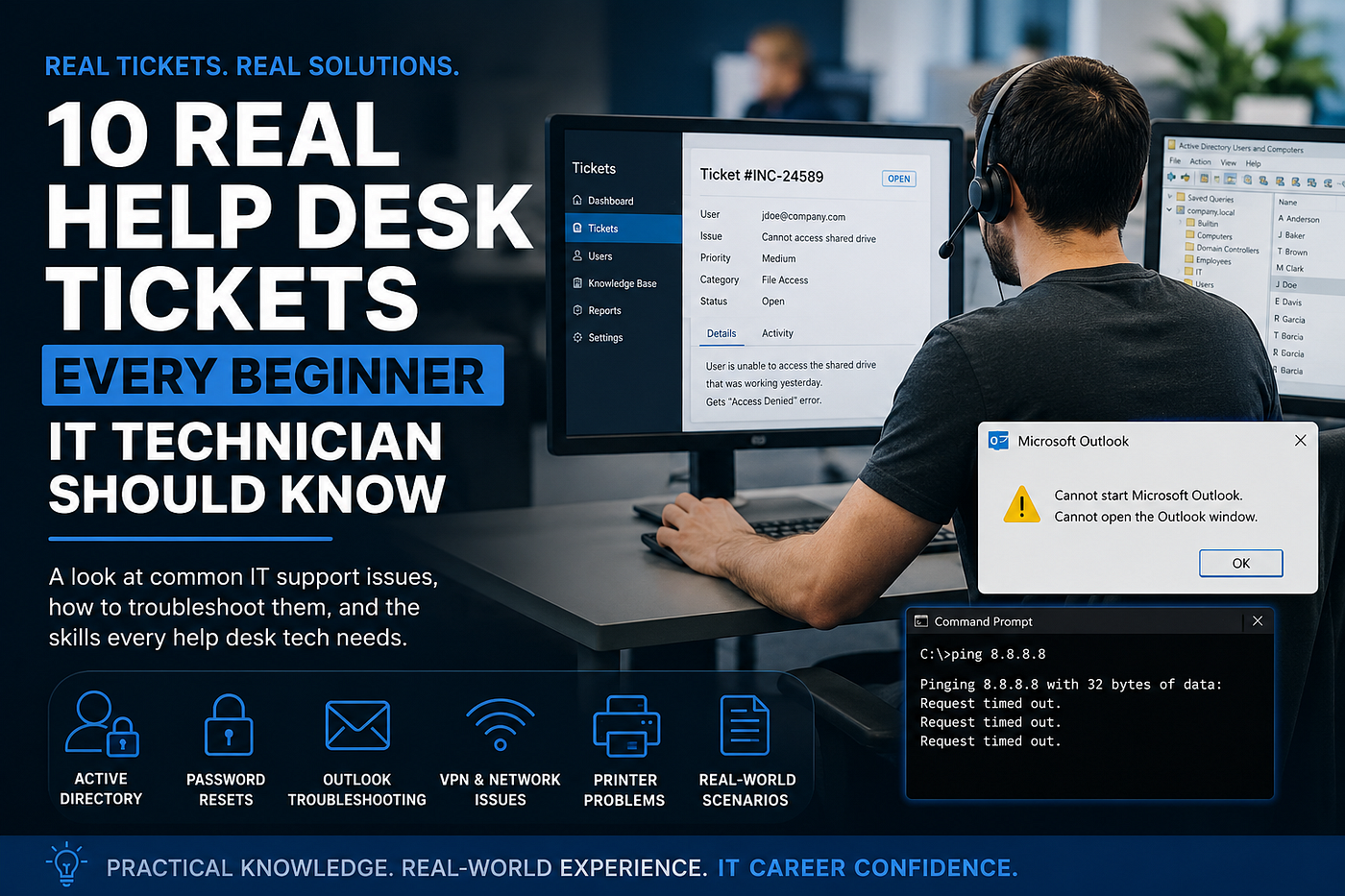
Real-world help desk tickets every beginner IT technician should understand before landing their first IT support job.
Your Certification Won’t Save You on Day One
You studied hard. You passed your CompTIA A+ exam. You memorized the OSI model, know the difference between TCP and UDP, and can recite cable categories in your sleep. Then your first help desk ticket comes in.
“My computer’s being slow again.”
And just like that, you realize: nobody actually taught you what a real help desk job looks like.
That’s not a knock on certifications — they’re valuable and absolutely worth earning. But there’s a significant gap between knowing IT concepts and knowing how to handle a panicked user whose Outlook won’t open fifteen minutes before an important client call. Real technical support is part troubleshooting logic, part communication skill, and part pattern recognition built from seeing the same issues over and over again.
The problem for most people entering IT is that they’ve never seen real tickets before their first day. Help desk simulators exist, but they don’t capture the messiness of actual service desk work — the vague user descriptions, the intermittent issues that magically disappear when you walk over, the tickets that turn into something completely different once you start digging.
This article is designed to fix that. Below, you’ll find 10 realistic help desk tickets that every beginner IT technician is likely to encounter, complete with troubleshooting logic, what to look for, and what skills you’re actually building when you resolve them.
Why Real Ticket Experience Matters in IT Support
Most IT career resources focus on knowledge: what is DNS, how does Active Directory work, what ports does SMTP use. That knowledge matters, but what separates a good help desk technician from a great one is pattern recognition — the ability to hear a vague complaint and immediately know where to start looking.
Entry-level IT roles are often won or lost in the first few weeks. Hiring managers for desktop support and service desk positions aren’t just looking for someone who can pass a test — they want someone who can handle a queue of 30 tickets without freezing up. The fastest way to build that confidence before your first role is to understand the issues you’ll actually face.
Let’s get into it.
The 10 Real Help Desk Tickets
Ticket #1: “I Can’t Log Into My Computer”
Common User Description: “My password isn’t working.” / “It says my account is locked.”
What the Technician Checks First: Before touching anything, ask two quick questions: Has their password recently expired? Have they had any failed login attempts? In most corporate environments, Active Directory locks accounts after a set number of failed attempts — usually 3 to 5.
Troubleshooting Process:
- Open Active Directory Users and Computers (ADUC) and search for the user’s account.
- Check if the account is locked (there will be a checkbox under the Account tab).
- Unlock the account and verify the password hasn’t expired.
- If the user has forgotten their password, initiate a reset through your ticketing system’s approved process — never just hand out passwords verbally without following proper verification protocols.
- Confirm the user can log in successfully before closing the ticket.
Skills Learned: Active Directory basics, account management, identity verification procedures.
Why It’s So Common: Password-related issues account for a massive percentage of help desk volume in any organization. New technicians often underestimate how frequently this ticket comes in — and how important it is to handle it securely.
Ticket #2: “Outlook Won’t Open”
Common User Description: “My email is just spinning.” / “Outlook crashed and now it won’t start.”
What the Technician Checks First: Outlook troubleshooting has a predictable flowchart. The most common culprits are a corrupted profile, a damaged PST/OST file, or add-ins causing a conflict on startup.
Troubleshooting Process:
- Try opening Outlook in Safe Mode first: hold
Ctrlwhile clicking the Outlook icon, or runoutlook.exe /safefrom the Run dialog. - If it opens in Safe Mode, the problem is likely an add-in. Disable them one by one under File > Options > Add-ins.
- If it still won’t open, run the Microsoft Support and Recovery Assistant (SaRA) tool — it’s your best friend for Outlook troubleshooting.
- As a last resort, rebuild the Outlook profile by going to Control Panel > Mail > Show Profiles > Add.
- Check if the OST file is corrupt. Navigate to
%localappdata%\Microsoft\Outlook, rename the .ost file, and let Outlook rebuild it.
Skills Learned: Microsoft 365 troubleshooting, profile management, Outlook troubleshooting processes.
Why It’s So Common: Email is mission-critical for nearly every user. Outlook is complex software with a lot of moving parts, and issues compound over time — especially on machines that haven’t been properly maintained.
Ticket #3: “VPN Connected But I Can’t Access Anything”
Common User Description: “My VPN says it’s connected but I can’t get to any of our internal sites.”
What the Technician Checks First: This is one of the trickier tickets for beginners because the VPN showing as “connected” leads many to assume the network isn’t the problem. It absolutely still can be. VPN issues often involve split tunneling configurations, DNS resolution failures, or routing problems.
Troubleshooting Process:
- Verify the VPN client shows fully connected — not just “connecting” or partially established.
- Open Command Prompt and run
ipconfig /allto check if the machine received a VPN adapter IP in the expected range. - Try pinging an internal IP address directly. If ping works but browsing doesn’t, you likely have a DNS issue.
- Run
ipconfig /flushdnsand try again. - Check if the user can access resources by IP instead of hostname — this confirms a DNS resolution problem.
- If nothing works, have the user disconnect, restart their machine, reconnect the VPN, and test again. Many VPN issues are session-related.
Skills Learned: Networking fundamentals, DNS troubleshooting, VPN architecture basics.
Why It’s So Common: Remote work has made VPN issues one of the most frequent categories of technical support tickets. Every IT technician needs to get comfortable here quickly.
Ticket #4: “The Printer Won’t Print”
Common User Description: “I sent something to the printer and nothing happened.” / “It says it’s printing but nothing comes out.”
What the Technician Checks First: Before diving into drivers and queues, check the obvious: Is the printer on? Is it showing any error lights or a paper jam? Is it the right printer selected in the application? You’d be surprised how often the answer to “why won’t it print” is “they sent it to the printer on the second floor.”
Troubleshooting Process:
- Check the printer’s physical status — paper, toner, and any error indicators on the display.
- On the user’s machine, go to Devices and Printers and look for a stuck print queue. Open the queue, cancel all documents, and retry.
- Restart the Print Spooler service: open Services (services.msc), find Print Spooler, and restart it. This resolves a surprisingly large number of printer issues.
- If the issue persists, remove and re-add the printer. Use the manufacturer’s driver, not a generic one.
- Test printing from a different application to isolate whether it’s application-specific.
Skills Learned: Print spooler management, driver installation, peripheral troubleshooting.
Why It’s So Common: Printers are notoriously temperamental. In high-volume office environments, printer tickets are a daily reality for desktop support teams.
Ticket #5: “I Need a Password Reset”
Common User Description: “I forgot my password.” / “My account is locked.”
What the Technician Checks First: This seems like the simplest ticket on the list, but it comes with real responsibility. Identity verification is critical before any account change is made. Skipping this step is how social engineering attacks succeed.
Troubleshooting Process:
- Verify the user’s identity using your organization’s approved method — employee ID, manager confirmation, security questions, or MFA verification.
- In Active Directory, locate the account, unlock it if locked, and force a password reset at next login.
- Provide the user with a temporary password and confirm they can log in.
- Make sure they understand the password policy requirements upfront so they don’t immediately trigger another lockout.
- Document the reset in your ticketing system — every action on a user account should be logged.
Skills Learned: Identity verification, Active Directory account management, security awareness, documentation habits.
Why It’s So Common: This is the single most common help desk ticket in most organizations. Some estimates suggest password resets account for 20–50% of all service desk volume. Automation through self-service portals reduces this, but it never goes away entirely.
Ticket #6: “My Computer Is Really Slow”
Common User Description: “Everything is taking forever.” / “My computer is running slow — it started a few days ago.”
What the Technician Checks First: “Slow computer” is one of the vaguest complaints you’ll receive, and it requires the most investigative work. The cause could be hardware, software, network, or user behavior. Start broad and narrow down.
Troubleshooting Process:
- Open Task Manager and sort by CPU and Memory. Look for processes consuming abnormally high resources.
- Check disk usage — sustained 100% disk activity is a common performance killer, especially on machines with older hard drives.
- Check available storage space. Systems running on less than 10% free disk space slow down significantly.
- Run a malware scan. Cryptomining malware and adware are frequent causes of unexplained performance degradation.
- Check Windows Event Viewer for critical errors that may indicate a hardware issue.
- If the machine is several years old and meets none of the minimum hardware requirements for current OS versions, escalate with a hardware refresh recommendation.
Skills Learned: Performance troubleshooting, Task Manager proficiency, malware awareness, escalation judgment.
Why It’s So Common: Computers degrade over time without maintenance, and most end users don’t notice until the problem becomes disruptive. This ticket type rewards technicians who develop a systematic approach rather than guessing.
Ticket #7: “My Network Drive Is Missing”
Common User Description: “My H: drive disappeared.” / “I can’t find the shared drive we all use.”
What the Technician Checks First: Mapped network drives can disconnect for several reasons — VPN issues, Group Policy not applying, network interruptions, or permissions changes. The first thing to confirm is whether the drive actually exists and the user has access, or if it’s a connectivity issue on the client side.
Troubleshooting Process:
- Ask if the user is on VPN (if remote). A missing VPN connection will unmount network drives.
- Try manually mapping the drive: open File Explorer, right-click “This PC,” and select “Map network drive.” Use the UNC path (e.g.,
\\servername\sharename). - If mapping fails with an access denied error, check permissions in Active Directory or with your storage team.
- If it maps successfully but won’t persist after restart, the issue is likely with Group Policy drive mapping. Run
gpupdate /forcefrom the Command Prompt and restart. - Check the user’s group memberships in Active Directory to verify they belong to the security group that grants access to the share.
Skills Learned: Group Policy basics, UNC paths, file share permissions, Active Directory group management.
Why It’s So Common: Network drives are used constantly in corporate environments, and they’re sensitive to any change in network connectivity or permissions structure.
Ticket #8: “MFA Isn’t Working / I’m Not Getting My Code”
Common User Description: “My authentication app isn’t giving me a code.” / “I’m not getting the text message to log in.”
What the Technician Checks First: Multi-factor authentication issues are increasingly common as organizations move toward Zero Trust security models. The most frequent causes are time sync issues with authenticator apps, a user getting a new phone without re-enrolling, or a cellular issue affecting SMS delivery.
Troubleshooting Process:
- If the user is using an authenticator app (like Microsoft Authenticator or Google Authenticator), time sync issues can cause codes to be invalid. In the app settings, look for a “sync time” option.
- If the user got a new phone, they’ll need to re-enroll their MFA device — this typically requires either admin intervention or a self-service recovery process through your identity provider.
- For SMS-based MFA, confirm the phone number on file is correct and that the user has cellular signal.
- Temporary bypass codes can be issued through Azure AD, Okta, or whichever identity platform your organization uses — follow your organization’s policy for this.
- Never disable MFA entirely for a user without manager approval and proper documentation.
Skills Learned: Identity provider management, MFA troubleshooting, security policy awareness.
Why It’s So Common: MFA is now a standard security requirement. As more organizations enforce it, the ticket volume around MFA issues continues to rise — especially following phone upgrades or travel.
Ticket #9: “I Can’t Connect to Wi-Fi”
Common User Description: “My laptop won’t connect to the wireless network.” / “Wi-Fi keeps dropping.”
What the Technician Checks First: Isolate whether the issue is device-specific or network-wide. If multiple users in the same area are having Wi-Fi problems, the issue is infrastructure — escalate to the network team. If it’s one device, troubleshoot locally.
Troubleshooting Process:
- Confirm other devices can connect to the same network — this rules out an access point or SSID issue.
- On the affected laptop, try “Forget” the network and reconnect from scratch.
- Run the Windows network troubleshooter as a starting point (it actually catches common issues like IP conflicts).
- Open Command Prompt and run
netsh wlan show interfacesto check the wireless adapter status. Then trynetsh wlan disconnectfollowed bynetsh wlan connect name="NetworkName". - Update or roll back the wireless adapter driver — driver issues are a surprisingly common cause of persistent Wi-Fi problems.
- Check if the Wi-Fi adapter is disabled in Device Manager or BIOS, particularly on laptops that have a physical wireless toggle.
Skills Learned: Wireless networking basics, driver management, network command-line tools.
Why It’s So Common: Wireless connectivity issues affect laptops constantly, particularly in large office environments with dense access point configurations or after Windows updates that affect driver compatibility.
Ticket #10: “My Email Isn’t Syncing on My Phone”
Common User Description: “My emails stopped showing up on my phone.” / “I’m not getting notifications anymore.”
What the Technician Checks First: Mobile email sync issues are usually tied to one of three things: a password change that wasn’t updated on the device, a Modern Authentication requirement that the mail app doesn’t support, or an MDM/ActiveSync policy blocking the device.
Troubleshooting Process:
- Ask if the user recently changed their password — this is the cause in the majority of cases. Have them update the password in the mail app’s account settings.
- If the password is correct, check whether your organization requires Modern Authentication (OAuth). Some older mail apps don’t support it and will silently fail. Recommend Microsoft Outlook for iOS/Android, which handles this correctly.
- In Exchange Admin Center or your MDM platform, check if the device is blocked or quarantined under Mobile Device Access.
- Have the user remove the email account from their phone and re-add it using the organization’s recommended configuration.
- If using Intune or another MDM solution, verify the device is enrolled and compliant — non-compliant devices may be blocked from syncing.
Skills Learned: Exchange/M365 administration basics, MDM awareness, mobile device troubleshooting.
Why It’s So Common: Mobile email is expected to “just work,” which means any disruption triggers an immediate ticket. Password changes and Modern Authentication transitions are two of the biggest sources of this issue.
What These Tickets Are Really Teaching You
If you read through all ten of these and felt a mix of “okay I get it” and “I’d have no idea where to start,” that’s completely normal. The troubleshooting process isn’t just a series of steps — it’s a way of thinking. Every ticket you work teaches you to ask better questions, narrow down possibilities faster, and communicate clearly with users who may be frustrated or confused.
The technicians who advance quickly in IT careers aren’t necessarily the ones who knew the most on day one. They’re the ones who developed a systematic approach, documented everything, and treated every ticket as a learning opportunity.
Want to Go Deeper Into Real Help Desk Scenarios?
If this article was useful, you might want something more comprehensive to practice with before stepping into a real IT support role.
I recently created a 69-page guide called “50 Real Help Desk Tickets Explained” that walks through realistic IT support scenarios step-by-step, written specifically for beginners who want hands-on exposure to real troubleshooting situations before their first job. It covers everything from the common tickets above to more advanced scenarios involving Group Policy, Office 365 administration, hardware failures, and escalation decisions.
It’s a practical study companion for CompTIA A+ students, career changers getting into IT, and anyone who wants to walk into their first service desk role with more than just book knowledge.
You can find it on my Etsy store — just search for “50 Real Help Desk Tickets Explained” — or check out my Pinterest page where I share IT support tips and beginner resources regularly.
Final Thoughts
Getting your first IT job is a milestone. Surviving your first week of real tickets is where the actual education begins. The good news is that most help desk issues follow recognizable patterns — and once you’ve seen a ticket type a few times, you’ll handle it faster every time.
Study the concepts, earn your certifications, but don’t sleep on the value of practical exposure to real technical support scenarios. The technicians who thrive in IT careers combine theoretical knowledge with hard-won pattern recognition — and you can start building that foundation right now, before your first day on the job.
Want More Real-World Help Desk Scenarios?
If this article helped you understand what entry-level IT support actually looks like, I recently created a more in-depth beginner resource called “50 Real Help Desk Tickets Explained.”
It’s a 69-page guide that walks through realistic IT support scenarios step-by-step, helping beginners learn how real help desk technicians troubleshoot common workplace issues.
Inside the guide:
- Active Directory troubleshooting
- Outlook & Office 365 issues
- VPN connectivity problems
- Password resets & account lockouts
- Printer & network troubleshooting
- Remote support workflows
- Escalation decisions
- Real-world troubleshooting logic
The goal is to bridge the gap between certification knowledge and the actual tickets new IT technicians see on the job.
You can check it out here: https://techpathacademy.etsy.com/listing/4507538094/50-real-help-desk-tickets-explained-it
I also share beginner IT support content and troubleshooting tips on Pinterest regularly.
Good luck out there.
메타데이터
- post_id
- ff8ab178f461
- slug
- 10-real-help-desk-tickets-every-beginner-it-technician-should-know-ff8ab178f461
- url
- https://medium.com/@nglor7290/10-real-help-desk-tickets-every-beginner-it-technician-should-know-ff8ab178f461
- canonical_url
- https://medium.com/@nglor7290/10-real-help-desk-tickets-every-beginner-it-technician-should-know-ff8ab178f461
- author_url
- https://medium.com/@nglor7290
- status
- ok
- fetched_at
- 2026-06-14 11:28:49