Best RDP Servers for Gamers: Play High-End Games in 2026
How I Kept Playing When My PC Couldn’t Keep Up using Remote desktop server.
Gaming
Best RDP Servers for Gamers: Play High-End Games in 2026
How I Kept Playing When My PC Couldn’t Keep Up using Remote desktop server.
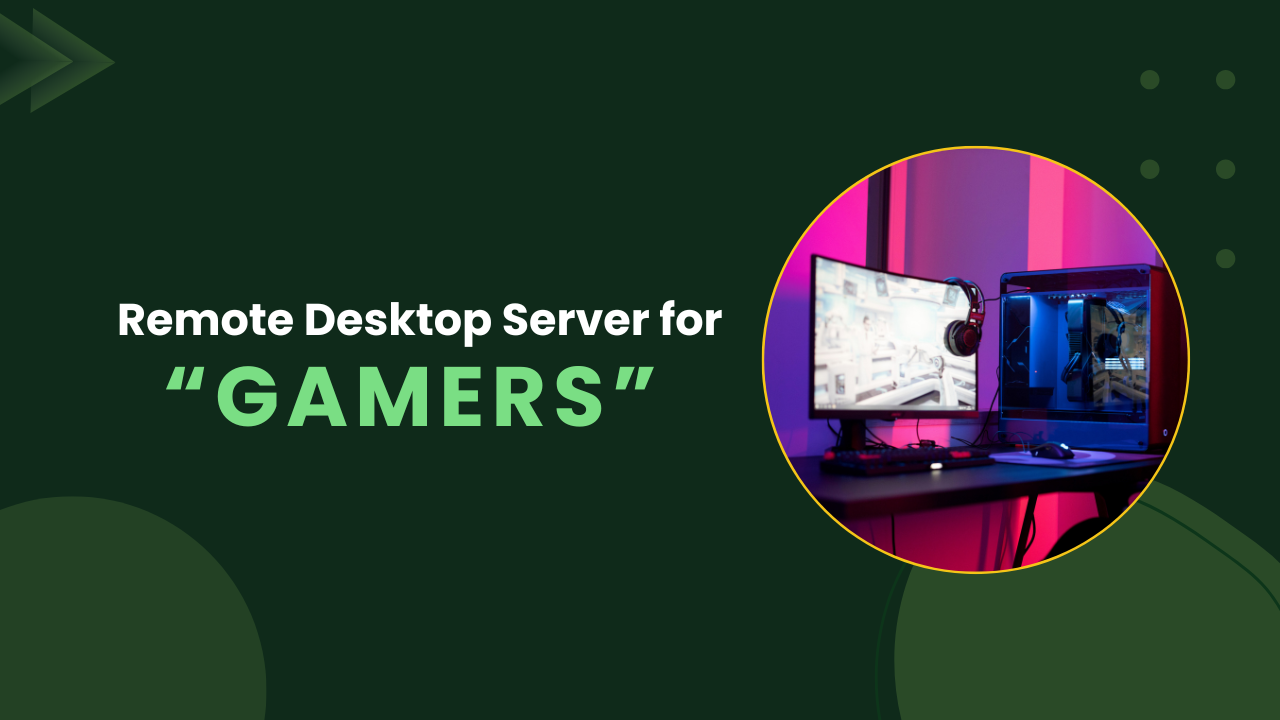
You’ve been there. A new game drops, and your machine just can’t handle it. The fans scream, the frame rate dies, and the experience is ruined. The obvious fix is to buy a better GPU now costs upward of $1,500 for anything decent in 2026.
But what if you didn’t need to upgrade at all? Let me share a personal experience that other gamers will surely relate to.
It’s 11 PM. My friends are already in the lobby. The new season of Apex just dropped and everyone’s hyped. I boot up my laptop, a mid-range machine I bought three years ago and within five minutes I’m staring at a slideshow. 18 frames per second. GPU temperature is screaming at 94°C. The game looks like it’s being rendered through a blender.
I rage-quit. Not the game. The hardware.
I spent the next two weeks genuinely considering whether I should just stop gaming altogether, because the idea of spending $1,500+ on a new GPU in 2026 made me physically ill. That’s rent money. That’s a flight somewhere. That’s not happening.
Then a friend in a Discord server said three letters that changed everything “RDP”.
Remote Desktop Protocol. The idea that I could connect to a powerful machine sitting in a data center somewhere with a proper GPU, fast RAM, a real CPU and use it as if it were sitting right in front of me. I was skeptical. I’d used a remote desktop for work stuff before and it was laggy and ugly. But gaming RDP, apparently, is a completely different beast.
I’ve now spent months testing different solutions. Some were terrible. Some genuinely surprised me. Here’s what I actually use, what problems each one solved for me, and who I think each one is for.
First, Why Most RDP Isn’t Built for Gaming (and How to Spot the Good Ones)
Before I get into the list, let me save you the frustration I went through early on.
I made the mistake of trying Windows’ built-in Remote Desktop first. I figured it’s already there, let me just use it. What I got was 200ms of input lag, washed-out colors, and a frame rate so choppy it looked like a PowerPoint presentation. Completely unplayable.
The problem is that standard RDP was designed for moving documents and spreadsheets around, not real-time gaming. It doesn’t prioritize the things gaming needs: instant input response, smooth video encoding, GPU passthrough.
The solutions below are different. They use custom streaming protocols, hardware-accelerated encoding, and low-latency pipelines that make actual gaming possible over the internet. Here’s what to look for when evaluating any gaming RDP:
- Input latency under 20ms above 30ms and you’ll feel it in shooters
- GPU acceleration without this, visuals are muddy and performance tanks
- 60+ FPS streaming the bare minimum for a playable experience
- Full Windows environment so you can install Steam, Epic, whatever you want
- Dedicated resources shared hosting ruins performance at the worst moments
Alright. Let’s get into it.
1. QloudRDP: Best for Dedicated Gaming & Automation
Best for: Gamers who need always-on, dedicated Windows environments for gaming bots, idle farming, and game automation
QloudRDP: The One I Use for Everything That Runs 24/7
Here’s where my experience diverged from most “gaming RDP” guides you’ll find online.
I play games. But I also run things related to gaming constantly in the background. Idle farming scripts. A Minecraft server for a small group of friends. AutoHotkey automation on a game that has tedious daily quests. Occasional forex stuff on MT4 (yes, I know, not technically gaming, but the setup overlaps completely).
All of that needs to run 24/7. It can’t time out. It can’t pause when I close a browser tab. And it definitely can’t share resources with a bunch of other users who are all fighting over the same server at the same time.
That’s exactly what Admin RDP from QloudRDP is designed for. It’s not a streaming client like Parsec rather it’s a dedicated Windows machine in the cloud that you own completely. Full admin access. Your own isolated environment. No session limits, no shared containers, no surprises.
I started using it specifically to host a Minecraft server and run some automation scripts that I was tired of keeping on my home machine (which meant my PC had to stay on all night). Moving that workload to an Admin RDP meant my home machine could actually sleep, and my scripts kept running perfectly in the background.
What surprised me was how affordable it was for what you get. The Standard plan handles most casual automation and server hosting without breaking a sweat, and upgrading to Professional gives you the headroom for heavier workloads.
The problem it solved for me: I needed always-on Windows environments for game-adjacent tasks servers, bots, scripts, trading platforms without babysitting my home machine.
Where it shines:
- Full admin access that let you install literally anything (Steam, Python, AutoHotkey, MT4, you name it)
- Always-on, 24/7 which means no session timeouts, no idle disconnects
- Dedicated resources for your machine, not shared with strangers
- Works with any standard RDP client, no proprietary software to install
- Accessible from India, USA, Nigeria, Pakistan, Bangladesh, and more
Pricing: Tiered plans available at qloudrdp’s windows rdp page entry pricing is one of the most budget-friendly on this list
Who it’s for: Gamers who need persistent, always-on Windows environments. Game server hosts, automation runners, multi-account setups, anyone whose gaming workflow doesn’t stop when they close their laptop.
2. Parsec: The One That Actually Made Me Believe in Remote Gaming
I’ll be honest: Parsec was the first RDP tool that made me forget I was playing remotely.
I’d been burned enough times that I was ready to be disappointed. I set it up on a rented cloud machine, jumped into Apex Legends, and… it just felt normal. Like I was sitting in front of a real PC. The input response was fast enough that I wasn’t noticing any delay, the visuals were clean, and when I finally checked my ping stats I was sitting at around 15–18ms. For context, that’s better than some of my friends’ local setups on Wi-Fi.
Parsec was built specifically for gaming, and it shows. The streaming protocol it uses is completely custom not the generic video-over-network approach that makes other remote desktops feel like watching a YouTube stream. It’s designed for real-time interaction: your inputs go up, the frames come down, and the whole thing is engineered to minimize the round-trip time.
The problem it solved for me: I needed to play competitive games Apex, Valorant, the occasional CS session on a machine that couldn’t handle them. Parsec made that possible without any noticeable quality loss.
Where it shines:
- Ultra-low latency streaming (up to 60 FPS with lossless 4:4:4 color mode)
- Full GPU acceleration with NVIDIA and AMD
- Controller support out of the box Xbox, PlayStation, both work
- An “Arcade mode” that lets you do virtual co-op sessions with friends
- Available on Windows, macOS, Linux, and Android
The one thing to know: You need a wired connection. I tried it over Wi-Fi once. Never again. The jitter killed it. Ethernet only.
Pricing: Free for personal use. Team plans start at $10/month if you’re setting up a shared workspace.
Who it’s for: Anyone who wants to play competitive or fast-paced games remotely and needs the response time to actually be there.
3. Moonlight: Free, Ridiculous Quality, One Big Catch
A month after getting comfortable with Parsec, a friend told me about Moonlight. He was streaming his home gaming PC to his TV in the living room at 4K/120 FPS, for free, with HDR.
I thought he was lying.
He wasn’t. Moonlight is an open-source client that piggybacks on NVIDIA’s GameStream technology. If you have a gaming PC at home with an NVIDIA GPU, Moonlight turns it into your personal game streaming server. You point your phone, tablet, laptop, or even a Raspberry Pi at it, and you get studio-quality streaming better specs than most paid services at zero cost.
The night I set it up, I streamed Cyberpunk 2077 from my home rig to my work laptop at 1080p/60 FPS while sitting in a coffee shop. The game looked gorgeous. I felt mildly unhinged. It was great.
The problem it solved for me: I wanted to access my own high-end machine remotely without paying for a cloud subscription. Moonlight was exactly that.
Where it shines:
- Up to 4K at 120 FPS with HDR support
- Custom bitrate, resolution, FPS full control over the stream
- Works on basically every platform (Windows, Mac, Linux, Android, iOS, Raspberry Pi)
- Completely free and open-source
The one big catch: Your host machine needs an NVIDIA GPU. No NVIDIA, no Moonlight. If you’re on AMD or Intel, this isn’t for you. Also, setup isn’t plug-and-play except to spend 30–60 minutes getting everything configured correctly. It’s not hard, but there’s a learning curve.
Pricing: Free.
Who it’s for: NVIDIA GPU owners who want to stream from their own home PC. Best value on the entire list if you qualify.
4. Shadow PC: The “I Just Want It to Work” Option
I recommended Shadow PC to my cousin last month. He’s not technical. He just wanted to play GTA VI on his three-year-old MacBook without pulling his hair out.
I walked him through the setup in about 15 minutes. He logged into a full Windows 11 desktop running on cloud hardware with a dedicated RTX-class GPU. He installed Steam, downloaded the game, and was playing within the hour. He texted me: “bro this actually works.”
That’s Shadow PC. It’s the most hands-off cloud gaming experience I’ve tested. You pay a monthly subscription, and in return you get a full cloud PC persistent storage, real GPU, full desktop accessible from literally any device. There are no config files to edit, no drivers to install, no hosting setup to manage. Shadow handles all of it.
The trade-off is price. At around $29.99/month, it’s the most expensive option here. But for someone who just wants to game without thinking about infrastructure, that premium buys a lot of peace of mind.
The problem it solved: My cousin needed high-end gaming on a MacBook without any technical setup. Shadow was the answer.
Where it shines:
- Full persistent Windows desktop (install any game store you want)
- RTX-class dedicated GPU
- Works on any device old Windows laptops, MacBooks, tablets, phones
- Persistent storage between sessions (your games stay installed)
- Zero technical setup required
Platforms: Windows, macOS, Linux, iOS, Android
Pricing: ~$29.99/month (varies by region)
Who it’s for: Non-technical gamers, Mac users, or anyone who wants cloud gaming without a single config file. Best plug-and-play experience on this list.
AnyViewer: The One I Didn’t Expect to Like
AnyViewer was the last one I tested, and honestly I added it to this list a little reluctantly. At first it markets itself more as a remote work tool than a gaming one. But after actually using it for a few weeks, it earned its spot.
What won me over was how lightweight it is. I remote into my home machine occasionally just to check on things see if a download finished, poke at a script and for that use case, AnyViewer is genuinely excellent. It’s fast to connect, doesn’t hammer your CPU, and the 60 FPS streaming is smooth enough for casual gaming: Minecraft, Among Us, older indie titles.
I also appreciated the security side. It uses end-to-end encryption and has a privacy mode that blanks the remote screen useful when I’m accessing my home machine from somewhere public and don’t want whatever’s on my desktop visible to anyone walking by.
The free tier has surprisingly generous multi-monitor support, unattended access, and no time limits. Paid plans are among the cheapest on this list if you need more concurrent sessions.
The problem it solved: I needed a lightweight way to remotely access my home machine for both casual gaming and quick work tasks. AnyViewer handled both without needing a separate tool for each.
Where it shines:
- Up to 60 FPS with GPU acceleration
- End-to-end encrypted sessions
- Extremely low system resource usage
- Free personal tier with no time limits
- Runs on Windows, macOS, Android, and iOS
Pricing: Free for personal use; paid plans from ~$3.58/month
Who it’s for: Gamers who also work remotely and need one tool that does both well. Best free option for casual gaming.
What I’d Tell My Past Self
If I could go back to that night I was staring at 18 FPS in Apex, I’d say this: don’t buy the GPU yet.
Try RDP first. Specifically:
- If you want to play competitive games properly → set up Parsec
- If you have an NVIDIA PC at home → use Moonlight to stream from it for free
- If you need things running 24/7 without babysitting your home machine → get an **RDP server from QloudRDP**
- If you just want something that works with zero effort → Shadow PC is worth the price
- If you need a bit of both gaming and remote work → AnyViewer is the quiet overachiever
One last thing: none of this works well over Wi-Fi. I cannot stress this enough. Get yourself an Ethernet cable or a powerline adapter. That single change will do more for your remote gaming experience than any software choice on this list.
See you in the lobby. 🎮
Hit a clap if this helped or leave a comment with whatever setup you’re using. Always curious what other people have figured out that I haven’t.
메타데이터
- post_id
- ff8bbbb4ea84
- slug
- best-rdp-servers-for-gamers-ff8bbbb4ea84
- url
- https://medium.com/@mansiawasthi011/best-rdp-servers-for-gamers-ff8bbbb4ea84
- canonical_url
- https://medium.com/@mansiawasthi011/best-rdp-servers-for-gamers-ff8bbbb4ea84
- author_url
- https://medium.com/@mansiawasthi011
- status
- ok
- fetched_at
- 2026-06-13 07:35:29