Rephrase Stakeholder Messages With AI in Google Sheets
At some point in every project, someone needs to deliver a difficult message. Maybe a deadline is missed, a client requests something…
Rephrase Stakeholder Messages With AI in Google Sheets
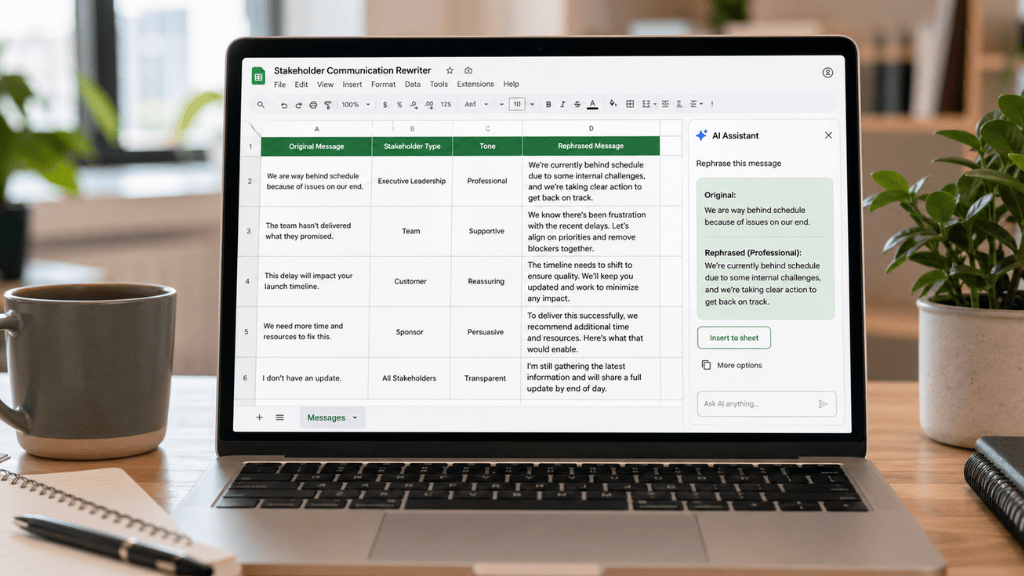
At some point in every project, someone needs to deliver a difficult message. Maybe a deadline is missed, a client requests something extra, the budget changes, a stakeholder is upset, or a senior leader wants answers before all the facts are in.
In those moments, the words matter.
A defensive message can create tension. A message that is too vague can create confusion. A message that is too soft can hide the decision that needs to be made. A message that is too blunt can damage trust even when the facts are correct.
That is where AI in Google Sheets can be surprisingly useful. Instead of using a spreadsheet only to track tasks, risks, and owners, you can also use it as a communication workspace. With the Google Sheets AI function, you can turn rough stakeholder notes into clearer, calmer, more useful messages directly inside your project tracker. Google says the Sheets AI function can generate text, summarize information, categorize information, analyze sentiment, and access real-time information from Google Search, depending on plan availability and settings.
AI isn’t a substitute for your judgment, responsibility, or empathy. But it can help you pause, check your tone, take out emotional language, and write messages that are easier for stakeholders to understand.
Why Tough Stakeholder Messages Are So Easy to Get Wrong
Stakeholder communication is not just about sharing information. It is about reducing uncertainty.
A stakeholder usually wants to know four things:
What happened?
Why does it matter?
What is being done?
What do you need from me?
The problem is that difficult messages often come with pressure. The sender may feel blamed. The stakeholder may feel surprised or disappointed. The team may not yet have a perfect answer. That emotional layer makes the message harder to write.
The book Difficult Conversations, by Douglas Stone, Bruce Patton, and Sheila Heen, is often summarized around three overlapping conversations: what happened, feelings, and identity. Harvard’s Program on Negotiation explains that blame can prevent people from understanding what actually happened, while unaddressed feelings can deepen conflict.
This idea fits stakeholder emails, too. A weak message often focuses on blame, excuses, or vague comfort. A stronger message separates facts from feelings, recognizes the impact, and gives the stakeholder a clear next step.
Project management research also supports the importance of early and thoughtful stakeholder engagement. PMI notes that project teams should speak with stakeholders, gather viewpoints, and incorporate actions into the project plan based on the project’s real dynamics.
In simple terms: stakeholder messages should not just “sound professional.” They should help people make decisions.
Why Use Google Sheets for Stakeholder Message Rewriting?
Most teams already keep project information in spreadsheets: status updates, risks, blockers, decisions, owners, dates, and stakeholder lists. Google Sheets is useful because it keeps the message close to the facts.
Rather than pasting rough notes into a separate AI chat, you can set up a repeatable message review system right in your tracker. Each row can hold the original message, the audience, the goal, the preferred tone, the AI-generated rewrite, and the final version you approve.
Google Sheets now supports =AI() and =Gemini() for eligible Google Workspace or Google AI plans. The function syntax is simple:
AI(“prompt”, [optional range])
For example, Google’s documentation shows that the AI function can generate tailored text from spreadsheet data, summarize input cells or ranges, categorize information, analyze sentiment, and generate text from a prompt.
That makes Google Sheets a practical place to build a stakeholder communication system, especially when you need consistency across many messages.
Set Up a Stakeholder Message Rewriter in Google Sheets
Create a sheet with these columns:

In cell E2, use this formula:
=AI(“Rewrite the stakeholder message in this row. Make it clear, respectful, concise, accountable, and action-oriented. Use the stakeholder type, situation, and desired tone from the row. Preserve all facts. Do not invent dates, numbers, causes, approvals, commitments, or guarantees. Return only the rewritten message.”, A2:D2)
After entering the formula, select the cell and click Generate and Insert. Google’s documentation notes that AI output is inserted into the cell after generation, and users can refresh the output when needed.
In cell F2, add a quality-control prompt:
=AI(“Review the rewritten stakeholder message in this row. Identify any vague wording, emotional language, missing next steps, unsupported claims, or promises that should be verified before sending. Keep the review brief.”, A2:E2)
This second formula helps prevent the most common AI mistake: producing a polished message that sounds good but still lacks the facts needed for a real stakeholder update.
A Simple Formula for Rephrasing Difficult Messages
A strong AI prompt for stakeholder communication should include five things:
Audience: Who will read the message?
Context: What happened?
Goal: What should the message accomplish?
Tone: How should it feel?
Guardrails: What should AI avoid inventing?
Use this reusable prompt:
Rewrite this message for a stakeholder. Keep the meaning and facts unchanged. Make it professional, calm, specific, and easy to act on. Acknowledge the impact without sounding defensive. Do not add information that is not provided. End with a clear next step.
That prompt works well because it does not simply say “make this nicer.” It tells AI what kind of communication outcome you want.
Before-and-After Examples

The best AI-rewritten messages do not hide the issue. They make the issue easier to understand and act on.
Prompt Templates for Common Stakeholder Situations

Use AI to Classify Message Tone Before Sending
You can also use AI in Google Sheets to check the tone of a message before it goes out.
Try this in a separate column:
=AI(“Classify the tone of this stakeholder message as one of the following: calm, defensive, vague, too harsh, too soft, collaborative, or executive-ready. Then give one short reason.”, E2)
This is useful when several people are drafting updates in the same sheet. It helps the team spot messages that may need another pass before they are sent to clients, sponsors, executives, or vendors.
Google’s AI function documentation specifically lists sentiment analysis and categorization as supported use cases, which makes tone checking a natural fit.
Use AI to Create a Stakeholder Message Library
Over time, your spreadsheet can become more than a drafting tool. It can become a reusable message library.
You can create categories such as:
Delay updates
Budget decisions
Scope changes
Risk escalations
Decision requests
Client follow-ups
Vendor reminders
Executive summaries
Internal alignment messages
Then use AI to generate a polished message tailored to the category and situation.
Example formula:
=AI(“Create a reusable stakeholder message template for this situation. The template should include placeholders for project name, date, impact, owner, decision needed, and next step. Keep it professional and concise.”, B2:D2)
This helps teams avoid rewriting the same difficult messages from scratch every time.
What a Good AI-Rephrased Stakeholder Message Should Include
A useful stakeholder message usually has six parts:
1. The main point
Start with the issue, decision, or update. Do not bury the message.
2. The current status
Explain what is known right now.
3. The impact
Tell the stakeholder why it matters.
4. The action being taken
Show ownership without overpromising.
5. The decision or input needed
Make it clear whether the stakeholder needs to approve, decide, review, or simply stay informed.
6. The next update
Give a follow-up time, meeting, owner, or checkpoint when available.
Here is a strong structure:
[Main update]. The impact is [impact]. We are currently [action]. To move forward, we need [decision/input]. We will provide the next update by [date/time/checkpoint].
AI can help with wording, but it’s up to you to provide the real facts.
Do Not Let AI Invent Facts
The biggest risk with using AI for stakeholder messages isn’t grammar mistakes — it’s false confidence.
A generated message may sound polished when it adds a timeline, cause, promise, or next step that nobody has approved. That is why every prompt should include a guardrail, such as:
Do not invent dates, numbers, causes, approvals, commitments, or guarantees.
Google also warns that Gemini features may suggest inaccurate or inappropriate information and should not be relied on as medical, legal, financial, or other professional advice.
For stakeholder communication, that means AI should be treated as a drafting assistant, not the source of truth.
Privacy and Confidentiality When Using AI in Google Sheets
Before using AI to rewrite stakeholder messages, check your organization’s data and AI policies. Stakeholder messages may contain confidential project details, customer names, employee performance information, pricing, legal issues, financial data, or sensitive internal decisions.
For Google Workspace customers, Google states that Workspace does not use customer data to train generative AI models without the customer’s permission or instruction, and Gemini retrieves relevant Workspace content based on what the user has access to.
Still, you should be careful with sensitive information. Google’s documentation also warns that feedback about AI-generated suggestions may be visible to people and shouldn’t include personal, confidential, or sensitive details.
A safe workflow is to anonymize sensitive details before generating a draft. For example:
Instead of writing:
“Acme Corp is threatening to cancel the contract because our QA team missed three defects.”
Use:
“Client A is concerned about quality issues after several defects were found.”
After reviewing the draft, add the specific details yourself.
When AI Helps Most
AI in Google Sheets is especially helpful when you need to:
Rewrite emotional drafts into neutral language.
Create executive-ready summaries
Turn rough notes into status updates.
Make messages shorter and clearer.
Standardize communication across a team.
Check whether a message sounds defensive or vague.
Generate options for different tones.
Create templates for repeated stakeholder situations.
Research on generative AI and writing tasks suggests that AI can improve speed and quality for certain professional writing tasks. MIT reported a study in which access to ChatGPT reduced completion time by 40 percent and improved output quality by 18 percent for selected writing tasks, while also noting that real-world use still requires fact-checking and context.
A separate NBER working paper on generative AI in customer support found that AI assistance increased productivity by 14 percent on average, with larger gains for novice and lower-skilled workers.
The takeaway for stakeholder messages is simple: AI can help with drafting, structure, and clarity, but it works best when you add your own context and judgment.
When AI Should Be Used Carefully
Not every message should be heavily rewritten by AI.
A 2025 study in the International Journal of Business Communication found that although AI-assisted workplace writing can appear professional, managers who use medium to high levels of AI assistance for routine communication may risk trustworthiness because readers may question authorship, sincerity, caring, confidence, and ability.
That does not mean you should avoid AI completely. It means the final message should still sound like it was written by a responsible human.
This is especially important for:
Performance feedback
Apologies
Layoff or restructuring messages
Client escalations
Conflict resolution
Praise or recognition
Sensitive employee communication
Messages involving trust, disappointment, or accountability
Use AI to make your draft better, but don’t let it take away your own voice.
Best Practices for Rephrasing Stakeholder Messages With AI
Begin with the facts. AI can’t fill in what’s missing.
Identify your audience. A message for an executive shouldn’t sound the same as one for a delivery team.
Tell the AI exactly what tone you want. “Professional” is too general. Try asking for “calm, concise, accountable, and action-oriented.”
Ask AI to keep all the facts as they are. This helps prevent it from making things up.
Request a risk review. Use a second AI formula to check for vague language, emotional words, or claims that aren’t backed up.
Have a column for the final, human-approved version. Never send the AI’s output without reviewing it first.
Don’t over-polish your messages. Stakeholders trust messages that are clear and sound human, not ones filled with generic corporate language.
Example: Full Google Sheets Workflow
Use this workflow for every difficult stakeholder message:
Step 1: Write the rough message
Add the unpolished version in Column A.
Step 2: Add context
Use Columns B, C, and D to define the stakeholder, situation, and tone.
Step 3: Generate the rewrite
Use the AI formula in Column E.
Step 4: Run a risk review
Use the AI review formula in Column F.
Step 5: Edit manually
Fix facts, add missing details, remove anything that sounds unnatural, and paste the final version into Column G.
Step 6: Send only the approved version
The sender — not the AI — should take ownership of the final message.
Final Example
Rough Draft
“We cannot keep changing the timeline every time new requests come in. The team is already overloaded, and this is going to delay everything.”
AI-Rephrased Version
“The current timeline is at risk because new requests have been added after the original plan was agreed upon. To keep the project moving, we recommend reviewing the new items and confirming which ones should be prioritized for this phase. Once priorities are confirmed, we can provide an updated timeline and impact assessment.”
Why This Version Works
It removes frustration.
It explains the cause without blaming.
It identifies the impact.
It asks for prioritization.
It gives a clear next step.
That’s the real benefit of using AI in Google Sheets for stakeholder communication: it helps turn tense situations into clear ones.
FAQ: Rephrasing Stakeholder Messages With AI in Google Sheets
Can Google Sheets rewrite stakeholder messages with AI?
Yes. Eligible users can use the Google Sheets =AI() or =Gemini() function to generate text, summarize information, categorize information, analyze sentiment, and work with spreadsheet ranges.
What is the best AI formula for rephrasing stakeholder messages?
A strong formula is:
=AI(“Rewrite the stakeholder message in this row. Make it clear, respectful, concise, accountable, and action-oriented. Preserve all facts. Do not invent dates, numbers, causes, approvals, commitments, or guarantees. Return only the rewritten message.”, A2:D2)
Can the Google Sheets AI function access my whole spreadsheet?
Google says the AI function does not have access to the entire spreadsheet or other files in Google Drive. To give it context, add the needed data to the current spreadsheet and use the optional range argument.
Can Gemini in Sheets use Drive or Gmail context?
The Gemini side panel in Sheets can summarize files from Drive and emails from Gmail, where the feature is available, and the user has access. Google’s Sheets documentation lists summarizing Drive files and Gmail emails as Gemini capabilities in Sheets.
Should AI write the final message?
No. AI should create a draft or review. The final stakeholder message should be checked by a human for accuracy, tone, confidentiality, and business context.
Conclusion
Rewriting tough stakeholder messages with AI in Google Sheets isn’t about making bad news sound good. It’s about making hard information easier to understand, talk about, and act on.
When used well, AI can help you turn rushed notes into calm updates, emotional drafts into professional messages, and scattered project details into clear communication for stakeholders. The key is to stay in control: give the facts, set the tone, review the output, and only send what you’re comfortable with.
Google Sheets gives teams a practical way to repeat this process. With the right columns, prompts, review steps, and human judgment, your spreadsheet can be more than just a tracker — it can become a system for quality communication.
메타데이터
- post_id
- ff9fe9b03419
- slug
- rephrase-stakeholder-messages-with-ai-in-google-sheets-ff9fe9b03419
- url
- https://medium.com/@gkunzile/rephrase-stakeholder-messages-with-ai-in-google-sheets-ff9fe9b03419
- canonical_url
- https://medium.com/@gkunzile/rephrase-stakeholder-messages-with-ai-in-google-sheets-ff9fe9b03419
- author_url
- https://medium.com/@gkunzile
- status
- ok
- fetched_at
- 2026-06-20 20:29:01






