JMeter Correlation: How to Capture Dynamic Values with Regular Expression Extractor
Have you ever run a JMeter test and seen 401 Unauthorized errors on every single request after login? Or maybe your test passed locally but…
JMeter Correlation: How to Capture Dynamic Values with Regular Expression Extractor
Have you ever run a JMeter test and seen 401 Unauthorized errors on every single request after login? Or maybe your test passed locally but failed completely when you ran it with 100 users?
If yes, you probably have a correlation problem.
In this article I’ll explain what correlation is, why it matters, and how to use the Regular Expression Extractor to fix it. I’ll walk through a real example step by step so you can follow along.
What is the Problem?
Let’s say you are testing a website that requires login. When a user logs in, the server creates a unique session token. This token proves that “yes, this person is logged in.”
The key word here is unique. Every single login creates a completely different token.
Login attempt 1 → token: "eyJhbGc...abc123"
Login attempt 2 → token: "eyJhbGc...xyz789"
Login attempt 3 → token: "eyJhbGc...qwe456"
Now here is where most beginners make a mistake. They record their test, see the token in the request, and just leave it there — hardcoded. Like this:
Authorization: Bearer eyJhbGc...abc123This works exactly once. The next time you run the test, that token is expired or invalid. The server says “I don’t know who you are” and returns 401. Every request after login fails.
This is why we need correlation.
What is Correlation?
Correlation is the process of:
- Capturing a dynamic value from a server response
- Saving it as a variable
- Reusing it automatically in later requests
Instead of hardcoding the token, JMeter captures it fresh every time, saves it as ${authToken}, and sends it with every following request. No matter how many times you run the test or how many virtual users you have — each user gets their own token automatically.
Two Ways to Do Correlation in JMeter
JMeter gives you two main extractors:
Regular Expression Extractor for HTML responses. Uses regex patterns.
JSON Extractor for API responses. Uses JSON path like $.token.
In this article we focus on the Regular Expression Extractor because it is the most important one to understand , once you get regex, JSON extractor becomes easy.
Real Example: blazedemo.com
We will use blazedemo.com — a free demo travel site. Our test flow is:
- Open homepage
- Search for flights (reserve page)
- Go to purchase page
The reserve page shows flight prices like $472.56. We want to capture this price and pass it automatically to the purchase page.
Step 1: Understand What You Are Looking For
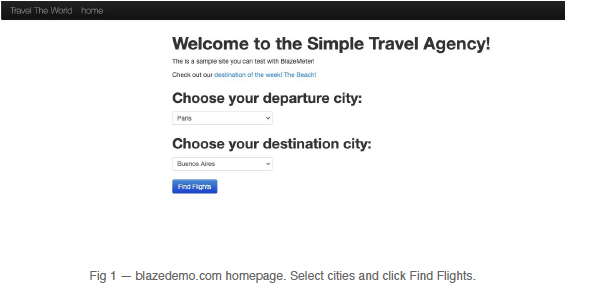
Before writing anything in JMeter, always check the actual server response first. Go to blazedemo.com, select Paris as departure and Buenos Aires as destination, then click Find Flights.
You will see a results page like this:

The prices are inside the HTML. We need to pull out just the number472.56 without the dollar sign. The HTML looks like this:
<td>Virgin America</td>
<td>$472.56</td>      ← price is here!
<td>United Airlines</td>
<td>$432.98</td>
Step 2: Add Regular Expression Extractor
In JMeter, right-click on your HTTP Request (the reserve page request):
Right click on 02 - Reserve
→ Add
→ Post Processors
→ Regular Expression Extractor
You will see a settings form. Let’s go through each field.
Step 3: Fill in the Settings

Apply to Leave as Main sample only. This means JMeter searches inside the response of this specific request. That is what we want.
Field to check Select Body. This is the full HTML text of the page. The prices are in the HTML body, so Body is the right choice.
If you were looking for something in the HTTP response headers (like a Set-Cookie header), you would select Response Headers instead. But for most HTML tests, Body is correct.
Name of created variable Type flightPrice. After the extractor runs, you can use this value anywhere by typing ${flightPrice}.
Regular Expression Type:
\$([0-9.]+)Let me break this down character by character:
\$        = search for a dollar sign
           (backslash needed because $ has special meaning in regex)

(         = open capturing group
           everything inside () is what JMeter will SAVE

[0-9.]    = any digit 0-9 OR a dot character

+         = one or more of the above characters

)         = close capturing group

Result: finds $472.56 → captures 472.56
Template Type $1$. This tells JMeter which capturing group to use.
Every pair of parentheses in your regex is a group, numbered from left to right. Our regex has one pair, so $1$ means "give me what is inside group 1."
Template and Match No are different things. Template 11 1 answers “which group?” (left to right across the regex). Match No answers “which occurrence?” (which match on the page). They solve different problems.
Match No Type 1. The page has multiple prices — one per flight. Match No 1 means take the first match found.
Default Value Type NOT_FOUND. This is what JMeter saves if the regex finds nothing. If you see NOT_FOUND appearing during your test, your regex is wrong — fix it before running a full load test.
Step 4: Use the Captured Value
Go to your Purchase HTTP Request. In the Parameters tab, add:
Name:   price
Value:  ${flightPrice}
When JMeter runs, it replaces ${flightPrice} with the actual captured value — 472.56. The purchase request goes out with the real price from the reserve page.
Step 5: Verify it Worked
Run the test and open View Results Tree. Click on the Purchase request and go to the Request tab. You should see:
POST https://blazedemo.com/purchase.php

POST data:
price=472.56    ← the real captured value is here!
Correlation is working. JMeter captured the price from one page and passed it to the next — completely automatically.
The Real World Use Case: Login Tokens
What we did with the price is exactly what happens with login tokens in real API testing — just with JSON instead of HTML.
When you log in to a modern application, the server returns a JSON response like this:
{
  "status": "success",
  "token": "eyJhbGc...abc123xyz",    ← unique every single login!
  "userId": 42
}
You use a JSON Extractor with the path $.token to capture the token. Then you add an HTTP Header Manager at Thread Group level:
GET /api/profile     → Authorization: Bearer eyJhbGc...abc123  ✓
POST /api/cart/add   → Authorization: Bearer eyJhbGc...abc123  ✓
POST /api/checkout   → Authorization: Bearer eyJhbGc...abc123  ✓
Common Mistakes and How to Fix Them
You see NOT_FOUND during the test Your regex did not match. Go to View Results Tree, click the request where the extractor is placed, and check the Response Data tab. Look at the actual HTML and compare with your regex pattern. Test your regex on regex101.com first.
All requests after login fail with 401 Your token extraction is not working or the Header Manager is in the wrong place. Make sure the JSON Extractor is on the login request, and the Header Manager is at Thread Group level — not inside a specific request.
You get the wrong value Check your Match No setting. If the value you want is the second occurrence on the page, change Match No from 1 to 2.

Key Things to Remember
Correlation = capture → save → reuse. Every dynamic value (token, price, ID, session key) is a candidate for correlation.
Parentheses are your friends. The part inside () is exactly what JMeter saves. Everything outside is just context to help find the right place.
NOT_FOUND is your debugging tool. Always set a Default Value. If something goes wrong you will see it immediately instead of wondering why requests are failing silently.
Post Processor runs AFTER the response arrives. Post does not mean POST request. It means “after” in time. A GET request can also have a Post Processor — we did exactly this with our reserve page.
Use JSON Extractor for APIs. If the server returns JSON, a path like $.token is cleaner and easier than writing regex. Use regex for HTML pages, JSON Extractor for REST APIs.
Final Thought
Correlation feels complicated when you first hear about it. But once you understand what it is doing — capturing something from one response and passing it to the next request — it becomes very natural.
The Regular Expression Extractor is just a search tool. You tell it what pattern to look for, which part to keep, and what to call it. Then you use that name anywhere in your test with ${} syntax.
That is really all there is to it.
If you want to practice, go to blazedemo.com, set up the test I described, and check the Request tab in View Results Tree. Seeing the captured value appear there for the first time is a satisfying moment.
Good luck with your performance testing! 💪
메타데이터
- post_id
- 0f44154aa1dd
- slug
- jmeter-correlation-how-to-capture-dynamic-values-with-regular-expression-extractor-0f44154aa1dd
- url
- https://medium.com/@durmazcagatay/jmeter-correlation-how-to-capture-dynamic-values-with-regular-expression-extractor-0f44154aa1dd
- canonical_url
- https://medium.com/@durmazcagatay/jmeter-correlation-how-to-capture-dynamic-values-with-regular-expression-extractor-0f44154aa1dd
- author_url
- https://medium.com/@durmazcagatay
- status
- ok
- fetched_at
- 2026-07-10 01:40:30