Introduction to Anypoint MQ
Anypoint MQ
Introduction to Anypoint MQ
Anypoint MQ
Anypoint MQ is a multi-tenant, cloud messaging service using which customers can undertake sophisticated asynchronous messaging scenarios between their applications such as queuing and publishing/subscribing. Neither Anypoint Monitoring nor CloudHub Insight is compatible with Anypoint MQ. Instead, you can get utilization data using the Anypoint MQ usage graphs. You can monitor past and present consumption, including the amount of data utilized, API queries, and messages received overall. The Anypoint MQ Stats API can also be used to statistically analyze queue performance.
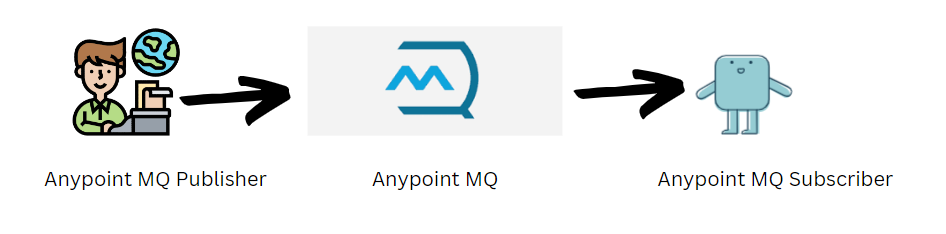
In this blog, I will introduce you to all the terminologies, capabilities, and use cases of Anypoint MQ followed by a walk-through of all the operations that we can perform using Anypoint MQ.
Let’s start with a few theoretical concepts about Anypoint MQ first
The trial edition of the Anypoint Platform does not include Anypoint MQ, which needs a separate Enterprise subscription. To get more information, contact MuleSoft Support else you can utilize Apache Active MQ or Rabbit MQ if you don’t have an Enterprise subscription to Anypoint Platform.
Anypoint MQ supports hybrid use cases, IoT in which you collect data from different devices, and a REST API you can use with device applications. You can also use Anypoint MQ with other app frameworks such as node.js to communicate to queues.
Using Anypoint MQ, you can create two types of queues:
Standard queue
- The order of the messages in these queues is not guaranteed. For situations where messages must be delivered fast, standard queues work best.
- standard queue supports up to 120,000 in-flight messages.
FIFO (first in, first out) queue
- These queues ensure your messages arrive in order. Your emails will arrive in order thanks to these queues. The applications that require exact-once delivery and precise message ordering and for which message delivery speed is less important are best suited for FIFO queues.
- FIFO queues provide “exactly once” message-delivery reliability.
Exchange
- It is simply used to Broadcast a message to a Queue.
- We can create an Exchange and bind other queues into an Exchange so that whenever messages get Published/Send to an Exchange, those messages will get Broadcast/Forwarded to all Queues associated with the Exchange. Only Standard type Queues alone can be bound to an exchange.
Let’s Create a Queue and Send Messages to It
Create Queue( Normal Queue ) :
- Go to Anypoint Platform, now Select MQ, it will be visible only if we have a License for it.

- After Selecting MQ, we will get the below screen, to create a queue, we need to select a region. It is good to select a region that is geographically close, or we can select any region.
- 1 Select Destination from Left Panel.
- 2 Choose Region which is nearest.
- 3 It will give us a URL for the Selected region, URL is important and it is different for each region and we require it for Anypoint MQ Connector configuration in Anypoint Studio.
- In the above image, in the right top corner there is an icon, click that to create a Queue. We will get 3 options to choose the Queue type that we want to create. We discussed these Queue types earlier. Based on our requirements we can select any of the types.
- First will start with Queue (Normal Queue), Once we select the Queue it will open a popup window like below.
- ID → Which is the Queue name we need to provide (should be : Alphanumeric(a-z, 0–9), period(.) and dashes(-))
- Message TTL → TTL means Time To Live. It defines how long the message will remain in the queue, after that the message will delete from the queue ( Maximum Live time is 14 days )
- Default Acknowledgement Timeout → How long a message remains unacknowledged before being returned to the queue. But connector level Acknowledgement Timeout will override it.
- Assign Default Delivery Delay → Which will postpone the delivery of the Message. The minimum delay for a queue is 0 seconds. The maximum is 15 minutes.
- Encryption → Anypoint MQ messages are always transported using in-flight HTTPS encryption with the latest Transport Layer Security (TLS) protocols. If you configure Anypoint MQ queues for encryption at rest, the payloads are encrypted with the AES-256 GCM algorithm on the server side.
- Assign a Dead Letter Queue → DLQ, whenever we want to store the Undelivered/Unprocessed/Failed messages, we can go with this option, ( will see more detailed in future Info )

Once everything is defined, click the Create Queue button. It will create a Queue now.
- We can see the newly created queue with the name Normal-Queue. If we click anywhere on the queue, we can see a dashboard on the Right Hand Side that shows a graphical view of the messages of the queue and queue details.
In this image, we can see, the In Queue and In-Flight sections in the Right Panel, which we discussed before.
As of now we have not sent/published any message to the queue and no messages are under process, that’s why we have “0” in In-Queue and In-Flight state, if any message was there it will show the Count of the Messages.
Create FIFO Queue :
Same procedure as how we created Normal Queue, Check whether we are in Destination from the Left Panel, and Click + Icon on the Top Right Corner, then Select FIFO Queue.
Create Exchange :
- As we know it’s a Broadcasting space, so we need some Queues to be already created. I have created a few Demo Queues.
- Now Click the same Top Right Corner + Icon, and Select Exchange.
Once Selected Exchange, the window will open → provide the Exchange name in ID, below it will list out all the Queue ( Normal Queue ) available in the Anypoint MQ. Select whichever queue we want to Bind, here I’m selecting all, then Click Save Changes button.
Once Exchange is created, click anywhere in the exchange, it will show the Dashboard in the Right Side, below the Dashboard it will show all the Queues which are Binded into the Exchange.
Ways to Send/Publish Messages to Queues:
In Two ways we can Send/Publish Messages into Queues in Anypoint MQ,
- One is from Anypoint MQ User Interface (Anypoint Platform)
- Another way is through API (Anypoint Studio).
Now, Will see how to Send/Publish the messages from Anypoint MQ User Interface
Ending Messages to Queue through Anypoint MQ User Interface :
- Click on the Queue Name, in which we want to Send/Publish Messages.
Here, I’m selecting Normal-Queue, once Clicked the Queue Name then Select the Message Sender option from Left Panel, the window will open like in the image below.
- In Type → Select the Payload type ( Text / CSV / JSON )
- In Payload → Provide the Message/Payload which we want to send to the Queue.
- If we want to Deliver the particular Message by Delay, then provide the duration of the delay. Sometimes, we will define the Delay while creating the queue itself, in that case that Delay duration will apply for all Messages by default, but we can also override/change the Delay duration for a particular message while sending a message also.
Click on the Environment button to switch between the environments.

Features of Anypoint MQ:
- Send messages to queues, pull messages from queues, and create a message exchange to perform pub/sub scenarios to send a message to multiple queues.
- REST API to easily communicate with non-Mule applications.
- Delay queues allow you to postpone the delivery of new messages to a queue for a specified period. Consumers can’t see messages sent to a delay queue for the duration of the delay period.
- Check out the complete list of features of Anypoint MQ, *here.*
Regions where Anypoint MQ is Available :
Anypoint MQ standard and FIFO queues are available in these regions:

To Create, Configure, Implement, and Use → the Anypoint MQ, we need to work on both :
- Anypoint Platform
- Anypoint Studio
Drawbacks :
- Sometimes we cannot expect Quick reflection in the Anypoint MQ User Interface, it may delay some time to reflect the changes, but that doesn’t mean the processing will also be delayed, the internal operations will do its work properly on time (Internally no delay).
Reference:
메타데이터
- post_id
- 1eeb6e7f81d0
- slug
- introduction-to-anypoint-mq-1eeb6e7f81d0
- url
- https://medium.com/@amangandhii9797/introduction-to-anypoint-mq-1eeb6e7f81d0
- canonical_url
- https://medium.com/@amangandhii9797/introduction-to-anypoint-mq-1eeb6e7f81d0
- author_url
- https://medium.com/@amangandhii9797
- status
- ok
- fetched_at
- 2026-07-23 13:42:54

