From Python Script to Windows EXE: Complete PyInstaller Guide (2025)
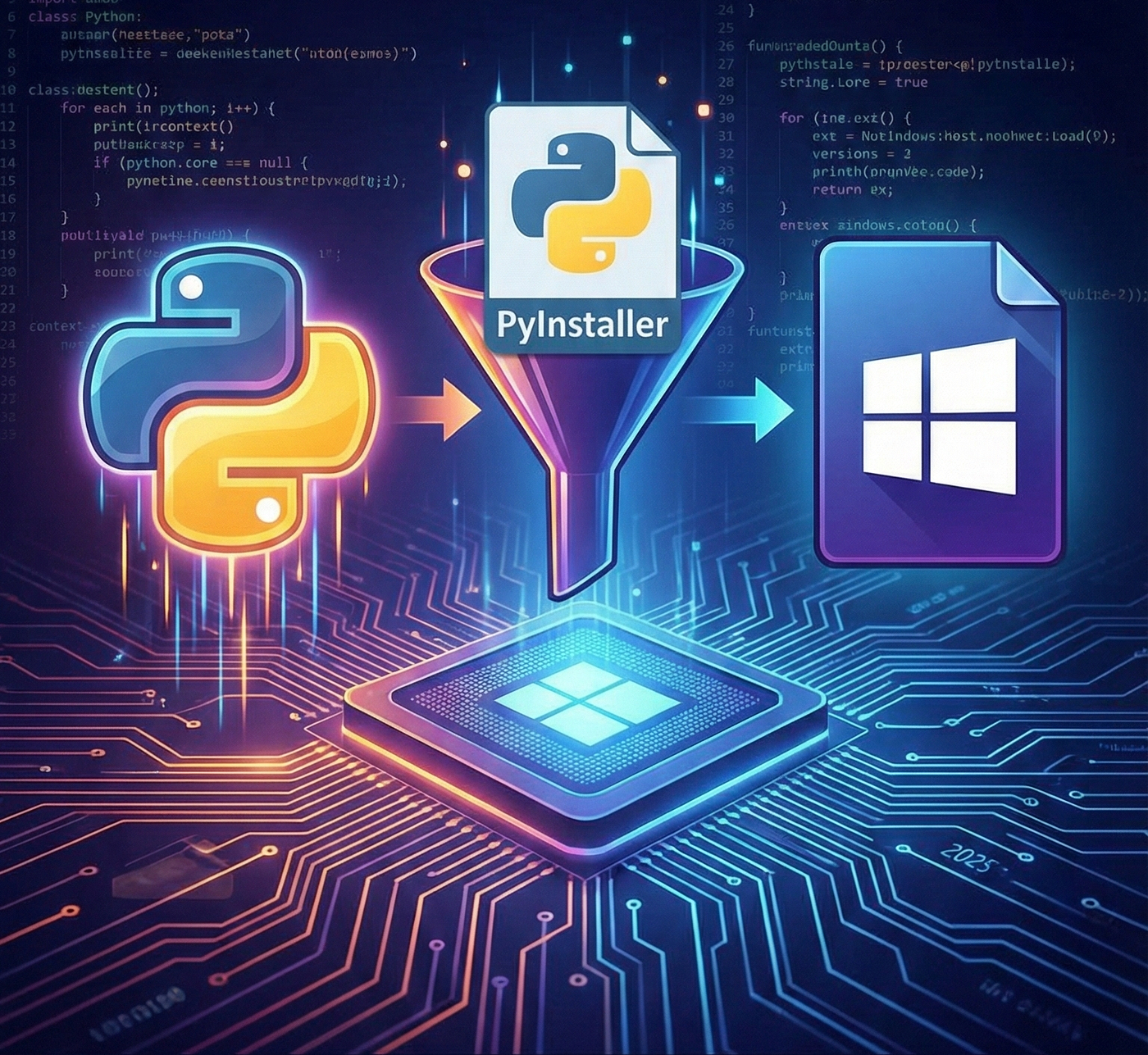
Transform your Tkinter and PyQt apps into standalone executables that anyone can run no Python installation required!
From Python Script to Windows EXE: Complete PyInstaller Guide (2025)
Transform your Tkinter and PyQt apps into standalone executables that anyone can run no Python installation required!
Ever built a cool Python app but struggled to share it with friends who don’t have Python installed? PyInstaller is your answer! It bundles your Python application and all its dependencies into a single executable file that runs on any Windows machine.
What You’ll Learn
- ✅ Convert Tkinter apps to .exe files
- ✅ Package PyQt applications as executables
- ✅ Handle common PyInstaller issues
- ✅ Optimize file size and startup time
- ✅ Add icons and version info to your .exe
Estimated time: 30–45 minutes
Prerequisites
- Windows PC (Windows 10/11 recommended)
- Python 3.7+ installed with PATH configured
- Basic Python knowledge (functions, classes)
- Existing GUI app or willingness to create sample apps
Step 1: Install PyInstaller
Open Command Prompt and install PyInstaller:
pip install pyinstallerVerify installation:
pyinstaller --versionYou should see something like 5.13.2 or newer.
Step 2: Create Sample Applications
Let’s create two sample apps to demonstrate the process.
Tkinter Calculator App
Create tkinter_calculator.py:
import tkinter as tk # Tkinter is included with Python by default; no need to install via pip
from tkinter import messagebox
import math

class Calculator:
    def __init__(self, root):
        self.root = root
        self.root.title("Python Calculator")
        self.root.geometry("300x400")
        self.root.resizable(False, False)

        # Variables
        self.current = "0"
        self.total = 0
        self.input_value = True
        self.result = False

        # Display
        self.display_var = tk.StringVar(value="0")
        display = tk.Entry(
            root, textvariable=self.display_var,
            font=('Arial', 16), justify='right',
            state='readonly', bd=10
        )
        display.grid(row=0, column=0, columnspan=4, padx=5, pady=5, sticky="ew")

        # Buttons
        self.create_buttons()

    def create_buttons(self):
        buttons = [
            ('C', 1, 0), ('±', 1, 1), ('%', 1, 2), ('/', 1, 3),
            ('7', 2, 0), ('8', 2, 1), ('9', 2, 2), ('*', 2, 3),
            ('4', 3, 0), ('5', 3, 1), ('6', 3, 2), ('-', 3, 3),
            ('1', 4, 0), ('2', 4, 1), ('3', 4, 2), ('+', 4, 3),
            ('0', 5, 0), ('.', 5, 2), ('=', 5, 3)
        ]

        for (text, row, col) in buttons:
            if text == '0':
                btn = tk.Button(
                    self.root, text=text, font=('Arial', 14),
                    command=lambda t=text: self.button_click(t)
                )
                btn.grid(row=row, column=col, columnspan=2, padx=2, pady=2, sticky="ew")
            else:
                btn = tk.Button(
                    self.root, text=text, font=('Arial', 14),
                    command=lambda t=text: self.button_click(t)
                )
                btn.grid(row=row, column=col, padx=2, pady=2, sticky="ew")

    def button_click(self, value):
        if value in '0123456789':
            if self.input_value:
                self.current = value
                self.input_value = False
            else:
                self.current += value
            self.display_var.set(self.current)

        elif value == 'C':
            self.current = "0"
            self.total = 0
            self.input_value = True
            self.display_var.set("0")

        elif value == '=':
            try:
                self.current = str(eval(self.current))
                self.display_var.set(self.current)
                self.input_value = True
            except:
                messagebox.showerror("Error", "Invalid calculation")

        elif value in '+-*/':
            if not self.input_value:
                self.current += value
                self.input_value = False
            self.display_var.set(self.current)

if __name__ == "__main__":
    root = tk.Tk()
    app = Calculator(root)
    root.mainloop()
PyQt Text Editor App
Create pyqt_editor.py:
import sys
from PyQt5.QtWidgets import (QApplication, QMainWindow, QTextEdit,
                             QMenuBar, QAction, QFileDialog, QMessageBox,
                             QVBoxLayout, QWidget)
from PyQt5.QtCore import Qt
from PyQt5.QtGui import QFont

class TextEditor(QMainWindow):
    def __init__(self):
        super().__init__()
        self.setWindowTitle("Python Text Editor")
        self.setGeometry(100, 100, 800, 600)

        # Central widget
        self.text_edit = QTextEdit()
        self.text_edit.setFont(QFont("Courier", 12))
        self.setCentralWidget(self.text_edit)

        # Current file
        self.current_file = None

        # Create menu
        self.create_menu()

    def create_menu(self):
        menubar = self.menuBar()

        # File menu
        file_menu = menubar.addMenu('File')

        new_action = QAction('New', self)
        new_action.setShortcut('Ctrl+N')
        new_action.triggered.connect(self.new_file)
        file_menu.addAction(new_action)

        open_action = QAction('Open', self)
        open_action.setShortcut('Ctrl+O')
        open_action.triggered.connect(self.open_file)
        file_menu.addAction(open_action)

        save_action = QAction('Save', self)
        save_action.setShortcut('Ctrl+S')
        save_action.triggered.connect(self.save_file)
        file_menu.addAction(save_action)

        file_menu.addSeparator()

        exit_action = QAction('Exit', self)
        exit_action.setShortcut('Ctrl+Q')
        exit_action.triggered.connect(self.close)
        file_menu.addAction(exit_action)

    def new_file(self):
        self.text_edit.clear()
        self.current_file = None
        self.setWindowTitle("Python Text Editor - New File")

    def open_file(self):
        filename, _ = QFileDialog.getOpenFileName(
            self, "Open File", "",
            "Text files (*.txt);;Python files (*.py);;All files (*.*)"
        )
        if filename:
            try:
                with open(filename, 'r', encoding='utf-8') as file:
                    content = file.read()
                    self.text_edit.setPlainText(content)
                    self.current_file = filename
                    self.setWindowTitle(f"Python Text Editor - {filename}")
            except Exception as e:
                QMessageBox.warning(self, "Error", f"Could not open file:\n{str(e)}")

    def save_file(self):
        if self.current_file:
            self.save_to_file(self.current_file)
        else:
            self.save_as_file()

    def save_as_file(self):
        filename, _ = QFileDialog.getSaveFileName(
            self, "Save File", "",
            "Text files (*.txt);;Python files (*.py);;All files (*.*)"
        )
        if filename:
            self.save_to_file(filename)

    def save_to_file(self, filename):
        try:
            with open(filename, 'w', encoding='utf-8') as file:
                file.write(self.text_edit.toPlainText())
                self.current_file = filename
                self.setWindowTitle(f"Python Text Editor - {filename}")
                QMessageBox.information(self, "Success", "File saved successfully!")
        except Exception as e:
            QMessageBox.warning(self, "Error", f"Could not save file:\n{str(e)}")

if __name__ == '__main__':
    app = QApplication(sys.argv)
    editor = TextEditor()
    editor.show()
    sys.exit(app.exec_())
Install PyQt5 if you haven’t already:
pip install PyQt5Step 3: Basic EXE Creation
For Tkinter App
Navigate to your project folder and run:
pyinstaller --onefile --windowed tkinter_calculator.pyFor PyQt App
pyinstaller --onefile --windowed pyqt_editor.pyCommand breakdown:
--onefile: Creates single .exe file (vs. folder with multiple files)--windowed: Hides console window (important for GUI apps)filename.py: Your Python script
Build process:
- PyInstaller analyzes your script
- Identifies all dependencies
- Creates build files in
dist/folder - Your .exe appears in
dist/filename.exe
Step 4: Understanding PyInstaller Options
Essential Options
# Most common combination for GUI apps
pyinstaller --onefile --windowed --name "My Calculator" tkinter_calculator.py

# Add custom icon
pyinstaller --onefile --windowed --icon=calculator.ico tkinter_calculator.py

# Specify additional files/folders
pyinstaller --onefile --windowed --add-data "config.txt;." app.py

# Hide imports (cleaner build)
pyinstaller --onefile --windowed --hidden-import=tkinter app.py
File Size Optimization
# Exclude unnecessary modules
pyinstaller --onefile --windowed --exclude-module matplotlib tkinter_calculator.py

# Use UPX compression (install UPX separately)
pyinstaller --onefile --windowed --upx-dir /path/to/upx tkinter_calculator.py
Step 5: Adding Icons and Metadata
Create an Icon File
- Find an icon (PNG, JPG) or create one
- Convert to .ico format using online converters like:
- Save as
app_icon.icoin your project folder
Build with Icon
pyinstaller --onefile --windowed --icon=app_icon.ico tkinter_calculator.pyAdd Version Information (Advanced)
Create version_info.txt:
VSVersionInfo(
  ffi=FixedFileInfo(
    filevers=(1, 0, 0, 0),
    prodvers=(1, 0, 0, 0),
    mask=0x3f,
    flags=0x0,
    OS=0x40004,
    fileType=0x1,
    subtype=0x0,
    date=(0, 0)
  ),
  kids=[
    StringFileInfo(
      [
        StringTable(
          u'040904B0',
          [StringStruct(u'CompanyName', u'Your Company'),
           StringStruct(u'FileDescription', u'Python Calculator'),
           StringStruct(u'FileVersion', u'1.0.0.0'),
           StringStruct(u'ProductName', u'Calculator App'),
           StringStruct(u'ProductVersion', u'1.0.0.0')])
      ]),
    VarFileInfo([VarStruct(u'Translation', [1033, 1200])])
  ]
)
Build with version info:
pyinstaller --onefile --windowed --version-file=version_info.txt tkinter_calculator.pyStep 6: Handling Common Issues
Issue 1: “Module not found” Errors
Problem: PyInstaller can’t find all dependencies Solution: Add hidden imports
pyinstaller --onefile --windowed --hidden-import=tkinter.messagebox tkinter_calculator.pyIssue 2: Large File Sizes
Problem: .exe file is 50MB+ for simple app Solutions:
- Use virtual environment (recommended):
# Create clean environment
python -m venv pyinstaller_env
pyinstaller_env\Scripts\activate
pip install pyinstaller tkinter

# Build in clean environment
pyinstaller --onefile --windowed app.py- Exclude unused modules:
pyinstaller --onefile --windowed --exclude-module numpy --exclude-module pandas app.pyIssue 3: Slow Startup Times
Problem: .exe takes 10+ seconds to start Solutions:
- Use — onedir instead of — onefile:
pyinstaller --windowed --onedir tkinter_calculator.py- Optimize imports in your Python code:
# Instead of importing entire modules
import tkinter as tk
from tkinter import messagebox

# Import only what you need
Issue 4: Antivirus False Positives
Problem: Antivirus software flags your .exe Solutions:
- Add exclusions in your antivirus software
- Use code signing certificates (for distribution)
- Submit to antivirus vendors for whitelisting
Step 7: Advanced PyInstaller Features
Custom Build Specs
Generate a .spec file for advanced customization:
pyinstaller --name="Calculator" --onefile --windowed --specpath=. tkinter_calculator.pyEdit the generated Calculator.spec file:
# -*- mode: python ; coding: utf-8 -*-

a = Analysis(
    ['tkinter_calculator.py'],
    pathex=[],
    binaries=[],
    datas=[('config/', 'config/')],  # Include data files
    hiddenimports=['tkinter.messagebox'],
    hookspath=[],
    hooksconfig={},
    runtime_hooks=[],
    excludes=['matplotlib', 'numpy'],  # Exclude unused modules
    noarchive=False,
)
pyz = PYZ(a.pure)
exe = EXE(
    pyz,
    a.scripts,
    a.binaries,
    a.datas,
    [],
    name='Calculator',
    debug=False,
    bootloader_ignore_signals=False,
    strip=False,
    upx=True,  # Enable UPX compression
    upx_exclude=[],
    runtime_tmpdir=None,
    console=False,  # Hide console
    disable_windowed_traceback=False,
    argv_emulation=False,
    target_arch=None,
    codesign_identity=None,
    entitlements_file=None,
    icon='calculator.ico'  # Custom icon
)
Build from spec file:
pyinstaller Calculator.specStep 8: Testing and Distribution
Test Your EXE
- Test on your machine first
- Copy to different folder and run (ensures all dependencies included)
- Test on clean Windows VM if possible
- Check different Windows versions (7, 10, 11)
Distribution Options
Option 1: Direct Distribution
- Share the .exe file directly
- Include any additional files your app needs
- Consider creating an installer with tools like Inno Setup
Option 2: Create Installer
- Use Inno Setup (free) or NSIS
- Package your .exe with installer
- Add uninstall functionality
Option 3: Code Signing
- Purchase code signing certificate
- Sign your .exe to avoid security warnings
- Important for professional distribution
Step 9: Optimization Tips
Reduce File Size
# 1. Use virtual environment
python -m venv build_env
build_env\Scripts\activate
pip install only-required-packages

# 2. Exclude unused modules
pyinstaller --exclude-module PIL --exclude-module requests app.py

# 3. Use UPX compression
pyinstaller --upx-dir C:\upx app.py
Improve Performance
# 1. Lazy imports in your code
def advanced_function():
    import numpy as np  # Import only when needed
    # Function code here

# 2. Minimize startup code
if __name__ == "__main__":
    # Keep this section minimal
    app = MyApp()
    app.run()
Debug Issues
# Run with console to see errors
pyinstaller --onefile --console app.py

# Verbose output during build
pyinstaller --log-level DEBUG app.py
Quick Reference Commands
Most Common Builds
# Simple GUI app
pyinstaller --onefile --windowed app.py

# GUI app with icon
pyinstaller --onefile --windowed --icon=icon.ico app.py

# App with additional files
pyinstaller --onefile --windowed --add-data "data.txt;." app.py

# Optimized build (smaller size)
pyinstaller --onedir --windowed --exclude-module numpy app.py
Troubleshooting Commands
# Show console for debugging
pyinstaller --onefile --console app.py

# Clean build (remove old files)
pyinstaller --clean --onefile --windowed app.py

# Verbose logging
pyinstaller --log-level DEBUG app.py
Common Tkinter vs PyQt Considerations
Tkinter Specifics
- Usually smaller .exe files
- Fewer dependencies to bundle
- Faster build times
- May need
--hidden-import tkinter.messagebox
PyQt Specifics
- Larger .exe files (30MB+)
- More dependencies (Qt libraries)
- Longer build times
- May need additional Qt plugins
Best Practices Summary
- Always test your Python script thoroughly before building
- Use virtual environments for cleaner builds
- Start with — onedir for faster development, switch to — onefile for distribution
- Add icons and metadata for professional appearance
- Test on clean systems without Python installed
- Consider file size vs. convenience trade-offs
- Document dependencies and build process for team members
Conclusion
You now have everything you need to convert your Python GUI applications into standalone executables! Whether you’re building with Tkinter or PyQt, PyInstaller makes it straightforward to create professional-looking applications that anyone can run.
Key Takeaways:
- PyInstaller handles dependency bundling automatically
- Use
--onefile --windowedfor most GUI applications - Test thoroughly on systems without Python
- Consider file size vs. convenience trade-offs
- Add icons and metadata for professional polish
Start with simple applications and gradually work your way up to more complex projects. The more you practice with PyInstaller, the more comfortable you’ll become with its various options and optimizations.
Happy building! 🐍💻✨
Need help with a specific PyInstaller issue? Drop a comment below and I’ll help you troubleshoot!
메타데이터
- post_id
- 4b22cd7461c5
- slug
- from-python-script-to-windows-exe-complete-pyinstaller-guide-2025-4b22cd7461c5
- url
- https://medium.com/@lovnish/from-python-script-to-windows-exe-complete-pyinstaller-guide-2025-4b22cd7461c5
- canonical_url
- https://medium.com/@lovnish/from-python-script-to-windows-exe-complete-pyinstaller-guide-2025-4b22cd7461c5
- author_url
- https://medium.com/@lovnish
- status
- ok
- fetched_at
- 2026-07-17 15:44:51






