Getting Started with OverTheWire Bandit: Level 0 (2026 Walkthrough)
If you are looking to break into the world of cybersecurity, penetration testing, or red teaming, learning to navigate the Linux command…
Getting Started with OverTheWire Bandit: Level 0 (2026 Walkthrough)
If you are looking to break into the world of cybersecurity, penetration testing, or red teaming, learning to navigate the Linux command line is an absolute non-negotiable prerequisite. Almost every security assessment tool, server environment, and exploit payload relies heavily on a firm grasp of terminal mechanics.
But reading dense technical manuals or memorizing man pages can quickly get dry. That is why hands-on wargames are so powerful.
OverTheWire: Bandit is widely considered the absolute best starting point for complete beginners to learn real-world Linux commands, server navigation, and fundamental security concepts in a gamified environment. Each level requires you to use specific terminal commands to find a hidden password, which unlocks the next stage.
In this guide, based on the recent tutorial by the cybersecurity channel **ZeroTrace, we will walk you through Level 0** of Bandit. You’ll learn how to set up your environment, check your system services, and establish your very first secure connection to a remote game server using SSH.
The Goal of Level 0
The goal of this entry-level challenge is simple but foundational: log into the game server using a secure remote connection.
Before you can hack into a target or navigate an environment, you must know how to establish a stable access point. To beat this level and progress to Level 1, the OverTheWire platform provides us with the following connection details:
- Host/Server Address:
bandit.labs.overthewire.org - Port:
2220(Note: Default SSH typically uses port 22, but Bandit uses a custom port!) - Username:
bandit0 - Password:
bandit0
Step 1: Choosing Your Environment
Before executing commands, you need a proper Linux terminal environment. While you can technically use Windows PowerShell or the standard Command Prompt (CMD), a native Linux distribution makes learning syntax and manipulating inputs significantly smoother.
Recommended environments include:
- Kali Linux (The offensive security distribution used in the video tutorial)
- Ubuntu (Excellent for general Linux exposure)
- WSL (Windows Subsystem for Linux, if you prefer running a Linux terminal inside Windows)
If you are following along on a Kali Linux machine or a similar distribution terminal, you are perfectly set up to follow the walkthrough.

Step 2: Preparing Your Workspace (Pro-Tip)
As you advance through the Bandit levels, each successfully completed challenge will reward you with a unique password. You will need that password to log into the next level. Without it, you cannot advance.
To keep your workspace organized and ensure you don’t lose your progress, it is highly recommended to create a dedicated text file to track your findings. You can quickly generate an empty file right from your terminal using the touch command:
touch BANDITYou can use this local file or a standard notepad application to securely paste and store your passwords as you progress from Level 0 all the way through the wargame.
Step 3: Verifying Your Local SSH Service
Before attempting a remote connection, it is good practice to ensure your local system’s SSH (Secure Shell) client services are running properly. SSH is a cryptographic network protocol used for operating network services securely over an unsecured network.
In your Linux terminal, run the following command to check the status of your SSH daemon:
systemctl status ssh
- If it says
active (running): Your local service is perfectly fine, and you can proceed to the next step. - If it says
inactive (dead): You can quickly spin up the service by running the system control start command:
sudo systemctl start ssh
Step 4: Connecting via SSH
Now, let’s craft the exact command to connect to the OverTheWire servers.
The standard blueprint for a basic SSH connection command is: ssh username@hostname
However, because the Bandit wargame runs on a custom port (2220) rather than the standard port 22, we must explicitly tell SSH to look elsewhere. We do this by appending the -p flag followed by the port number.
Input the following command into your terminal:
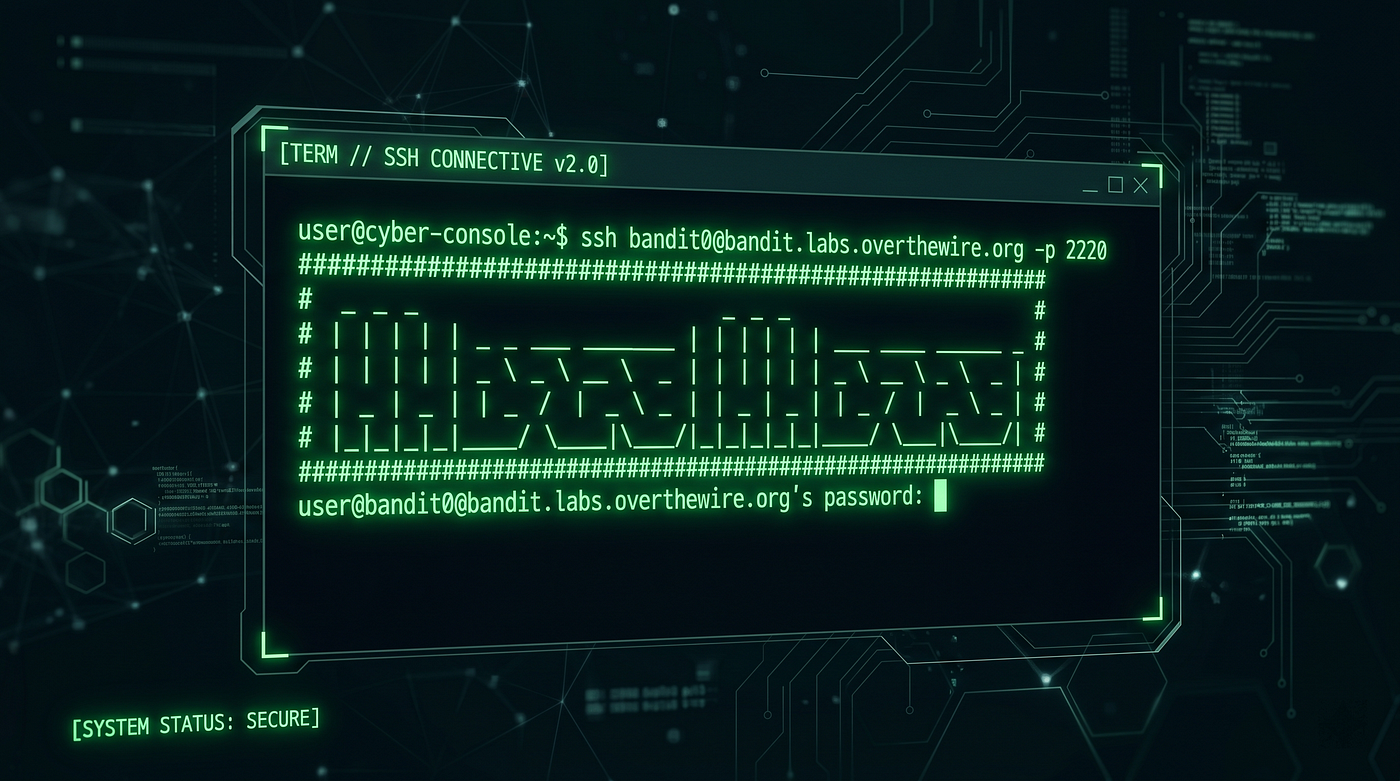
ssh bandit0@bandit.labs.overthewire.org -p 2220
Authenticating into the Server
- After hitting Enter, the terminal will prompt you for a password.
- Type the level password:
bandit0
- Note: Linux terminals do not show visual feedback, dots, or asterisks when typing passwords for security reasons. Just type it out blindly and hit Enter!
- Upon successful authentication, the terminal will display the official OverTheWire ASCII banner art welcoming you to the server.
You should now see your terminal prompt alter to look like this:
bandit0@bandit:~$Congratulations! You have successfully broken into Level 0 and established a remote footprint.
What’s Next?
Now that you are safely authenticated into the game server as user bandit0, your next task is to explore the server's file system, find the hidden password file for the next stage, and transition from Level 0 to Level 1.
[embed]
If you want to see these terminal actions performed live with real-time commentary, make sure to watch the complete video walkthrough by ZeroTrace on YouTube: **Watch the Level 0 Video Guide Here**. Be sure to subscribe to their channel to stay updated as they release guides for the upcoming levels!
메타데이터
- post_id
- 5754c1be3706
- slug
- getting-started-with-overthewire-bandit-level-0-2026-walkthrough-5754c1be3706
- url
- https://medium.com/@writer.blog03/getting-started-with-overthewire-bandit-level-0-2026-walkthrough-5754c1be3706
- canonical_url
- https://medium.com/@writer.blog03/getting-started-with-overthewire-bandit-level-0-2026-walkthrough-5754c1be3706
- author_url
- https://medium.com/@writer.blog03
- status
- ok
- fetched_at
- 2026-06-23 17:05:31





