How to Add Simple Logging and Reporting to PowerShell Automation (So You’re Never Guessing Again)
When automation works silently, it feels magical. But when something goes wrong and there is no record of what happened, it feels…
How to Add Simple Logging and Reporting to PowerShell Automation (So You’re Never Guessing Again)

How to Add Simple Logging and Reporting to PowerShell Automation (So You’re Never Guessing Again)
When automation works silently, it feels magical. But when something goes wrong and there is no record of what happened, it feels terrible.
This article is about adding simple logging and reporting to PowerShell automation, so you always know:
- What ran
- When it ran
- What succeeded
- What failed
Please read this till the end — in the next article, I’ll share:
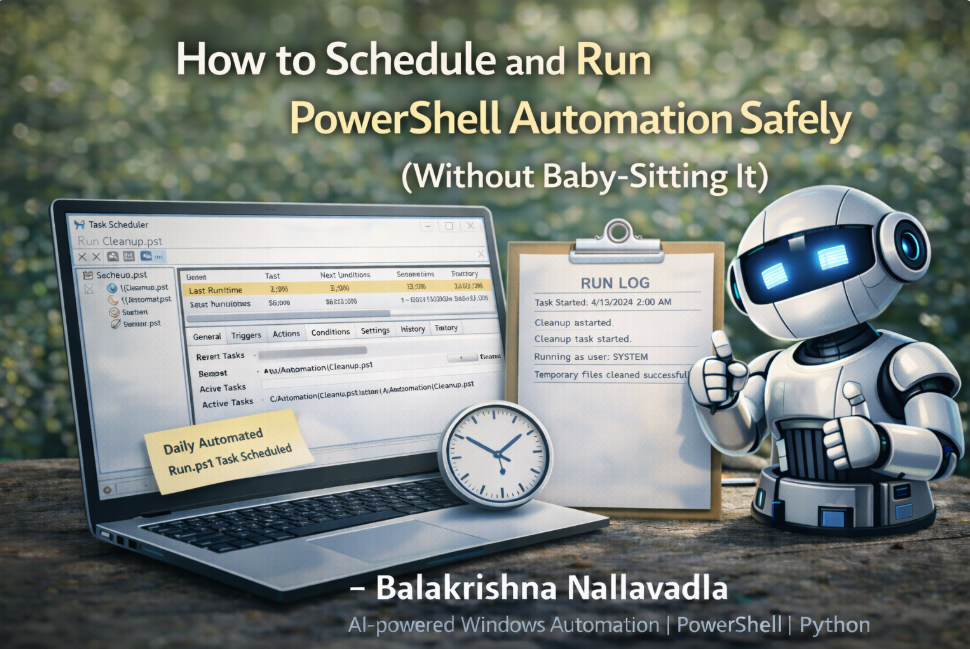
How to Schedule and Run PowerShell Automation Safely (Without Baby-Sitting It)
You don’t need complex logging systems. You don’t need external tools. You just need a few smart habits.
Most beginners write PowerShell scripts that either:
- Print something on screen, or
- Do everything silently
Both approaches have a problem.
Screen output disappears. Silence gives no answers.
Logging is what sits quietly in the middle and saves you later.
I’m writing this article because almost every automation issue I’ve debugged came down to one question:
“What exactly happened when the script ran?”
If you can answer that question clearly, troubleshooting becomes easy. If you can’t, you start guessing.
Logging removes guessing.
This article is for:
- PowerShell beginners
- IT support engineers
- Anyone sharing automation with others
- Anyone tired of “it worked yesterday”
If you’ve ever wished you could go back in time and see what your script did — this article is for you.
Let’s start with a simple truth.
If a script is important enough to automate, it is important enough to log.
Logging doesn’t mean writing hundreds of lines. It means writing down what matters.
The simplest form of logging is just writing text to a file.
Here’s the most basic example:
"Script started at $(Get-Date)" | Out-File "run.log" -AppendThat single line already gives you:
- A timestamp
- Proof the script started
- A place to add more information
This is where most good logging begins.
Now let’s look at a real-world example.
Imagine you have a PowerShell script that cleans temporary files.
Without logging, the script runs and closes. Later, a user says:
“I don’t know if it actually worked.”
That’s a problem.
Let’s improve it with logging.
$LogFile = ".\cleanup.log"
"Cleanup started at $(Get-Date)" | Out-File $LogFile -Append
$TempPath = $env:TEMP
if (Test-Path $TempPath) {
    Get-ChildItem $TempPath -Recurse -ErrorAction SilentlyContinue |
    Remove-Item -Recurse -Force -ErrorAction SilentlyContinue
    "Temporary files cleaned successfully." | Out-File $LogFile -Append
} else {
    "Temp folder not found. No cleanup done." | Out-File $LogFile -Append
}
"Cleanup finished at $(Get-Date)" | Out-File $LogFile -Append
Now you have a story:
- When it started
- What it tried to do
- Whether it succeeded
- When it ended
That’s already powerful.
A common beginner mistake is logging too much.
Logging is not about dumping everything. It’s about logging decisions and outcomes.
Good things to log:
- Script start and end
- Major steps
- Validation failures
- Errors
- Final result
Bad things to log:
- Every loop iteration
- Every variable value
- Internal noise
Keep logs readable by humans.
Another very useful habit is separating logs from output.
What users see on screen is for reassurance. What goes into logs is for later reference.
Example:
Write-Host "Cleaning temporary files..."
"User initiated cleanup at $(Get-Date)" | Out-File $LogFile -Append
This way:
- Users feel informed
- Logs stay useful
Never rely only on screen messages.
Let’s talk about errors.
Many beginners hide errors using -ErrorAction SilentlyContinue.
That’s fine for user experience — but errors should still be logged.
Here’s a better approach:
try {
    Remove-Item "$env:TEMP\*" -Recurse -Force -ErrorAction Stop
    "Cleanup completed without errors." | Out-File $LogFile -Append
}
catch {
    "Error occurred during cleanup: $_" | Out-File $LogFile -Append
}
Now:
- Users don’t panic
- You still get error details
This is professional behavior.
Reporting is just structured logging.
Instead of raw text, you summarize what happened.
For example, after a cleanup script, you might want a simple report like:
- Files processed
- Errors count
- Duration
Here’s a simple real-time example:
$StartTime = Get-Date
$ErrorCount = 0
try {
    Remove-Item "$env:TEMP\*" -Recurse -Force -ErrorAction Stop
}
catch {
    $ErrorCount++
}
$EndTime = Get-Date
$Duration = ($EndTime - $StartTime).TotalSeconds
"Cleanup Report" | Out-File $LogFile -Append
"Start Time: $StartTime" | Out-File $LogFile -Append
"End Time: $EndTime" | Out-File $LogFile -Append
"Duration (seconds): $Duration" | Out-File $LogFile -Append
"Errors: $ErrorCount" | Out-File $LogFile -Append
This turns logs into a simple report.
Reports don’t have to be fancy.
A plain text file is often enough, especially for:
- IT support
- Internal automation
- Daily maintenance
Clarity matters more than format.
Another real-life example: software inventory.
Imagine running a script on 50 machines.
Without logging, you won’t know:
- Which machines succeeded
- Which failed
- Why
With logging:
$ComputerName = $env:COMPUTERNAME
"Inventory started on $ComputerName at $(Get-Date)" | Out-File $LogFile -Append
Get-ItemProperty HKLM:\Software\Microsoft\Windows\CurrentVersion\Uninstall\* |
Where-Object { $_.DisplayName } |
Select-Object DisplayName, DisplayVersion |
Out-File ".\software_inventory.txt"
"Inventory completed on $ComputerName" | Out-File $LogFile -Append
Now each machine tells its own story.
A very underrated benefit of logging is confidence.
When users know:
- Logs exist
- Nothing is hidden
- Actions are recorded
They trust the automation more.
Trust increases adoption.
Let’s talk about file locations.
Always store logs in a predictable place.
Good options:
.\\Logs\\script.log%ProgramData%- Script folder
Avoid:
- Temporary folders
- Random paths
- User desktops
Consistency matters.
Another good habit is one log per run.
Instead of overwriting logs, use timestamps:
$LogFile = ".\Logs\run_$(Get-Date -Format 'yyyyMMdd_HHmmss').log"Now each run is separate and traceable.
Common beginner mistakes with logging include:
- No logs at all
- Logging only errors
- Logging too much noise
- Overwriting logs every run
- Not logging start and end
Fixing just one of these improves automation quality immediately.
If you want to start today, do this:
- Take one existing script
- Add a log file
- Log start time
- Log one major action
- Log end time
That’s it.
You don’t need perfection.
Thank you for reading till the end.
If you add logging to your automation, future you will thank you. Your teammates will thank you. Your users will trust your tools more.
Logging is not about control. It’s about clarity.
In the next article, I’ll share:
How to Schedule and Run PowerShell Automation Safely (Without Baby-Sitting It)
This will connect everything we’ve built so far.
If you want more beginner-friendly PowerShell and real Windows automation content, follow me for the next article.
— Balakrishna Nallavadla AI-powered Windows Automation | PowerShell | Python
메타데이터
- post_id
- 60b5cbbfbb05
- slug
- how-to-add-simple-logging-and-reporting-to-powershell-automation-so-youre-never-guessing-again-60b5cbbfbb05
- url
- https://medium.com/write-a-catalyst/how-to-add-simple-logging-and-reporting-to-powershell-automation-so-youre-never-guessing-again-60b5cbbfbb05
- canonical_url
- https://medium.com/write-a-catalyst/how-to-add-simple-logging-and-reporting-to-powershell-automation-so-youre-never-guessing-again-60b5cbbfbb05
- author_url
- https://medium.com/@balakrishna0106
- status
- ok
- fetched_at
- 2026-08-18 19:19:32