Location Management in iOS App using MapKit and CoreLocation
In this article we will talk about location management in iOS apps. For this topic we will make a simple iOS application using two…
Location Management in iOS App using MapKit and CoreLocation
In this article we will talk about location management in iOS apps. For this topic we will make a simple iOS application using two libraries that Apple provides us, MapKit and CoreLocation.
MapKit
“Display map or satellite imagery within your app, call out points of interest, and determine placemark information for map coordinates.”
MapKit is a library that allows you to add map features to your own applications with the technology used in the Apple Maps. With MapKit library, you can add maps to your applications in a few lines.
In the codes below, I gave the latitude and longitude values of Apple Park to the latitude and longitude values. However, you can give your own coordinate information using the CoreLocation library.
@IBOutlet weak var map: MKMapView!

let location = CLLocationCoordinate2D(latitude: 37.334921684869514, longitude: -122.0089531250216)
let span = MKCoordinateSpan(latitudeDelta: 0.5, longitudeDelta: 0.5)
let region = MKCoordinateRegion(center: location, span: span)

map.setRegion(region, animated: true)

let pin = MKPointAnnotation()
pin.coordinate = location
pin.title = "Apple Park"
pin.subtitle = "Apple Headquarters"

map.addAnnotation(pin)
The MKPointAnnotation class represents data such as pins, titles, and subtitles.
With the help of MapKit, you can determine a route on the map, calculate the distance between destinations and time according to vehicles, make drawings on the map, perform operations on certain regions, and many other operations on the map.
CoreLocation
“Core Location provides services that determine a device’s geographic location, altitude, and orientation, or its position relative to a nearby iBeacon device. The framework gathers data using all available components on the device, including the Wi-Fi, GPS, Bluetooth, magnetometer, barometer, and cellular hardware.”
var lm = CLLocationManager

lm.desiredAccuracy = kCLLocationAccuracyBest
lm.delegate = self
lm.requestWhenInUseAuthorization()
lm.startUpdatingLocation()
That’s all. Now we can reach user’s last location information using the function locationManager .
optional func locationManager(_ manager: CLLocationManager,
           didUpdateLocations locations: [CLLocation])
Note that, an array of [CLLocation](https://developer.apple.com/documentation/corelocation/cllocation) objects containing the location data. This array always contains at least one object representing the current location.
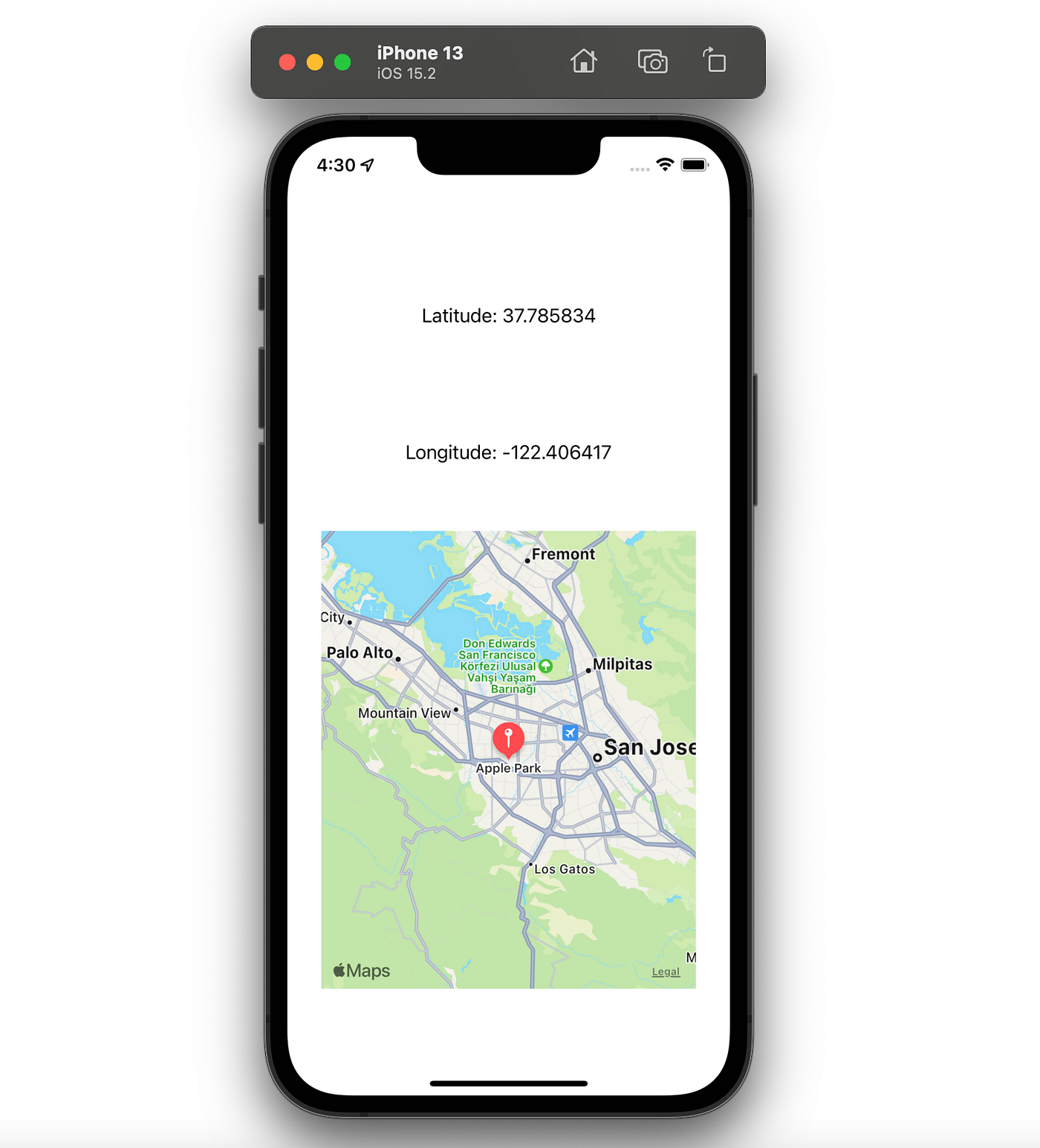
I am sharing the completed ViewController.swift codes and screenshot of the simple iOS app. I wanted to make a small application to be more understandable, but you can improve my code.
import UIKit
import CoreLocation
import MapKit

class ViewController: UIViewController {

    @IBOutlet weak var latitudeLabel: UILabel!
    @IBOutlet weak var longitudeLabel: UILabel!

    @IBOutlet weak var map: MKMapView!

    var lm = CLLocationManager()

    override func viewDidLoad() {
        super.viewDidLoad()

        lm.desiredAccuracy = kCLLocationAccuracyBest
        lm.delegate = self
        lm.requestWhenInUseAuthorization()
        lm.startUpdatingLocation()

        //37.334921684869514, -122.0089531250216

        let location = CLLocationCoordinate2D(latitude: 37.334921684869514, longitude: -122.0089531250216)
        let span = MKCoordinateSpan(latitudeDelta: 0.5, longitudeDelta: 0.5)
        let region = MKCoordinateRegion(center: location, span: span)

        map.setRegion(region, animated: true)

        let pin = MKPointAnnotation()
        pin.coordinate = location
        pin.title = "Apple Park"
        pin.subtitle = "Apple Headquarters"

        map.addAnnotation(pin)
    }
}

extension ViewController: CLLocationManagerDelegate {
    func locationManager(_ manager: CLLocationManager, didUpdateLocations locations: [CLLocation]) {
        let lastLocation = locations[locations.count-1]
        latitudeLabel.text = "Latitude: \(lastLocation.coordinate.latitude)"
        longitudeLabel.text = "Longitude: \(lastLocation.coordinate.longitude)"
    }
}
See you in next post.
메타데이터
- post_id
- 60f381b1a13d
- slug
- localization-in-ios-app-using-mapkit-and-corelocation-60f381b1a13d
- url
- https://medium.com/@pinarkocak/localization-in-ios-app-using-mapkit-and-corelocation-60f381b1a13d
- canonical_url
- https://medium.com/@pinarkocak/localization-in-ios-app-using-mapkit-and-corelocation-60f381b1a13d
- author_url
- https://medium.com/@pinarkocak
- status
- ok
- fetched_at
- 2026-07-20 21:18:46



