Integrating Sitecore Layout Service Fields into Coveo Headless Result Templates in Sitecore JSS…
If you are following this series, you already know how we integrated Coveo Headless into a Sitecore JSS (Next.js) application and displayed…
Integrating Sitecore Layout Service Fields into Coveo Headless Result Templates in Sitecore JSS (Next.js)

If you are following this series, you already know how we integrated Coveo Headless into a Sitecore JSS (Next.js) application and displayed search results from the Coveo index. (If you missed it, you can check it here).
In this blog, we are going a step further. Instead of just showing whatever fields were already in the index, we will learn:
- How to bring Sitecore Layout Service fields into your search results.
- How this lets you create a rich, flexible, and scalable search UI — without hardcoding fields.
Picture this scenario: Your Sitecore content team adds a custom field called, a “Provider Title” to their Providers Template in Sitecore. This lets your content team control much more of their search experience, while you, as a developer, simply consume whatever is present in the index.
The Benefit :
- Allows content editors to control searchable content directly from Sitecore.
- Ensuring search results reflect exactly what your editors see in their CMS.
- Less hardcoding and more flexibility.
- Easier scaling when adding new fields or content components.
This works through 3 components:
- Sitecore Layout Service — provides rich metadata about your content.
- Sitemap Connector and Crawling — pulls this metadata into Coveo.
- Coveo Headless — lets you easily consume these fields in your Next.js components.
Step-By-Step Implementation:
Step 1: Prepare Your Sitecore Template Fields
Start by adding custom fields to your Sitecore Template in Sitecore Experience Platform. For this example, we will add required fields which need to be indexed in coveo :
- Provider Photo (Image)
- Provider Firstname, Lastname(Single line text)
- Degree Titles (Multiselect)
- etc..


Step 2: Update Your Sitemap to Provide Meta Tags
To make these fields available to the Coveo Sitemap Connector, you need to output them in your rendered page’s HTML.
This typically happens in Metadata.tsx (your Next.js component responsible for adding metadata to the page’s head).
For each field you want to expose, output it as a hidden input tag:
import {Field,Item, LayoutServiceData,LinkFieldValue,RouteData} from '@sitecore-jss/sitecore-jss-nextjs';
import { Data } from '.generated/Foundation.CW.model';
import { Pages } from '.generated/Project.CW.model';
export interface LabelValueItem {
  fields: {
    value: Field<string>;
  };
  name: string;
}

interface LayoutProps {
  layoutData: LayoutServiceData;
}
type PageRouteData = RouteData &
  Data.BaseTemplateSections.ProviderProfile &
  Data.BaseTemplateSections.Location &
  Data.BaseTemplateSections.Metadata &
  Pages.ProviderProfile;
export const MetaData = ({ layoutData }: LayoutProps): JSX.Element => {
  const routeFields = layoutData?.sitecore?.route as PageRouteData;
  const templateId = layoutData?.sitecore?.route?.templateId;
  const itemId = layoutData?.sitecore?.route?.itemId?.replace(/-/g, '');
  const templateName = layoutData?.sitecore?.route?.templateName;
  const language = layoutData?.sitecore?.context?.language;
  const itemPath = layoutData?.sitecore?.context?.itemPath;
  const {
    firstName,
    lastName,
    photo,
    degreeTitles,
    epicPhysicianID,
    address,
    locations,
  } = routeFields.fields || {};
  let degreeTitlesdata = '';
  let searchSpecialtiesdata = '';

  // Helper function to extract coordinate values
  const getCoordinateValues = (field: 'Latitude' | 'Longitude'): string => {
    return (
      locations
        ?.map((item) => (item?.fields?.[field] as Field<string>)?.value)
        .filter((value): value is string => value != null && value !== '')
        .join(',') || ''
    );
  };

  const Latitudes = getCoordinateValues('Latitude');
  const Longitudes = getCoordinateValues('Longitude');
  // Fail out if routeFields isn't present
  if (!routeFields) return <></>;

  if (degreeTitles) {
    degreeTitles?.map((item: LabelValueItem, index: number) => {
      degreeTitlesdata =
        index === 0
          ? `${item?.fields?.value?.value}`
          : `${degreeTitlesdata};${item?.fields?.value?.value}`;
    });
  }
  return (
    <div id="searchdata">
      {templateId && (
        <input type="hidden" name="hdntemplateId" id="hdntemplateId" value={templateId} />
      )}

      {/* Provider Page Data */}
      {firstName?.value && (
        <input type="hidden" name="hdnfirstName" id="hdnfirstName" value={firstName?.value} />
      )}
      {lastName?.value && (
        <input type="hidden" name="hdnlastName" id="hdnlastName" value={lastName?.value} />
      )}
      {photo?.value?.src && (
        <input type="hidden" name="hdnphoto" id="hdnphoto" value={photo?.value?.src} />
      )}

      {degreeTitlesdata && (
        <input type="hidden" name="hdndegreeTitles" id="hdndegreeTitles" value={degreeTitlesdata} />
      )}
      {Latitudes !== '' && (
        <input type="hidden" name="hdnlatitude" id="hdnlatitude" value={Latitudes} />
      )}
      {Longitudes !== '' && (
        <input type="hidden" name="hdnlongitude" id="hdnlongitude" value={Longitudes} />
      )}
      {address && (
        <input type="hidden" name="hdnaddress" id="hdnaddress" value={address?.value} />
      )}

      {/* Location related fields */}
      {locationName?.value && (
        <input
          type="hidden"
          name="hdnlocationname"
          id="hdnlocationname"
          value={locationName?.value}
        />
      )}
    </div>
  );
};
Import this component in Layout.tsx and add this component in your layout page under <div> tag with id=”searchdata” just to identify the search section for debugging purpose.
This lets the sitemap connector extract these fields alongside your page content.
Step 3: Validate Your Sitemap Source
After you publish and deploy, view your page’s HTML to find:

If you see these in your page’s source, then your sitemap connector can index these fields.
Step 4: Configure in Coveo Platform
In coveo first we need to create Fields to get these metadata.tsx file inputs values in coveo.
Login into your Coveo Admin Console and go to Content > Fields

Add Field in coveo and set type of the field and also add some additional settings as per your requirement, like:
- Facet
- Multi-value Facet
- Sortable

After adding Field you will able to see your field in main field list. you can search and make changes in your field setting by selecting your field clicking on edit button and delete it by clicking on Delete button.
Now your field is created and next step is to map that field with your metadata value using sitemap connector.
- Go to content > source and select your source.
- you can see mappings button above. Click that button and go to mappings window. You can see all mappings.
- we can add new mapping by clicking on Add button on top right cornor.


We can select our field and add a rule. The field name should match exactly with the name of the corresponding hidden input field defined in the metadata file.
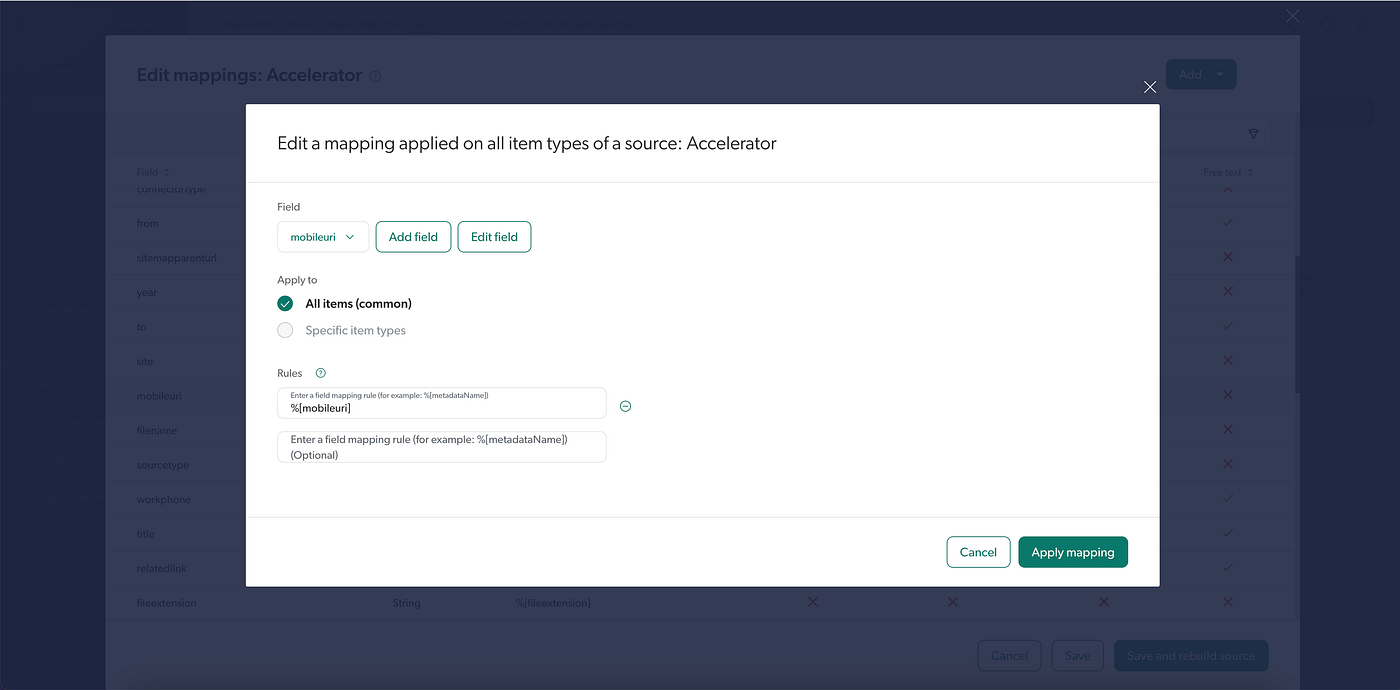
Once everything is set up, you need to rebuild your Coveo source. After rebuilding, your field data will be indexed in Coveo.
Step 5: Update Your Next.js SearchResults Component:
Now you have custom fields available in your search results. You can bind those fields in your coveo headless code in your sitecore JSS next js codebase:
export default function SearchResults() {
  const [results, setResults] = useState([]);

  useEffect(() => {
    const resultList = buildResultList(searchEngine, {options:{fieldsToInclude:['ProductImage','CTAURL','CTAText']}});
    resultList.subscribe(() => setResults(resultList?.state?.results));

  }, []);

  return (
    <div>
      {results?.map((result) => (
        <div key={result.uniqueId}>
          <img src={result.raw.photo} alt="Provider image" />
          <h3>{result.raw.firstname}</h3>
          <p>{result.raw.lastname}</p>
          <a href={result.raw.providerdetailURL}>
            {result.raw.CTAText}
          </a>
        </div>
      ))}
    </div>
  )
}
Conclusion:
Using Sitecore Layout Fields alongside Coveo Headless lets you create a rich search experience without losing control over your content.
Your content team can adjust fields directly in Sitecore and your development team simply displays whatever is available in the index.
This combination results in a scalable, flexible, and powerful search UI perfect for modern, multichannel businesses.
메타데이터
- post_id
- 6bd935baff2b
- slug
- integrating-sitecore-layout-service-fields-into-coveo-headless-result-templates-in-sitecore-jss-6bd935baff2b
- url
- https://medium.com/@ravijadhav_4628/integrating-sitecore-layout-service-fields-into-coveo-headless-result-templates-in-sitecore-jss-6bd935baff2b
- canonical_url
- https://medium.com/@ravijadhav_4628/integrating-sitecore-layout-service-fields-into-coveo-headless-result-templates-in-sitecore-jss-6bd935baff2b
- author_url
- https://medium.com/@ravijadhav_4628
- status
- ok
- fetched_at
- 2026-06-25 16:53:31