Linux Log: Solving the VERR_VMX_IN_VMX_ROOT_MODE KVM Conflict
The Problem 001
Linux Log: Solving the VERR_VMX_IN_VMX_ROOT_MODE KVM Conflict
The Problem 001
I ran into a blocking error today while setting up a new virtual machine. My goal was to install openSUSE Tumbleweed in VirtualBox on my Linux Mint host system.
As soon as I tried to power on the new Tumbleweed VM, VirtualBox failed and displayed this message:
VirtualBox can't operate in VMX root mode.
Please disable the KVM kernel extension,
recompile your kernel and reboot(VERR_VMX_IN_VMX_ROOT_MODE).
Result Code: NS_ERROR_FAILURE
Component: ConsoleWrap
Interface: IConsole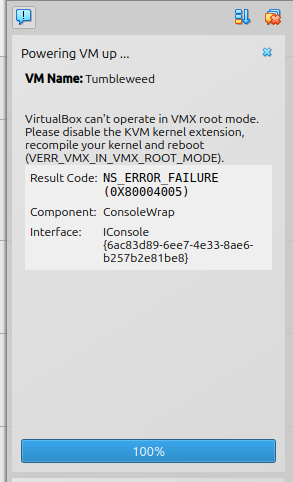
Root Cause Analysis
After some investigation, the error message itself points directly to the problem. It’s a resource conflict between two hypervisors.
My Linux Mint host system loads the KVM (Kernel-based Virtual Machine) modules at boot by default. Both VirtualBox and KVM require exclusive access to the CPU’s hardware virtualization extensions (Intel VT-x or AMD-V). They cannot operate at the same time.
Since the KVM modules were already loaded and had control of these hardware features, VirtualBox was unable to initialize its virtualization engine.
Solution: Disabling KVM Modules
To get VirtualBox working, I need to prevent the KVM modules from loading. A temporary fix (like sudo rmmod kvm_intel) would be undone on the next reboot, so I'm documenting the permanent solution here for my own reference.
Step 1: Create a modprobe Blacklist File
First, I created a new configuration file in the /etc/modprobe.d/ directory. This tells the system's module loader to ignore specific modules.
sudo nano /etc/modprobe.d/blacklist-kvm.confStep 2: Add Modules to the Blacklist
Inside this new file, I added the following two lines. These are the modules that need to be blocked.
blacklist kvm
blacklist kvm_intel
Note: I am on an Intel processor, so I used kvm_intel. If this were an AMD system, the second line would be blacklist kvm_amd.
I saved the file and exited the editor.
Step 3: Update the Initial RAM Filesystem (Initramfs)
This is a critical step. The new blacklist configuration must be baked into the initramfs (the initial boot image) to be effective at the very start of the boot process.
sudo update-initramfs -uStep 4: Reboot the System
To apply all changes, a full system reboot is necessary.
sudo rebootStep 5: Verify the Fix
After my Linux Mint host restarted, I opened a terminal to confirm that the KVM modules were no longer loaded.
lsmod | grep kvmThis command returned no output, which confirms that the blacklist is working.
Following this, I launched VirtualBox, and my openSUSE Tumbleweed VM started installation without any errors.
메타데이터
- post_id
- 79da6be10c01
- slug
- linux-log-solving-the-verr-vmx-in-vmx-root-mode-kvm-conflict-79da6be10c01
- url
- https://medium.com/@sojkin/linux-log-solving-the-verr-vmx-in-vmx-root-mode-kvm-conflict-79da6be10c01
- canonical_url
- https://medium.com/@sojkin/linux-log-solving-the-verr-vmx-in-vmx-root-mode-kvm-conflict-79da6be10c01
- author_url
- https://medium.com/@sojkin
- status
- ok
- fetched_at
- 2026-06-12 07:40:50




