Automate it!
The story of the creation of a Telegram bot for tracking expenses in Google Spreadsheet written on Apps Script
Automate it!
TL;DR: The story of the creation of a Telegram bot for tracking expenses in Google Spreadsheet written on Apps Script. Without installing anything or paying for app hosting. Here is a step-by-step guide on GitHub to run your own bot. Little programming skills are required.
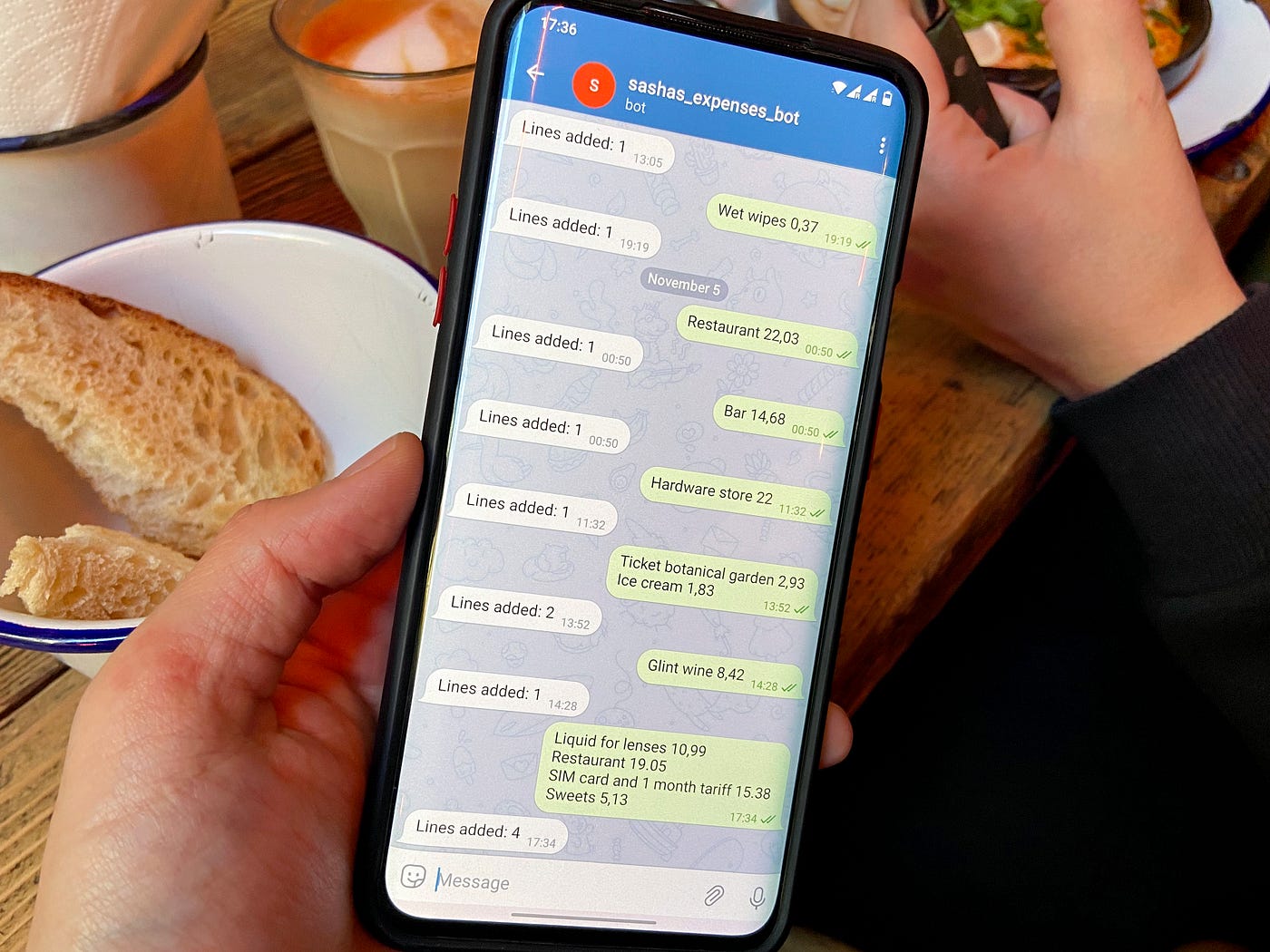
Bot in action
Recently my wife and I moved to another country, which means our household spending patterns will change. To better understand where the money goes, I analyze spending, but that’s not what I’m talking about.
The first problem you encounter when you start tracking expenses is capturing expense data. Unfortunately, bank receipts are not an option, since a large percentage of payments are in cash, and the banks that issued our cards are in no hurry to display all transactions on the same day, and when transactions are displayed in the banking App they have the wrong date.
We’ll have to record expenses in an old-fashioned way in Google Sheets. Specialized family finance software doesn’t work for me for several reasons.
If I’m going to use spreadsheets, I need to simplify data entry. Using spreadsheets on a phone is a bad option. It is extremely inconvenient to edit the spreadsheet and save cell formatting. Keeping all the receipts and writing them down when you get to the computer is not a good option. I want to spend an evening doing something more enjoyable than filling out family accounting data. Also, receipts get lost, and carrying around or storing a bunch of receipts somewhere doesn’t seem like a good idea.
A Google form linked to the spreadsheet is a better option. It can display fields I want on one page and write quickly. The biggest con is that it requires to have internet connection all the time, just to display a form. The only thing better than a page with a form is a widget on my phone’s home screen, but I require two versions for my Android and my wife’s iPhone, some backend that can push data into a table, and hosting where this backend will live. Too hard for such a humble function.
The ideal option for me is a chatbot in Telegram, which is our main messenger, and in which we can quickly write a record of expenses. It doesn’t require an internet connection to display the chat with the bot. If there is no connection now, the message will be put in the queue to be sent.
How to make a chatbot
There are a bunch of chatbot builders and no-code automation services, but I don’t want to pay for features I don’t need. I have tried automation from IFTTT (it’s a tool for automating and integrating different services), but basic features do not allow filtering data from Telegram messages, and you have to pay for additional features.
Ideally, I wouldn’t want to pay for such a humble solution at all. And even if I subscribe, I don’t know where to apply the remaining paid features.
Perhaps there is a free suitable solution, but I was too lazy to look for it and wrote my bot.
Telegram bots in the nutshell
Telegram Bots communicate with the service through the Bot API. First of all, you need to issue a token for the bot through Botfather, all further interaction is done using the token.
Briefly, to make a bot react to messages you need to register a webhook, the endpoint on which bot API will send POST requests after any user events, incoming messages for example.
Then this POST request to the endpoint needs to be processed by the bot’s backend.
To send messages to the API there is the sendText method. To send a message you need to know chatId. Chat identifiers of my chat with the bot and a chat between my wife and the bot will be different, but since it will react to incoming messages, we always know chatId from a POST request to webhookUrl.

How clients communicate to the backend through Telegram Bot API
Interaction design
First of all, I made a version that simply writes the numbers from the message. The bot sends back the number of numbers found in the message.
The numbers in the expense column and the current date are written in the spreadsheet. I tested it a few times and greatly missed the opportunity to write down what money was spent.
Then I made it a bit complicated so that in addition to the amount I could write the name with a breakdown by line breaks.
I can use a dot and a comma as a separator of a whole part and a fractional one.

It’s a simple and convenient way to write info about expenses. It supports multiple records in one message.
Backend
The bot is built on Apps Script from the Google Office Suite. Apps Script supports JS ES5. It stores data in Google spreadsheets. The user interface appears as the bot in Telegram. The complete code of the Telegram bot is available on GitHub but let's take a glimpse at some key points.
When debugging communication with the bot, you can’t use the built-in logger, but you can send chat messages back or put the logic in a separate function for easier debugging.
To build the interface of the web app and to react to GET and POST requests there should be presented next functions: doGet(e) and doPost(e). More info in official docs for WebApp in Apps Script.
Especially excellent is the ability to work with Google tables easily. To add rows to a table, you need to open it by specifying the spreadsheet ID, and table index.

A spreadsheet ID can be found on the page URL
To add a new row at the end of the sheet you need to pass an array with values using the method appendRow:
function addExpense(name, price) {
  SpreadsheetApp.openById(SPREADSHEET_ID).getSheets()[SPREADSHEET_SHEET_INDEX].appendRow(["", name, today(), price]);
}
When you deploy the app it, unfortunately, changes the public URL, so after the deployment, you have to update the WEBAPP_URL constant and run the init() function in the editor to inform Telegram of the webhookUrl change.
After modifying the file, you need to file it again, replace the public URL and run the init() function. Unfortunately, there is no chance to get the public URL automatically
How to create your application
And last but not the least, let’s take a look at how to build your own bot or other apps and how to deploy it.
Apps Script applications are stored inside Google documents. For example, my expense measuring bot is stored in the spreadsheet, where I track my expenses.
- Start by creating a new spreadsheet or get an existing one.
- Create a new app in the “Extension” menu and find the “Apps Script” element.

Creating an app inside of the spreadsheet container
- There you will be able to write your code or paste ready-made code.
- To deploy the app and get a public URL to follow the next instructions:


An important moment is to set access right to the app so anyone can access it. Telegram Bot API could use a Web App URL as a webhook endpoint.
Conclusion
I wouldn’t suggest using Apps Script as an industrial solution, but for my particular case, it’s more than adequate. I hope it will help you to set up your humble automation without using a sophisticated toolchain and with a low entry level.
Apps Script and Google Workspace can suit your needs perfectly:
- When you need something small and simple when you not going to enlarge it up to enterprise scale and deal with high loads.
- When you want to build a Proof-of-Concept or a minimal version of a product and infrastructure questions are out of scope.
- When you are familiar with the Google Workspace ecosystem
Some coding experience is still required, but with help of Stack Overflow and various JS ES5 tutorials and documentation, it could be an easy go.
메타데이터
- post_id
- 8134ed9d96ab
- slug
- automate-it-8134ed9d96ab
- url
- https://medium.com/@alexander.litvinovich/automate-it-8134ed9d96ab
- canonical_url
- https://medium.com/@alexander.litvinovich/automate-it-8134ed9d96ab
- author_url
- https://medium.com/@alexander.litvinovich
- status
- ok
- fetched_at
- 2026-07-23 14:34:09




