🚀 The Ultimate Guide to Verifying Thousands of GA4/Amplitude Events Instantly
Introducing the Analytics Data QA Chrome Extension
🚀 The Ultimate Guide to Verifying Thousands of GA4/Amplitude Events Instantly
Introducing the Analytics Data QA Chrome Extension
When collecting user behavior data on your website or application, we rely on excellent analytics tools like Google Analytics 4 (GA4) and Amplitude. However, the most critical step is often overlooked: Data Quality Assurance (DQA).
**Analytics Data QA revolutionizes this process by automatically comparing** your live data against your predefined logging specification, ensuring every event is collected exactly as intended.
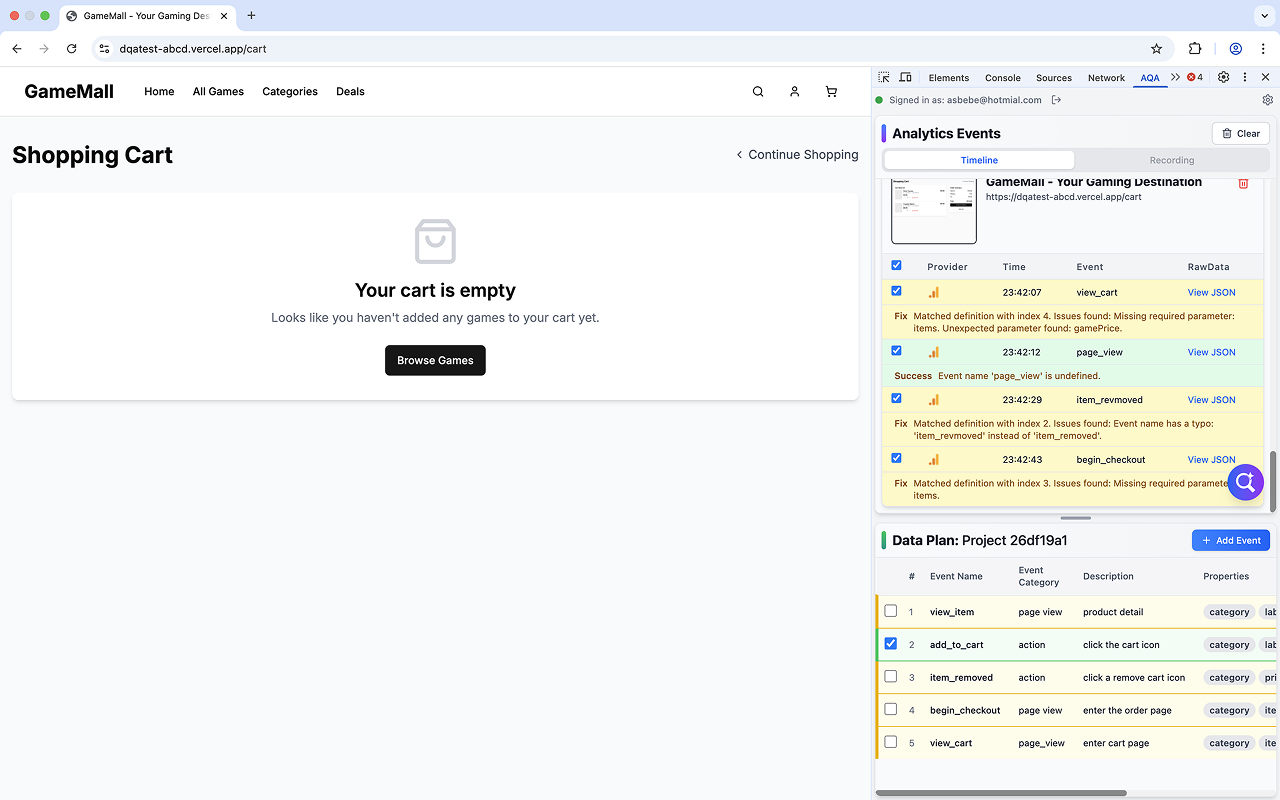
Checking analytics log data
Once you’ve completed the tagging work for countless events (button clicks, page navigations, etc.), a crucial validation process begins: confirming that the data being collected precisely matches your Logging Specification (Log Spec).
🤯 The Moment You Realize You Need This Tool
The traditional QA method usually looks like this:
- Open the browser’s Developer Tools (Console/Network tab).
- Manually execute each event and inspect the individual packet sent to the server.
- Manually compare the variable names (parameters), variable values, and event names within the packet against your Log Spec.
This process is time-consuming and highly susceptible to human error. If your data has flaws, no matter how hard you analyze it, it will inevitably lead to misguided business decisions.
Analytics Data QA is here to innovatively automate this inefficient QA process. It will be the most valuable tool for anyone fatigued by data tagging QA — whether you are a developer, product planner, or data analyst.
🛠️ Core Features of Analytics Data QA
This extension goes beyond merely displaying events; it solves the fundamental difficulty of QA by automatically comparing data against your Log Spec.
1. Automated Log Spec Comparison & Validation
It instantly shows you whether events occurring on the website in real-time match your uploaded Log Spec file. Say goodbye to manually comparing countless parameters. If there’s a mismatch (a ‘Fix’ or ‘Error’), you immediately see the detailed information about what went wrong.
2. Instant Event Detail Lookup
No more confusion about the meaning of a collected event. The extension displays the definition and description for each event right next to the log, allowing for a clear understanding of the data’s context.
3. Automatic Page Screenshots & Systematic Organization
Every time you navigate to a new page, the extension automatically takes a screenshot and systematically groups the events that occurred on that specific page. This makes it easy to visualize and manage complex QA processes at a glance.
4. Event Flow Recording Feature
The tool allows you to record the user interaction flow (clicks, scrolls, etc.) that led to an event being generated. This visual recording is incredibly useful for troubleshooting and communicating issues to your development team.
🚀 Step-by-Step Guide (QA in Just 7 Steps!)
Start verifying your data quickly and accurately using Analytics Data QA.
Step 1. Install the Extension
Install the extension by searching for “Analytics Data QA” in the Chrome Web Store or by clicking the link below:
Step 2. Open Developer Tools
On the web page you wish to verify, press the F12 key or select ‘More Tools > Developer Tools’ from the browser menu to open the Developer Console.
Step 3. Activate the ‘AQA’ Tab
Click the ‘AQA’ tab, located at the end of the top menu in the Developer Tools, to activate the extension interface.
Step 4. Log In and Start Project
Log in through the extension’s interface and click the “Start Project” button to begin a new verification project.

Step 5. Upload Log Specification
Upload the Log Specification file that will serve as the verification standard. (Prepare the file in the supported format).

Step 6. Execute Events on the Website
Now, actively execute the events you want to verify on the website, such as pageviews or button clicks. Event logs will start recording in the ‘AQA’ tab immediately.
Step 7. Check Verification Results
Click the magnifying glass (Verification) icon located below the recorded event in the ‘AQA’ tab to confirm if the actual event matches your uploaded Log Spec.
- SUCCESS: Verification complete.
- FIX, ERROR: Detailed information on the mismatched parameters and values is displayed, allowing you to provide instant feedback to the development team or relevant stakeholders.

🌟 End Manual Verification Now!
Analytics Data QA is a powerful tool that makes data validation fast and accurate.
Drastically cut down the time spent on data QA and increase the accuracy of your data to secure business confidence. Stop wasting precious time manually comparing countless event logs.
Install it now and revolutionize your data QA workflow! ⬇️⬇️⬇️
메타데이터
- post_id
- b21b90bd8bad
- slug
- the-ultimate-guide-to-verifying-thousands-of-ga4-amplitude-events-instantly-b21b90bd8bad
- url
- https://medium.com/@analyticsdataqa/the-ultimate-guide-to-verifying-thousands-of-ga4-amplitude-events-instantly-b21b90bd8bad
- canonical_url
- https://medium.com/@analyticsdataqa/the-ultimate-guide-to-verifying-thousands-of-ga4-amplitude-events-instantly-b21b90bd8bad
- author_url
- https://medium.com/@analyticsdataqa
- status
- ok
- fetched_at
- 2026-06-09 15:37:30



