Automating Daily Tasks with systemd Timers: A Practical Guide Using Python
In this guide, I will demonstrate how to automate a daily Python task using systemd timers on Linux. We plan to automate a scheduled script…
Automating Daily Tasks with systemd Timers: A Practical Guide Using Python

In this guide, I will demonstrate how to automate a daily Python task using systemd timers on Linux. We plan to automate a scheduled script execution on our home-lab Raspberry Pi, which operates 24×7 and also functions as the in-house DNS server for our home network.
1) Short overview
The setup uses a virtual environment located at /home/admin/devops_digest/devops_env/bin/python3 and runs a Python script placed at /home/admin/devops_digest/daily_linkedin.py every day at 7:00 AM. This walkthrough provides a clean and reliable approach suitable for production systems, ensuring your scheduled jobs run consistently without relying on external cron utilities.
Below is a concise, production-ready guide you can use in your blog. It explains each step, includes copy-pasteable commands and example service/timer files, and covers testing, logging, security and common troubleshooting notes.
2) Prerequisites
- Linux system with
systemd(most modern distributions). - Script located at
/home/admin/devops_digest/daily_linkedin_debug.py. - A Python virtual environment at
/home/admin/devops_envwith required packages installed. - User who will run the job (
adminin examples). Adjust paths/user if different. - (Optional)
bsd-mailxconfigured if your script sends mail.
3) Why use systemd timers
- More reliable than cron (handles missed runs with
Persistent=true). - Centralised logs via
journalctl. - Fine-grained control over runtime environment and restart/timeout policies
4) Create the systemd service unit
Create /etc/systemd/system/devops_digest.service with the exact content below:
[Unit]
Description=Daily LinkedIn DevOps Digest Generator
Documentation=man:systemd.service(5)
Wants=network-online.target
After=network-online.target

[Service]
Type=oneshot
User=admin
WorkingDirectory=/home/admin/devops_digest
# Use the venv python interpreter to avoid environment issues
ExecStart=/home/admin/devops_env/bin/python /home/admin/devops_digest/daily_linkedin_debug.py
# Set a sensible timeout
TimeoutStartSec=600
# Restrict capabilities for safety (optional)
PrivateTmp=yes
ProtectSystem=full
NoNewPrivileges=yes
Notes:
User=adminruns the job asadmin. Change it if needed.ExecStartpoints to the venv Python so pip-managed packages inside the venv are used.
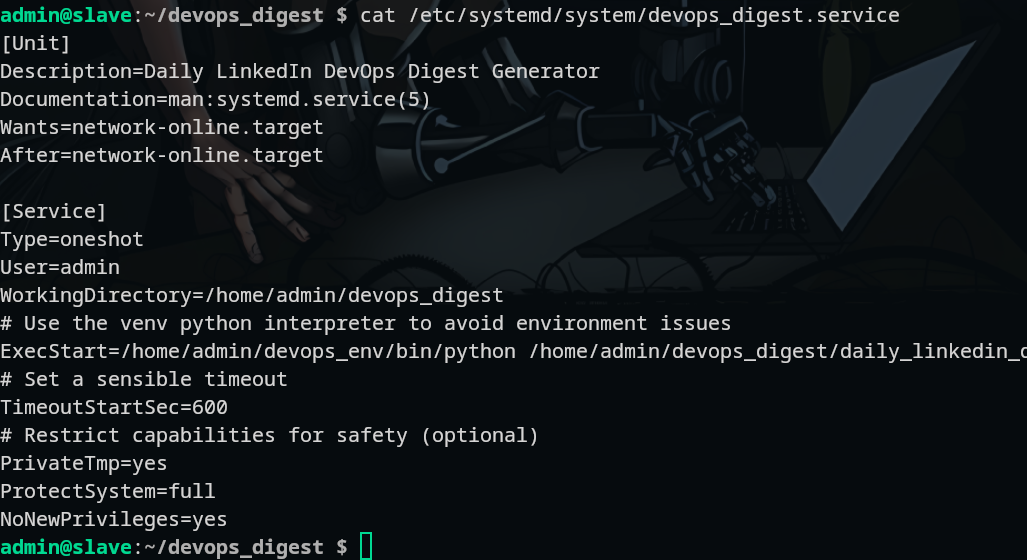
systemd service
5) Create the systemd timer unit
Create /etc/systemd/system/devops_digest.timer:
[Unit]
Description=Run DevOps Digest every morning at 07:00

[Timer]
# Run daily at 07:00 local time
OnCalendar=*-*-* 07:00:00
# If the machine was off at scheduled time, run at bootup
Persistent=true
# Randomized delay (optional) to avoid thundering herd if many timers exist
RandomizedDelaySec=1m
[Install]
WantedBy=timers.target
systemd timer
6) Enable and start the timer
Reload systemd, enable and start the timer:
sudo systemctl daemon-reload
sudo systemctl enable --now devops_digest.timer
Verify timer is active and next run:
systemctl list-timers devops_digest.timer --all
# or
systemctl status devops_digest.timer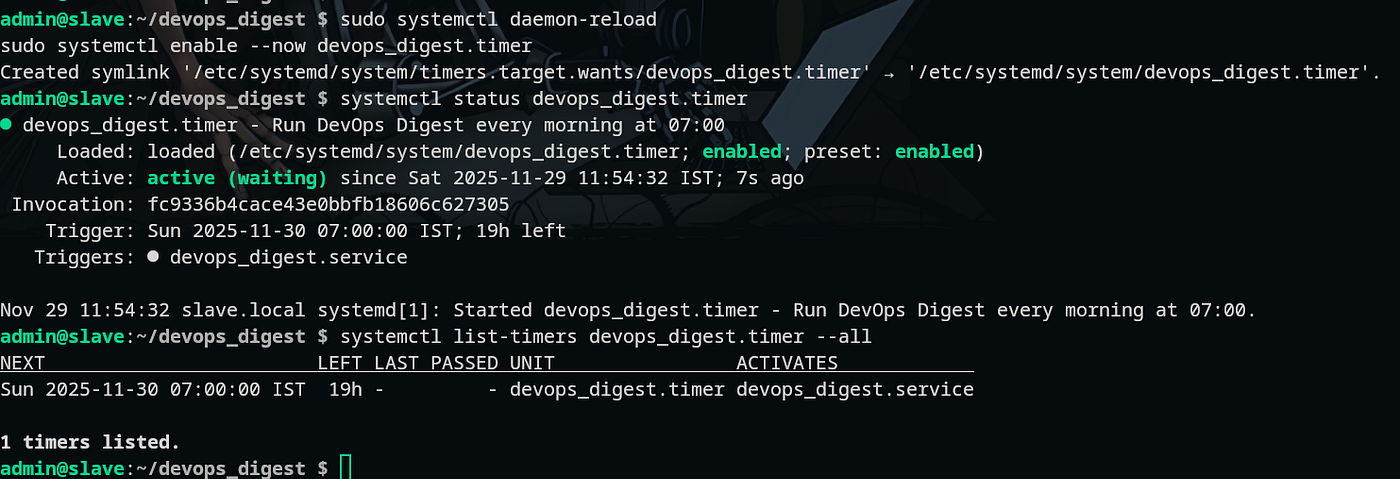
enabling timer
7) Test the service manually
Run the service once to test behaviour and logs:
sudo systemctl start devops_digest.service
sudo systemctl status devops_digest.service --no-pager
Testing
View logs from the last run:
journalctl -u devops_digest.service -n 200 --no-pagerIf the job runs as a non-root user and writes files in the user's home, check file ownership and that the User= is correct.
8) Inspect timer runs and history
To see when the timer last ran and when it will run next:
systemctl list-timers --all | grep devops_digestFor recent timer and service logs:
journalctl -u devops_digest.timer -u devops_digest.service --since "2 days ago" --no-pager
next schedule
9) Handling environment/secrets
- Do not put secrets in unit files. Use environment files with strict permissions:
- Create
/etc/devops_digest/envwithKEY=valuelines. - Protect it:
sudo chown root:root /etc/devops_digest/env && sudo chmod 600 /etc/devops_digest/env - In the service unit: add
EnvironmentFile=/etc/devops_digest/env. - Alternatively, source venv and have the script read secrets from
~/.config/devops_digest/with600perms.
Example addition to [Service]:
EnvironmentFile=/etc/devops_digest/env10) Recovering from failures
- Add retry behaviour by using a small wrapper script that retries transient failures, or use
Restart=on-failure(not typically useful for oneshot service). - Check logs:
journalctl -u devops_digest.service -b - If your script requires a network, ensure
network-online.targetin[Unit]andWants=network-online.targetare present.
11) Optional: systemd user timer (runs as user)
If you prefer not to create root-owned units, you can use user-level systemd timers:
# as admin user (no sudo)
mkdir -p ~/.config/systemd/user
# copy the .service and .timer into ~/.config/systemd/user/
systemctl --user daemon-reload
systemctl --user enable --now devops_digest.timer
Advantages: no root required. Disadvantages: user systemd must be running (e.g., login session or lingering enabled with loginctl enable-linger admin).
12) Security considerations
- Run service as non-root user (
User=). - Use
PrivateTmp=yes,NoNewPrivileges=yes,ProtectSystem=fullwhere applicable. - Keep venv and script permissions restricted to the running user.
- Store secrets in protected files (
chmod 600) or in a secrets manager.
13) Sample files recap
/etc/systemd/system/devops_digest.service— service unit (see step 4)./etc/systemd/system/devops_digest.timer— timer unit (see step 5).- (Optional)
/etc/devops_digest/env— env file for secrets (owner root, mode 600).
14) Troubleshooting checklist
systemctl status devops_digest.service→ immediate errors.journalctl -u devops_digest.service -e→ full logs.- Check the script shebang and that
ExecStartuses the venv Python. - Ensure
Userhas permissions to read/write files referenced by the script. - If feed access fails, test
curlfrom the server to verify network/DNS.
15) Quick blog-friendly conclusion
Systemd timers are the correct choice for reliable scheduled automation on modern Linux servers. They provide robust scheduling, built-in logging, easy management, and options for secure, user-scoped execution. For a daily digest job that runs Python from a virtualenv and emails results, use a one-shot service + timer, set Persistent=true and test with manual runs and journalctl before relying on automation.
메타데이터
- post_id
- b6a11e9d6a09
- slug
- automating-daily-tasks-with-systemd-timers-a-practical-guide-using-python-b6a11e9d6a09
- url
- https://medium.com/@mahinshanazeer/automating-daily-tasks-with-systemd-timers-a-practical-guide-using-python-b6a11e9d6a09
- canonical_url
- https://medium.com/@mahinshanazeer/automating-daily-tasks-with-systemd-timers-a-practical-guide-using-python-b6a11e9d6a09
- author_url
- https://medium.com/@mahinshanazeer
- status
- ok
- fetched_at
- 2026-08-30 03:59:24


