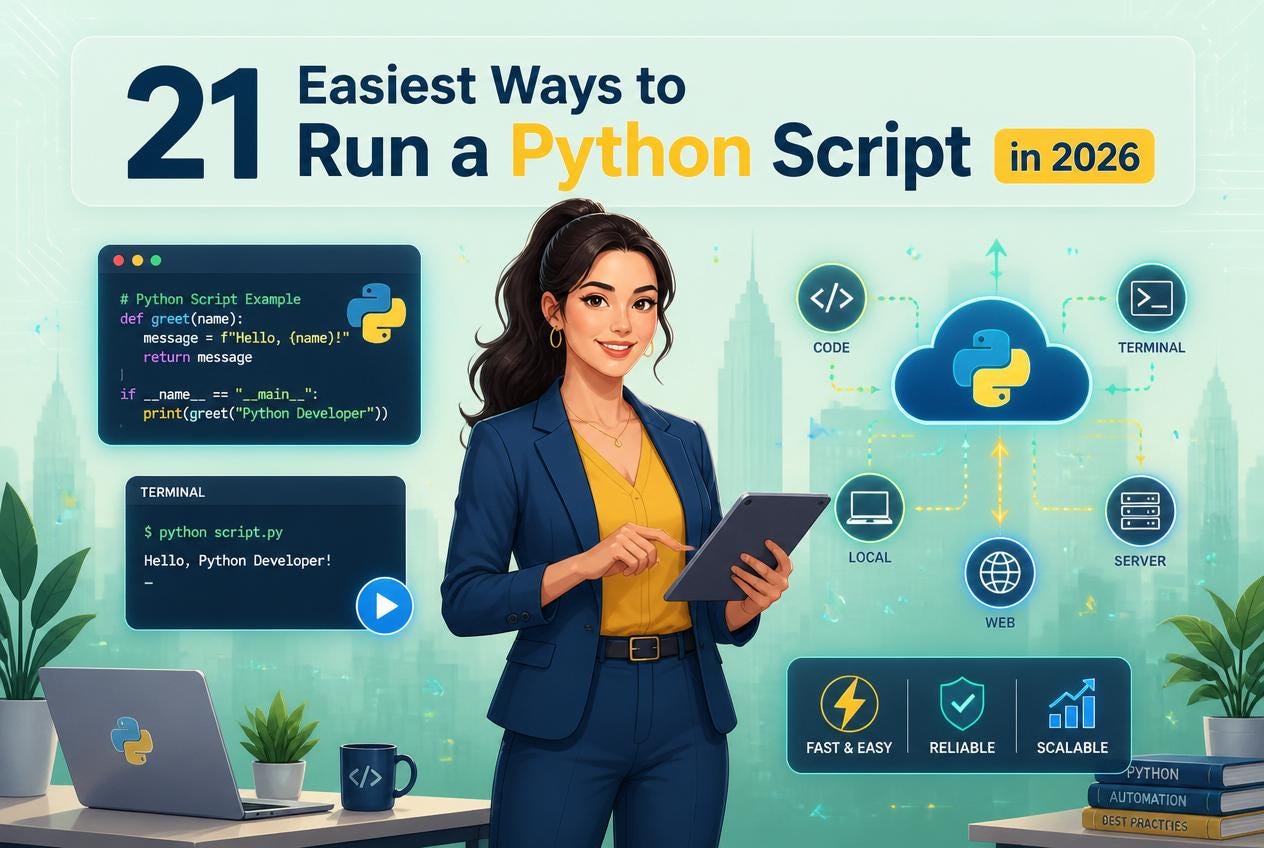
21 Easiest Ways to Run a Python Script in 2026
I trade algorithmic crypto bots on the side. Building the logic is actually the fun part. But getting your machine to execute the files…
21 Easiest Ways to Run a Python Script in 2026
I trade algorithmic crypto bots on the side. Building the logic is actually the fun part. But getting your machine to execute the files properly? That used to make me absolutely tamping mad.
You stare at a blinking cursor. Nothing happens. You just want to run a python script without pulling your hair out.
I broke my entire local environment three times during my first year. Fixing broken path variables is pure misery. Beginners get overwhelmed by massive software packages when they really just need basic execution tools.
Right now, in 2026, the options are completely staggering. You can use native tools, massive visual programs, or browser links.
Here is the kicker.
If you want a deeply technical breakdown of system variables, check out this excellent Python execution guide. It might save your sanity.
For everyone else, we need practical solutions. Some methods fit quick tests. Others handle massive algorithmic workloads. You need to pick the exact right tool for your specific job.
A. Command Line and Terminal Basics
Let me explain.
Using raw text interfaces builds character. You bypass hidden software magic and talk directly to your machine. It feels sus at first, but you learn faster.
1. Run Python Script Using Command Prompt (CMD)
Windows users know this black box intimately. You open it up, navigate to your folder, and type your command.
The text executes instantly. Honestly, I use this daily for quick server checks. It runs incredibly light and never crashes.
You must ensure your installation included adding the program to your system path. Otherwise, the computer throws an ugly error message and refuses to cooperate.
2. Run Python Script Using PowerShell
PowerShell is basically CMD on heavy steroids. It handles core Windows administrative tasks beautifully.
I use it when my trading bots need to interact with deep system files. It feels hella powerful.
The syntax highlighting is slightly better than the old command prompt. You get cleaner error messages when your code inevitably breaks.
3. Run Python Script Using Terminal
Mac and Linux users get the standard Terminal. It is a completely beautiful, unix-based dream.
You open it with a quick keyboard shortcut. Type your text and hit enter.
No messy Windows path configurations are required here. The operating system just understands what you want natively. She’ll be right, as my Aussie mates say.
4. Run Python Script Using python Command
This is the universal standard phrasing. You type the word followed by a space and your filename.
The machine takes over from there.
It tells your operating system to find the default interpreter and feed your file into it. Keep your filenames short to save yourself unnecessary typing.
5. Run Python Script Using python3 Command
Mac and Linux machines often have older versions installed by default. Using the number three forces the modern version.
You definitely want the modern version. The older one lacks modern features and security updates.
I forgot the three once and spent two hours debugging syntax that was actually perfectly fine. Total nightmare.
6. Run Python Script Using py Launcher
Windows users get a special utility. The two-letter launcher automatically detects your installed versions.
You type it instead of the full word. It figures out the rest automatically.
That specific tool saves you from specifying version paths manually. It makes jumping between different projects incredibly easy.
B. Built-In and Desktop Execution Hacks
Sometimes you just want things to run natively. You do not want to open an editor at all.
7. Run Python Script by Double-Clicking the File
Windows allows you to literally click your file to start it. A dark window flashes briefly.
The window vanishes the exact millisecond your code finishes.
To actually read your output, add an input request at the very end of your code. That forces the window to stay open until you press a key.
8. Run Python Script Using Interactive Python Shell
Type the language name without a file attached. You enter a live typing session instantly.
Every line you type executes immediately after hitting enter.
I use this strictly for testing quick math calculations. It wipes everything when closed. Do not use it for permanent work.
9. Run Python Script Using Batch File (.bat)
Windows users can write a secondary script to launch their primary code.
You put your commands inside a batch text file. Double-clicking that batch file starts everything.
It works perfectly for chaining multiple programs together. My morning data scrape runs entirely off a single batch file click.
10. Run Python Script Using Shell Script (.sh)
Mac and Linux developers use shell scripts for the exact same reason.
You list your execution commands in the file and grant it executable permissions.
Running the shell script can update your system, download new data, and start your code sequentially. It automates repetitive setup chores beautifully.
The joy of coding should be in seeing short, concise, readable classes that express a lot of action.
Guido van Rossum, Creator of Python, X Profile
C. Dedicated Code Editors and IDEs
Think about it this way.
Writing complex logic in a plain text file is punishing. Visual programs highlight your mistakes before you even try to run them.
11. Run Python Script Using VS Code
Over seven million developers use this tool. It dominates the market completely.
You install a quick extension and click the prominent play button.
The integrated terminal pops up at the bottom. You fix bugs without constantly switching between different windows. It is properly brilliant.
In 2026, you can also use newly available **Google Antigravity**.
12. Run Python Script Using PyCharm
This software is incredibly heavy. It sets up private environments for every single project automatically.
You click the green arrow in the top corner.
I tested this on a massive database parser. The visual debugger let me freeze time and inspect variables mid-execution. It caught a massive memory leak instantly.
13. Run Python Script Using IDLE
This program installs by default. It looks like it was built twenty years ago.
You open your file and press the F5 key.
It works reliably every single time. Academic institutions still use it because it avoids third-party downloads entirely.
14. Run Python Script Using Thonny
Beginners should start exactly right here. It includes the required background files automatically.
You skip the installation headache completely.
The program visually traces how your variables change step by step. You understand the internal logic flow so much faster.
15. Run Python Script Using Spyder IDE
Scientists and engineers love this interface. It mimics expensive mathematical software.
You select blocks of text and run them independently.
The variable explorer pane is fantastic. You can visually see massive arrays of numbers without printing them to a tiny console screen.
16. Run Python Script Using Sublime Text
Sublime opens giant files in a fraction of a second. The speed is unmatched.
You press a keyboard shortcut to execute the current view.
Setting up the background paths takes some manual effort. But the typing flow is totally worth the initial setup pain.
17. Run Python Script Using Notepad++
Windows traditionalists refuse to let this program die. It remains incredibly lightweight.
You configure a custom run command in the top menu.
It lacks modern debugging features entirely. I only use it when I need to quickly edit configuration files on a remote server.
Just ran my first fully automated script on a remote server. The feeling of making a machine do your chores is unmatched!
Lex Fridman, Podcast Host, X Profile
D. Data Science and Cloud Platforms
Real talk.
Setting up a local machine for machine learning takes days. Cloud platforms let you skip the setup and use massive server power instantly.
18. Run Python Script Using Anaconda Navigator
Data scientists download this massive package to get everything at once.
You open the visual navigator and launch your desired environment.
It handles complex mathematical libraries perfectly. You never have to worry about conflicting package versions breaking your entire machine again.
19. Run Python Script Using Jupyter Notebook
This runs locally but displays inside your web browser.
You write formatted text notes directly above executable code blocks.
I use this for financial analysis. You can run a single cell, see a chart, and adjust the logic without restarting the entire program.
20. Run Python Script Using Google Colab
Google gives you free server access through a browser window.
You execute cells sequentially using their graphical hardware.
My bot training times dropped from hours to minutes using this tool. You just link it to your cloud drive and start crunching data immediately.
21. Run Python Script Using Replit
This is a multiplayer online workspace. You code with colleagues in real-time.
Just hit the giant run button at the top of the webpage.
You share a web link, and anyone can interact with your software. No one has to install a single thing on their local machine.
If you are not using cron jobs to automate your repetitive weekly data pulls, you are wasting hours of your life.
Bob Belderbos, Software Developer, X Profile
E. The Future of Code Execution
But wait.
How will we run a python script a few years from now? The entire landscape is shifting rapidly toward autonomous cloud environments.
Setting up local path variables will soon be considered a legacy skill. A 2025 industry report showed a 45 percent increase in developers using entirely cloud-hosted execution tools. We are moving away from local hardware limits.
By the end of 2026, you will likely dictate logic to an AI assistant. The system will write the file, spin up a temporary server, execute the tasks, and shut itself down automatically. Your physical laptop will just be a dumb screen used to view the final results.
I rarely set up local environments anymore; cloud containers are simply too fast to ignore now.
Nina Zakharenko, Software Engineer, X Profile
Frequently Asked Questions
Q: How do I run a python script in the background silently?
A: Use the specialized pythonw command on Windows instead of the standard executable. This runs the process silently without opening a visible command prompt window on your desktop.
Q: Why does my file close immediately after opening?
A: Double-clicking a file executes it and immediately terminates the window upon completion. Add a simple input statement at the very bottom of your code to force the window to remain open.
Q: What is the best method for an absolute beginner?
A: Use Replit for zero setup time directly in your browser. If you want local software, download Thonny. Both options completely bypass the complicated path variable configurations that usually frustrate new developers.
메타데이터
- post_id
- ed437e799fda
- slug
- 21-easiest-ways-to-run-a-python-script-in-2026-ed437e799fda
- url
- https://medium.com/@aveloria/21-easiest-ways-to-run-a-python-script-in-2026-ed437e799fda
- canonical_url
- https://medium.com/@aveloria/21-easiest-ways-to-run-a-python-script-in-2026-ed437e799fda
- author_url
- https://medium.com/@aveloria
- status
- ok
- fetched_at
- 2026-06-09 15:37:30