Kotlin / JS — Auth part 2: Apple sign in
In my previous article, I shared my hurdle with trying to integrate Google Sign-in with Compose Web targeting JS, to my surprise there…
Kotlin / JS — Auth part 2: Apple sign in
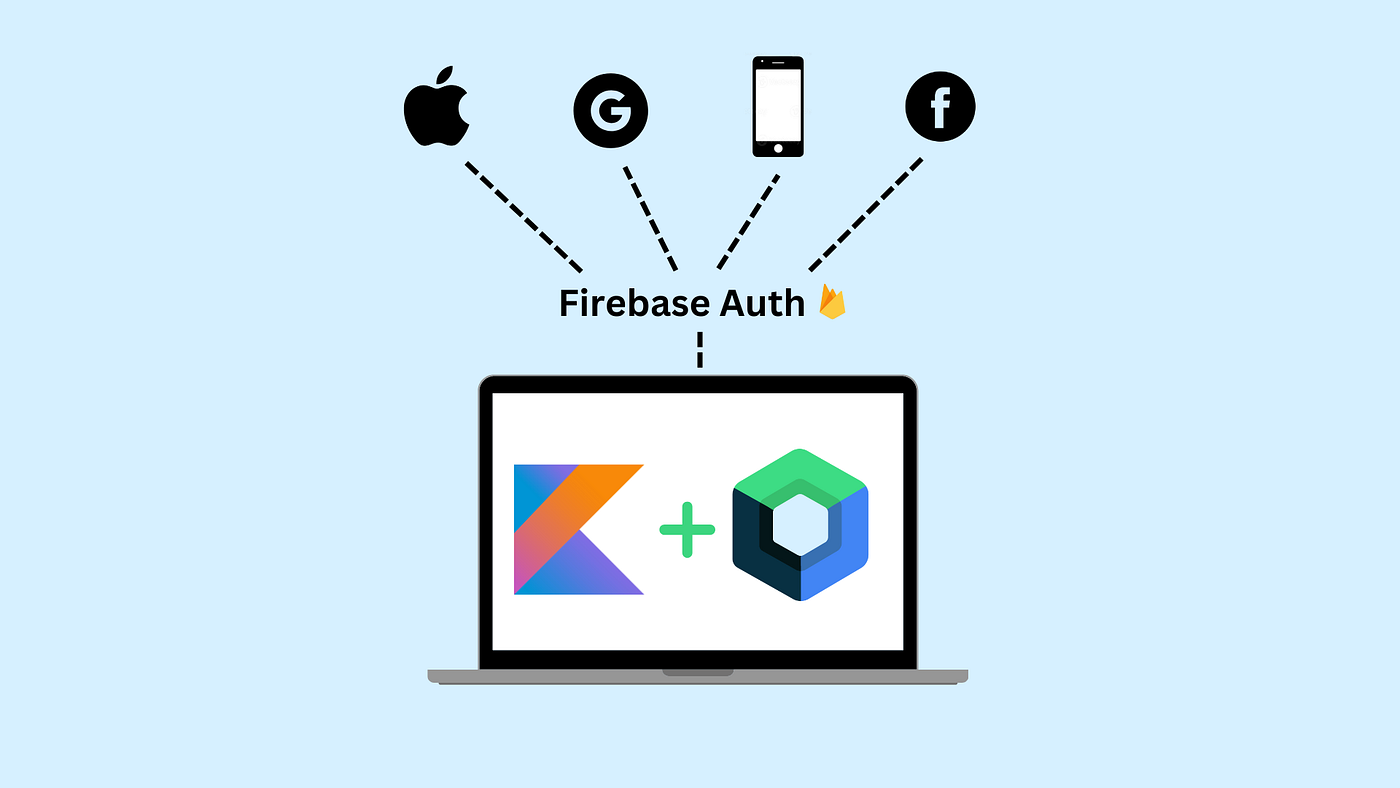
In my previous article, I shared my hurdle with trying to integrate Google Sign-in with Compose Web targeting JS, to my surprise there weren’t any straightforward guides available. This motivated me to create one and help others in the same situation. I noticed another gap however, most authentication resources focus on Android and iOS. So in this follow-up, I’ll be covering popular Firebase authentication options for Kotlin / JS for those of you interested.
This guide will not cover Firebase setup or enabling Apple Sign-infor your project. You can find the documentation for that here.
Let’s start with Apple Sign-in using the same library as before **Firebase-Kotlin-SDK**. I’m guessing most of you are here for Kotlin / JS but it’s worth noting that the library plays nicely with KMP too. If you’re already familiar with the library, feel free to skip ahead.
So the bare minimum setup would be:
 sourceSets {
        commonMain.dependencies {
            implementation("dev.gitlive:firebase-common:2.1.0") // Firebase core utilities
            implementation("dev.gitlive:firebase-auth:2.1.0")
        }
    }
This only applies if you are not using theWASM target in your project, because unfortunately, this library doesn’t support it. If you do need a guide for integrating it withKotlin/Wasm drop a comment below and I will make some time to create one for you!
Once the dependency is set up, it’s time to initialize the Firebase app. Ideally this should happen at the entry point, but hey, it depends on your specific case!
fun main() {
  onWasmReady {
      CanvasBasedWindow("App Title") {
          initializeFirebase()
          App() // Your composable entry point
      }
  }
}

fun initializeFirebase() {
    Firebase.initialize(
            null,
            options = FirebaseOptions(
                applicationId = "your-app-id",
                apiKey = "apiKey",
                authDomain = "authDomain",
                projectId = "projectId",
                storageBucket = "storageBucket",
                gcmSenderId = "gcmSenderId",
                gaTrackingId = "gaTrackingId"
            )
        )
}
To get the Firebase Options navigate to your Firebase project -> Setings -> Web application. There you’ll find the firebaseConfig. Simply grab the corresponding values and let’s move to the essentials.
Now diving through the documentation, one of the methods you’ll see is signing in with a po-up window - just call signInWithPopup(). If you’ve read Part 1 this should sound pretty familiar.
import dev.gitlive.firebase.auth.externals.*
import io.github.aakira.napier.Napier

fun signInWithApple(onSuccess: (User) -> Unit, onFailure: (Throwable) -> Unit) {
    val auth = getAuth()
    val provider = OAuthProvider("apple.com").apply {
        addScope("email")
        addScope("name")
    }
    signInWithPopup(auth, provider).then { userCredential ->
        onSuccess(userCredential.user)
    }.catch { error ->
        Napier.e(throwable = error, message = error.message ?: "")
        onFailure(error)
    }
}
As you might recall thesignInWithPopup() function isn’t exposed to common code. So if you’re using KMP with other targets, you’ll need to create this in the JS main directory. Once that’s done, you’ll be able to call the function from your Kotlin code and — voilà!
Big shoutout to GitLive for creating and supporting the Firebase-Kotlin-SDK.
메타데이터
- post_id
- ed6d9d9364ac
- slug
- kotlin-js-auth-part-2-apple-sign-in-ed6d9d9364ac
- url
- https://proandroiddev.com/kotlin-js-auth-part-2-apple-sign-in-ed6d9d9364ac
- canonical_url
- https://proandroiddev.com/kotlin-js-auth-part-2-apple-sign-in-ed6d9d9364ac
- author_url
- https://medium.com/@tomislavmladenov1
- status
- ok
- fetched_at
- 2026-07-20 20:45:26








