Quick Hack Series Part 5: Mendix PWA Wrapper-Native Packaging Without Going Native
Introduction
Quick Hack Series Part 5: Mendix PWA Wrapper-Native Packaging Without Going Native
Introduction
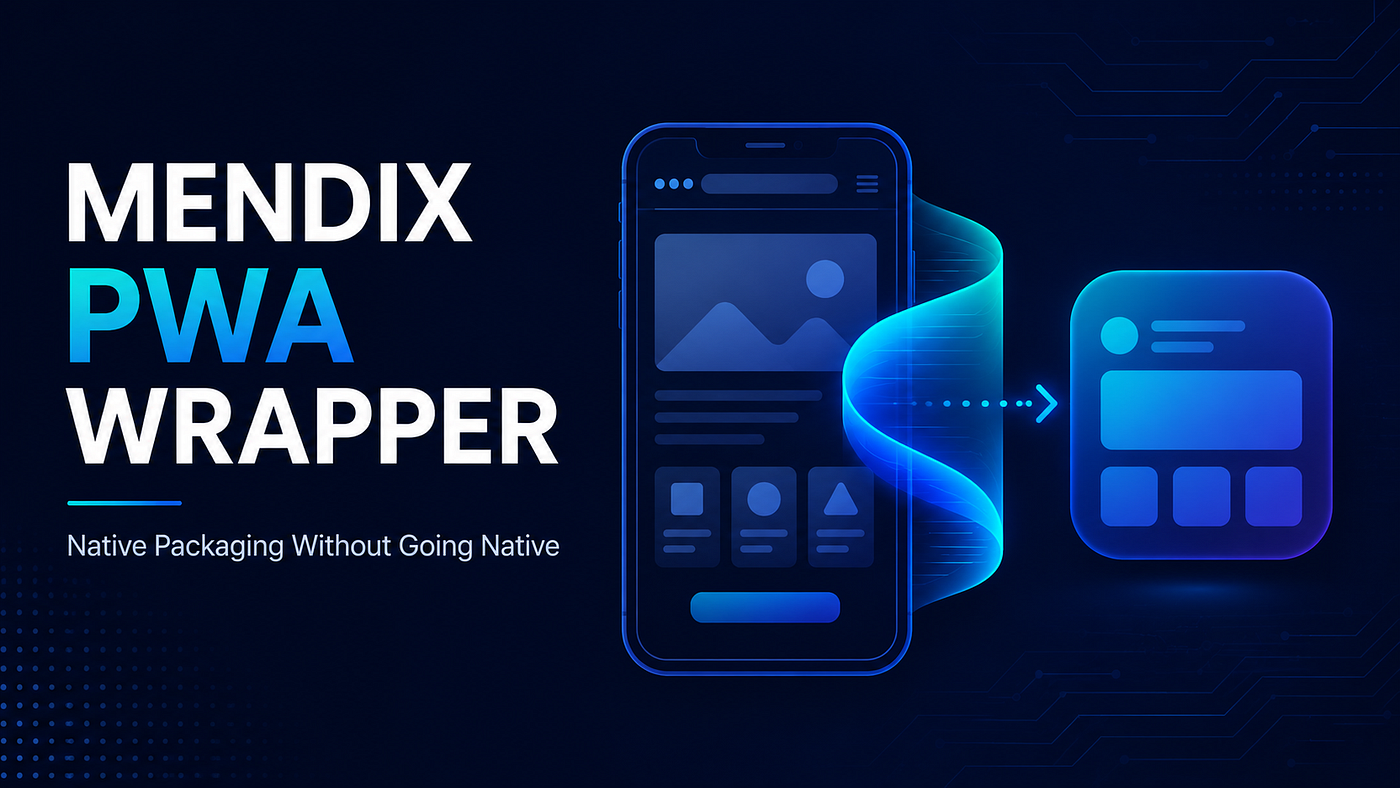
Mendix just dropped a beta feature that splits the difference between PWA and full native mobile and it’s worth a look if you don’t want to commit to React Native for every app.
What it actually does?
PWA Wrapper takes your existing Mendix PWA and wraps it in a native shell for Android/iOS. You get app store distribution, MDM install ability, and a curated set of hardware hooks barcode/QR scanning, biometric auth, geolocation, local notifications, media upload without rebuilding your UI in React Native.
Where it fits
- Full native UI + deep device access → stick with Native Mobile
- Web architecture + app-store packaging + light hardware access → PWA Wrapper
- Just a browser URL → plain PWA
How to implement it
Step1— Check Prerequisites
Make sure you’re on Mendix Studio Pro 10.24 or later. You can start this while your app is still in development. you don’t need a finished PWA first.
Step 2 — Install PWA Wrapper
- Open your app in Studio Pro
- Go to the Marketplace
- Search for “PWA Wrapper” and install it

- When prompted to enable the extension, click Trust module and enable extension.

- The installed module gives you two things: App Builder (the build tool) and PWA Wrapper Actions (JS actions for nanoflows)

Step 3 — Open the Builder Go to Extensions menu → Open App Builder

Step 4 — Choose Your Platform Select Android or iOS depending on what you’re packaging.

Step 5 — Enter App Metadata Fill in:
- App name
- App version
- Package name / bundle identifier in reverse-domain format (e.g., com.domain.myapp)
- App icon
- Runtime URL of your Mendix app
- Supported devices
- Screen orientation
- (iOS only) supported device type if asked
Step 6 — Configure Permissions Review the permissions list and enable only the ones your app actually uses (e.g., camera for barcode scanning, location for geolocation). Don’t enable everything it slows app store review and adds unnecessary prompts.
Step 7 — Set Up Signing
For Android:
- Choose an existing signing config, or create a new one if this is your first build

- Unsigned = OK for internal testing only
- Signed = required for installing on real devices or distribution

For iOS on macOS:
- You’ll need Xcode (or Xcode Command Line Tools), a .p12 certificate, and a .mobileprovision profile[Already there is a documentation on How to create certs for ios]
- Create or select your iOS signing configuration

Step 8 — Generate the Package Click Generate Package and wait for the build to finish.

Step 9 — Retrieve the Output
- Android: open the output directory and grab the APK
- iOS (macOS): grab the signed .ipa (for physical devices) or .app (for simulator)
Step 10 — Install and Test (Optional, via Builder)
For Android:
- Connect your Android device (or start an emulator)
- Select the target device in the builder
- Click Install to Device
- Open the app from the device launcher
For iOS (macOS only):
- Connect your device or start the simulator
- Make sure you have the right artifact (.ipa for device, .app for simulator)
- Select the target device
- Click Install to Device
- Launch from the device/simulator
If install fails, check the builder’s error message first. common causes are missing signing, bad provisioning, no device detected, or a conflicting older build already installed.
Step 11 — Wire Up the JS Actions In your nanoflows, use the bundled PWA Wrapper actions for biometric auth, barcode/QR scanning, camera/gallery media upload, geolocation, local notifications, sharing, file download, printing, network info, URL opening, and permission requests.
Step 12— Distribute Once tested, push the APK/IPA through your normal distribution pipeline (app stores, MDM, internal channels) same as you’d do for any native build.
I hope this helps, give this feature a try and let me know what you think! Drop a comment below and share whether you found this feature useful and worth trying.
Until next time, keep building and keep hacking!
메타데이터
- post_id
- e58c9754d201
- slug
- quick-hack-series-part-5-mendix-pwa-wrapper-native-packaging-without-going-native-e58c9754d201
- url
- https://medium.com/@gurumoorthysutha/quick-hack-series-part-5-mendix-pwa-wrapper-native-packaging-without-going-native-e58c9754d201
- canonical_url
- https://medium.com/@gurumoorthysutha/quick-hack-series-part-5-mendix-pwa-wrapper-native-packaging-without-going-native-e58c9754d201
- author_url
- https://medium.com/@gurumoorthysutha
- status
- ok
- fetched_at
- 2026-07-11 18:45:18